

Run a process with files via Call API
import file containing this ready to use, use-case. - following the import, credentials will need to be configured. :::
At the bottom of this article you'll be able to find:
- import file containing this ready to use, use-case.
- following the import, credentials will need to be configured.
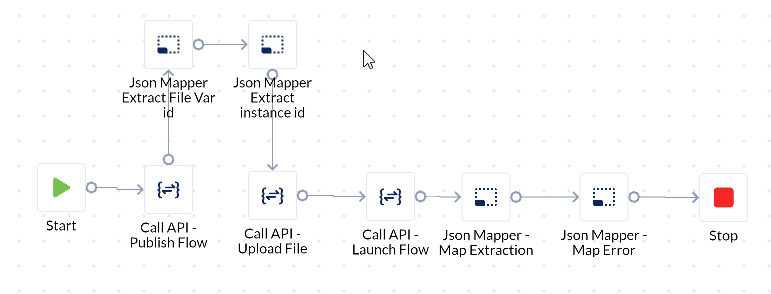
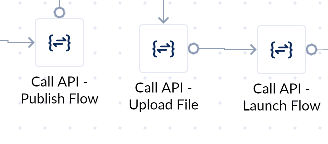
In order to run a process that uses files as input, 3 API Calls must be set up: Publish Flow, Upload File, and Launch Flow.
Step 1: Create a process that requires a file input with a file variable called inputFile.
Step 2: Then create a new process that will run the first process:
Imputs & Outputs:
[I] file: A file type variable that contains the file for the procees that needs to be started.
[I] workspace id : The workspace Id of the workspace where the process that needs to be started is.
[I] inputFile : The same type of variable and name with the one from the first process.
[I] API key: The API key created in the workspace where the process that needs to be started is.
[I] flowTemplateId: A guid variable that stores the uid of the process you want to start.
[I] API key Value: The API key value created in the workspace where the process that needs to be started is.
[O] publishResultBody: Json variable that stores the body output for the Publish Flow Call API.
[O] publishStatus: String variable that stores the status output for the Publish Flow Call API.
[O] fiIeID: Guid variable that stores the result of the Json Mapper Extract File Variable ID.
[O] uploadFileStatus: String variable that stores the Upload File Call API status.
[O] uploadFileRespone: Json variable that stores the body output for the Upload File Call API.
[O] Extraction: Json variable that stores the result for the Json Mapper - Map Extraction.
[O] error: String variable that stores the result for the Json Mapper - Map Error.
Step 3: In the Automation section - API keys - create a new key /docs/overview/automation/api-keys .
Step 4: Configure the first Call API action:
Call API - Publish Flow configuration:
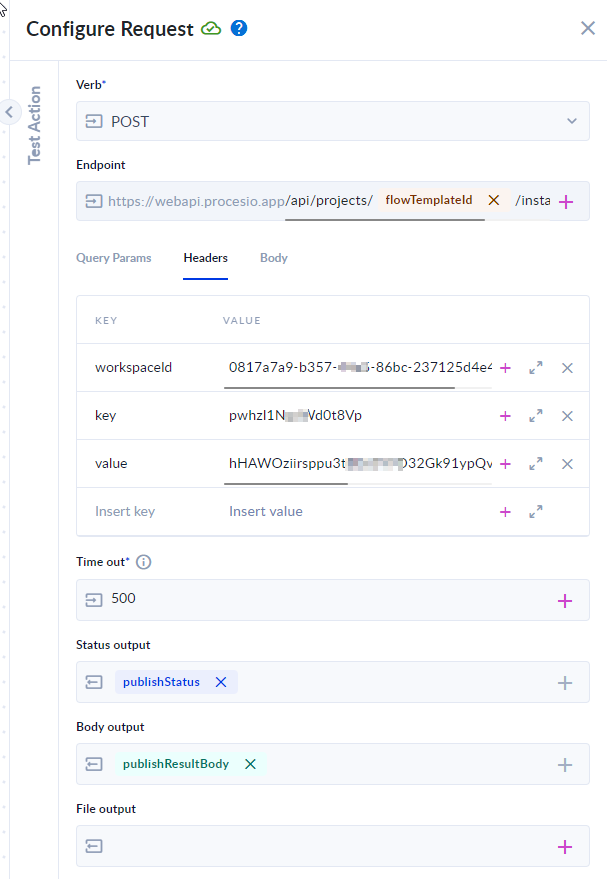
Headers:
| Key | Value |
|---|---|
| workspaceId | the workspace id |
| key | the API key |
| value | the API key value |
- Workspace ID of the workspace where the process that needs to be started is.
- API key and Value from the workspace where the process that needs to be started is.
Body:
In the body send the file id and name.
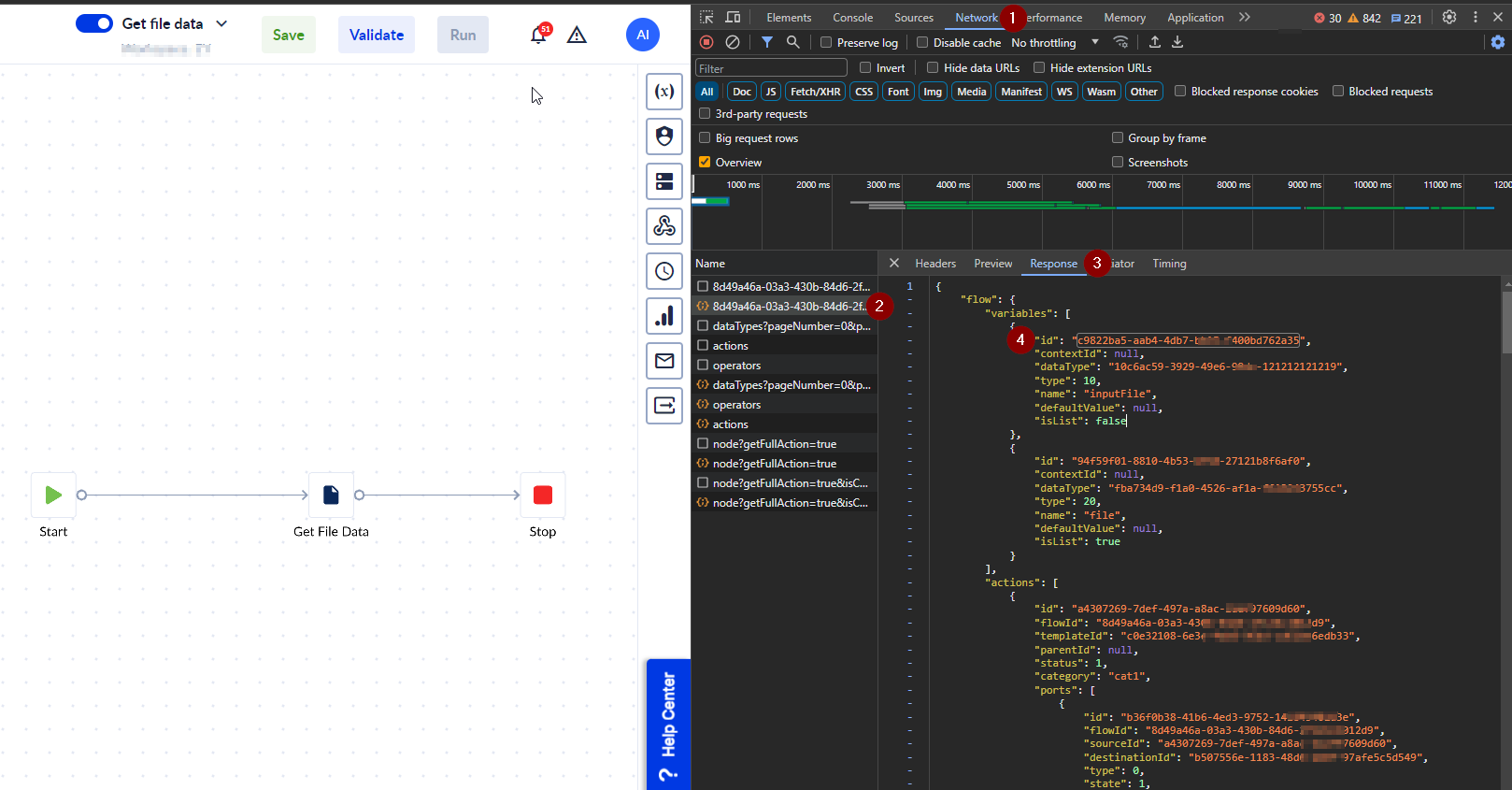
In order to get the file id:
- Open the developer tools in your browser.
- Open the project you want to run.
- Open the Networking section
- Select the first response since you opened the process.
- By name identify the file that needs to be upload and copy the id:
Step 5: Configure the Json Mapper to extract the file id.
Json Mapper - Extract File Var id:
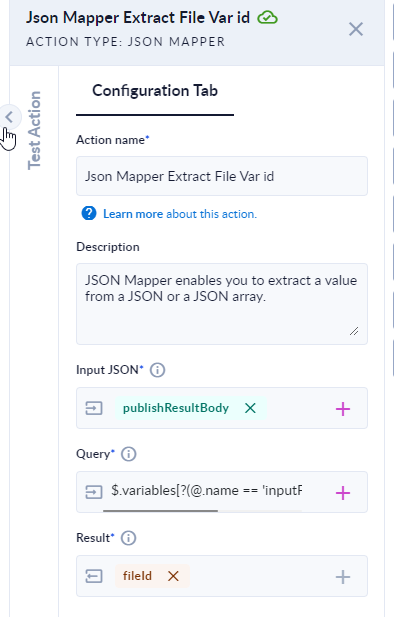
Input JSON: publishResultBody
Query: $.variables[?(@.name == 'inputFile')].defaultValue.id
Result: fileID
Json Mapper - Extract File instance id:
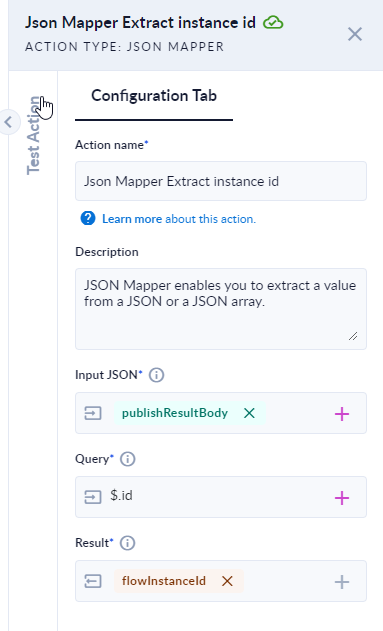
Input JSON: publishResultBody
Query: $.id
Result: flowInstanceId
Step 6: Configure the second Call API action.
Call API - Upload File:
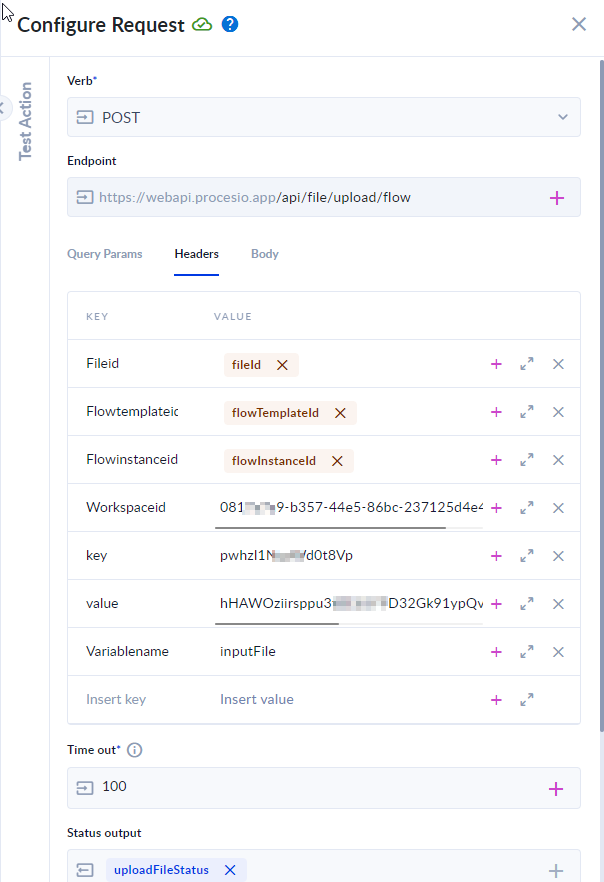
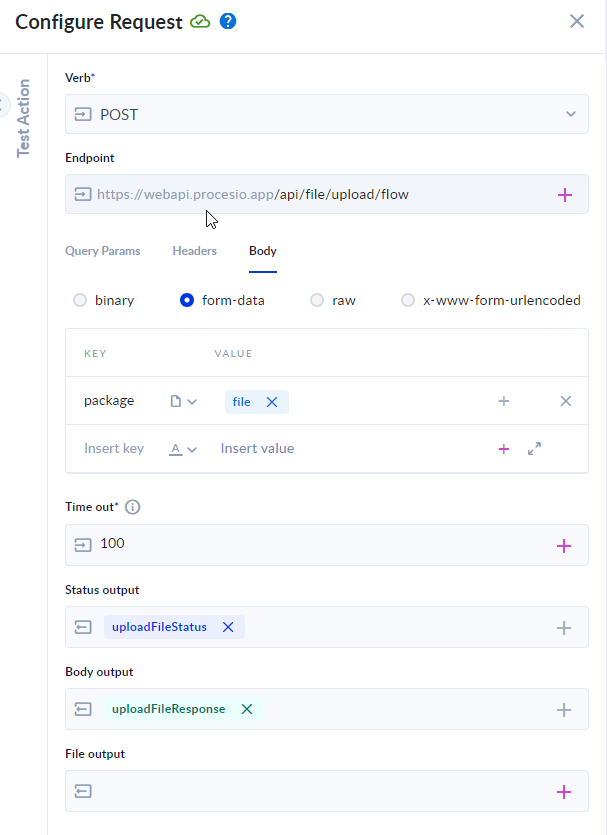
A POST on https://webapi.procesio.app/api/file/upload/flow
Headers:
| Key | Value |
|---|---|
| Fileid | fileId |
| Flowtemplateid | flowTemplateId |
| FlowInstanceId | flowInstanceId |
| WorkspaceId | the id of the workspace |
| key | the API key |
| value | the API key value |
| Variablename | inputFile |
Body:
form-data:
Key: package Value
Value: file (the file type variable configured for the process that needs to be started.
Step 7: Configure the third Call API action.
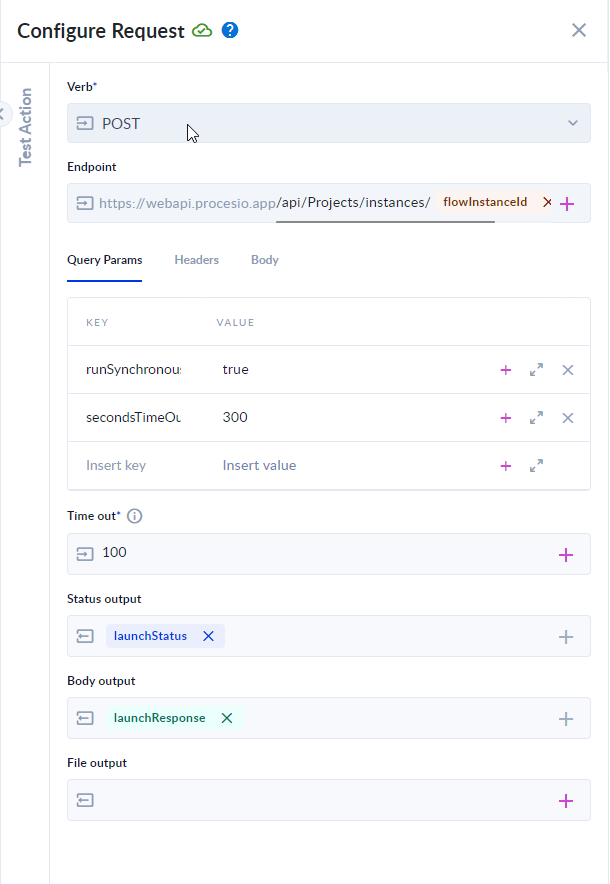
Call API - Launch Flow:
Query Params:
| Key | Value |
|---|---|
| runSynchronous | true |
| secondsTimeOut | 300 |
runSynchronous is required only if a response from the process is expected.
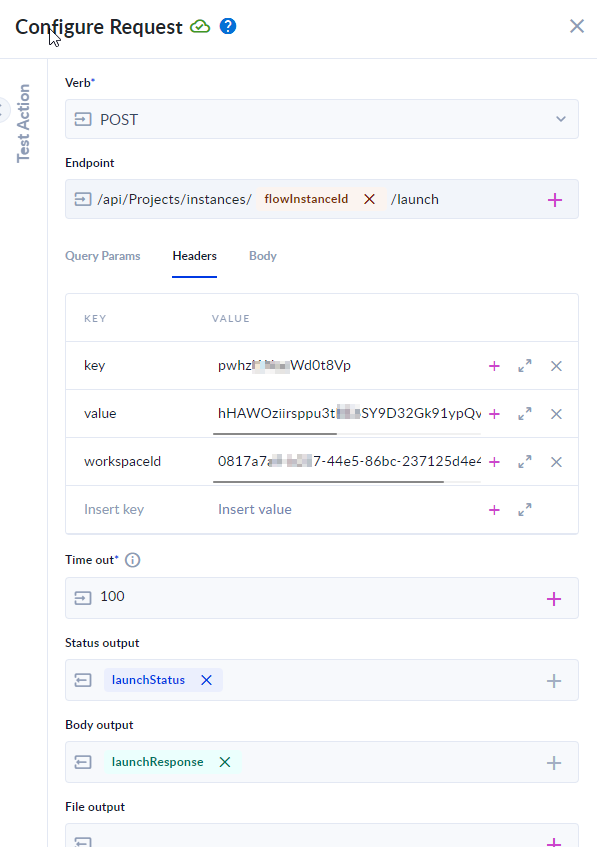
Headers:
| Key | Value |
|---|---|
| key | API key |
| value | API key value |
| workspaceId | The workspace id |
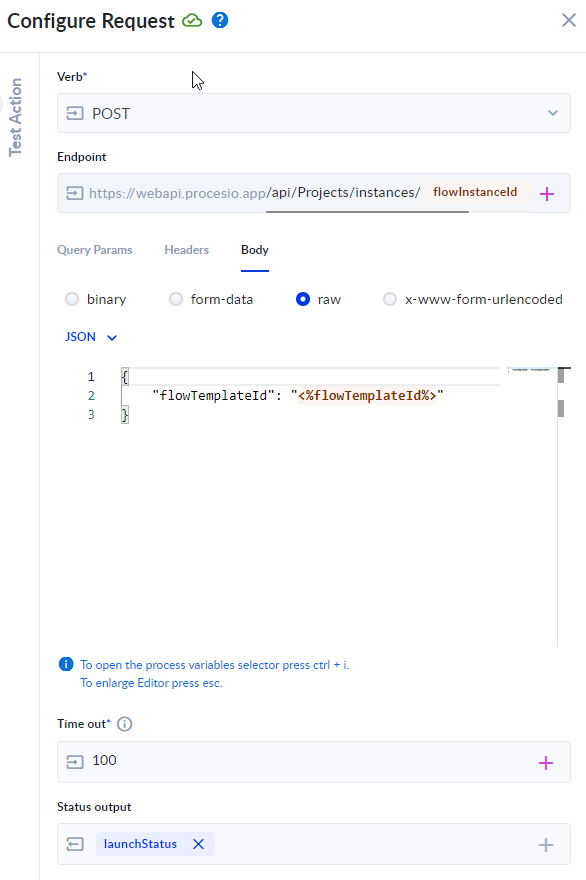
Body:
{
"flowTemplateId": "<%flowTemplateId%>"
}
Step 8: Configure the Json Mapper to get a variable value from the process.
Json Mapper - Map Extraction:
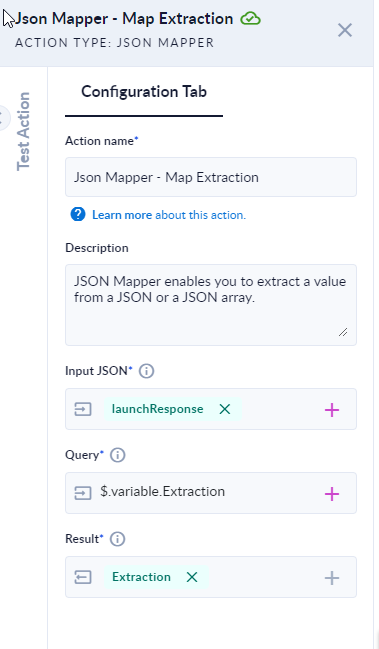
Input JSON: launchResponse
Query: $.variable.Extraction
Result: Extraction
Step 9: Configure the Json Mapper to get the error variable from the process.
Json Mapper - Map Error:
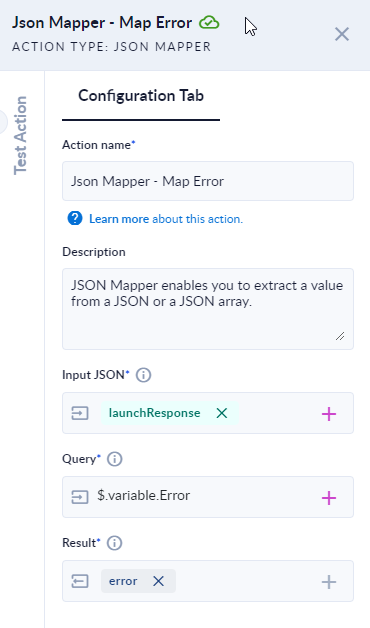
Input Json: launchResponse
Qury: $.variable.Error
Result : error
Import file: