

Data Store
A table you define and fill inside a workspace — rows and columns you can read and write from a process, from a form, or through the API.
Behaviours in this guide were verified on 12 August 2026. The screenshots come from the automated test suite, which is why the example stores are named AUTO_DSACT_Store and AUTO_DOCS_Store.
What a Data Store is
A Data Store holds structured records — a customer list, a price table, a queue of things to process — that live in your workspace and persist between process runs.
You define the columns once, then add rows through the interface, a CSV import, a process, a form, or the API. Any process in the same workspace can read those rows, add to them, change them or remove them.
Data Store or Data Model?
They solve different problems. A Data Model describes the shape of data moving through a single process run — it holds no records of its own. A Data Store is where records actually live and stay. If you need the information to still be there tomorrow, or to be shared between runs, use a Data Store.
Creating a Data Store
Open Data Stores from the sidebar and choose Create. Give it a name, then define your columns.
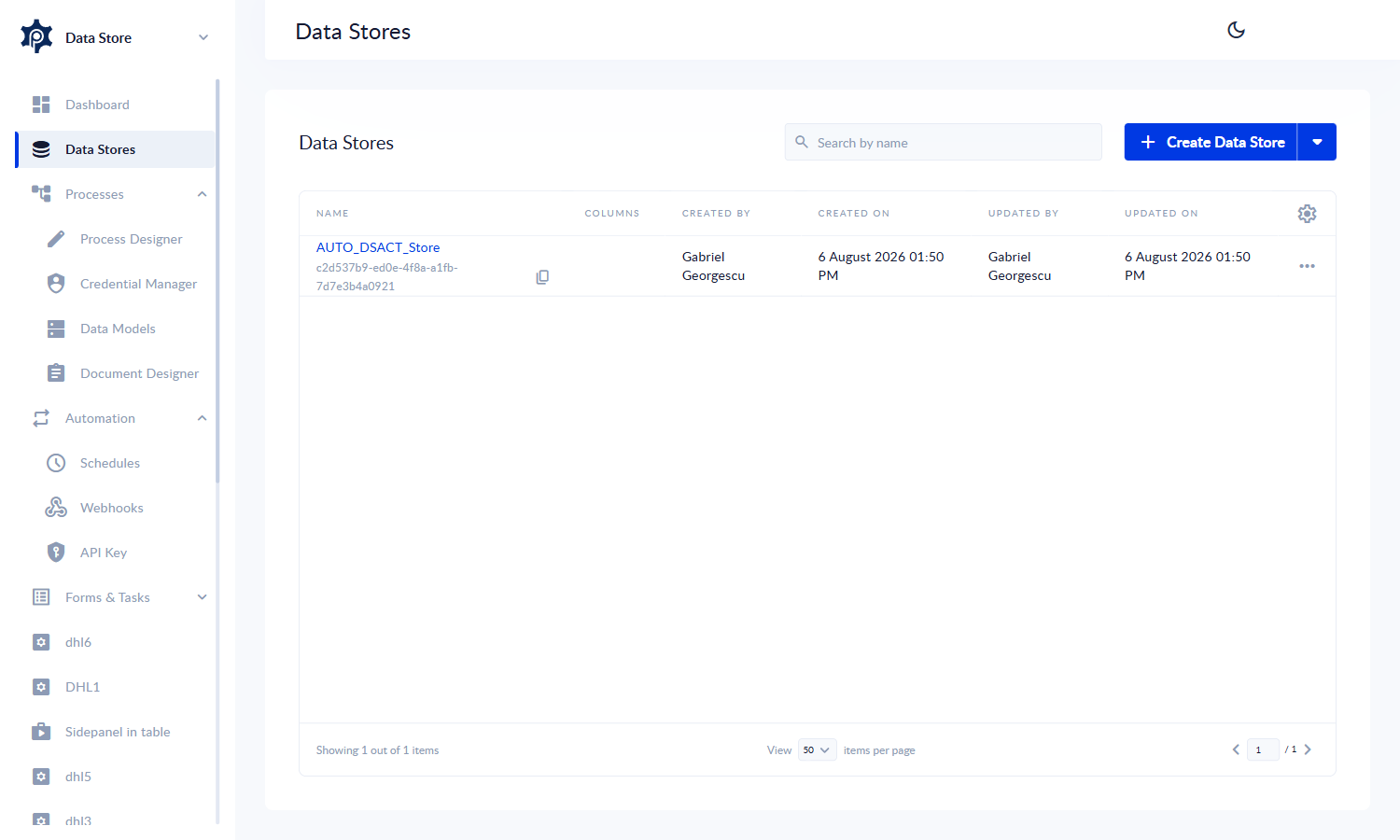
The Data Store list. Each store shows its name and description; Create is top right.
Columns
| Setting | What it means |
|---|---|
| Name | Up to 64 characters. This is what you will pick from every column list later, so make it readable — InvoiceNumber reads better than inv_no. |
| Type | One of nine types — see Column types. Choose deliberately: changing a type later can affect rows that already exist. |
| Primary key | At least one column must be a primary key. It identifies a row uniquely, so no two rows may share the same value. You can mark several columns as the key together (a composite key) when one column alone isn't unique. |
| Required | A required column must have a value in every row. Adding a row without one is rejected. |
Columns you get for free
Every Data Store automatically tracks four system columns. You cannot create, rename or write to them, but you can filter and sort by them:
| Column | Holds |
|---|---|
CreatedOn | When the row was first added |
UpdatedOn | When the row last changed |
CreatedById | Who added it |
UpdatedById | Who last changed it |
Only those four exact names are reserved. A near-miss like created_on is accepted as an ordinary column, which is rarely what you want — it will sit alongside the real CreatedOn and confuse everyone later.
Editing the schema — saving a Data Store replaces its entire column definition. This is by design, and it is powerful enough to hurt: if you remove a column and save, that column's data is gone and cannot be recovered, and saving with every column removed empties the store the same way, without any extra confirmation. Export a CSV before making structural changes to a store that holds real data.
Column types
Nine types are available. There is no separate Date, Time, Decimal or File type — use DateTime or String instead.
| Type | Use it for | Worth knowing |
|---|---|---|
String | Names, codes, notes, anything textual | Holds up to 65,535 bytes. Accented and non-Latin characters count for more than one byte each. |
Integer | Counts, quantities, whole numbers | 64-bit. A decimal is accepted and silently rounded — 2.5 becomes a whole number with no warning, and which way an exact half rounds differs between entry points. If the fraction matters, use Double; if it doesn't, round deliberately before writing. |
Double | Prices, measurements, anything fractional | Standard 64-bit floating point. |
Float | — | Stored identically to Double. It does not save space or give you lower precision; prefer Double for clarity. |
Boolean | Yes/no flags | Write it as unquoted true / false — those two literals are accepted everywhere: adding rows, filtering, CSV. Numbers (1/0) and quoted text ("true") are each accepted in some places and rejected in others, so don't rely on them. |
DateTime | Dates and timestamps | Write as 2026-07-17T14:30:00. A date alone (2026-07-17) works too and means midnight. A trailing Z is rejected by the rows API. |
Guid | Identifiers from other systems | Values are not validated. A malformed identifier is accepted and stored in a mangled form, so validate before writing. |
Json | Nested or variable structures | Stored as JSON. Structure round-trips, but key order and whitespace are normalised, so don't compare the raw text. |
Object | Same as Json | Behaves identically to Json. |
Date and time format — the accepted written form is YYYY-MM-DDTHH:mm:ss, for example 2026-07-17T14:30:00. Formats like 17/07/2026 14:30 or a Unix timestamp are rejected. Values are stored as written, without timezone conversion, so decide on one timezone convention for your workspace and stick to it.
Working with rows
Open a Data Store to see its rows. From here you can add records, filter, sort and page through the data, and — with the Read-Only switch flipped to Edit Mode — change it in place.
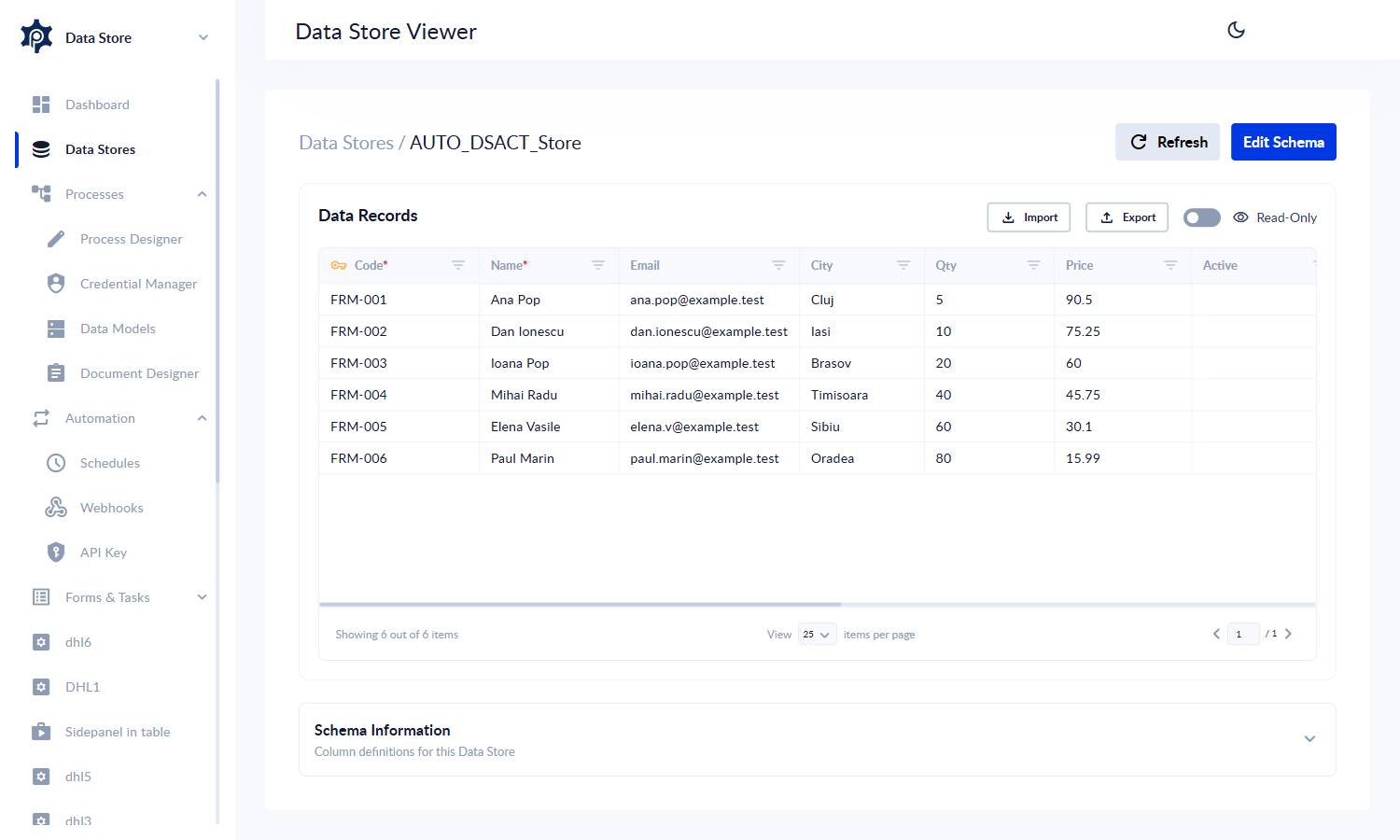
The Data Store viewer. Each column header carries its type, the key column is marked, and required columns show an asterisk. Import and Export handle CSV; the Read-Only switch protects the data while you are just looking.
Filtering and sorting
Every column header has a small filter icon. Click it to open the column's menu: sort the grid A→Z or Z→A from the top, or build a filter below — pick an operator, give a value, and press Add. Each active filter appears as a chip above the grid; remove one chip, or Clear all, to widen the view again.
Which operators the menu offers depends on the column's type — text columns offer contains and starts with, number and date columns offer greater than, less than and between, and so on.
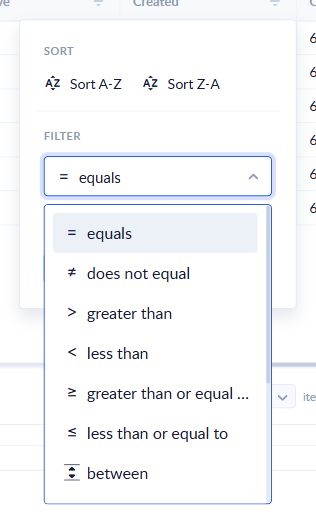
The filter menu on a DateTime column with its operator list open. Date columns take their value from a date picker plus a time picker — both matter, as explained below.
Text matching ignores case. Searching acme finds ACME and Acme. Sorting is case-insensitive too, so apple and Apple sort together rather than in separate blocks.
Filtering dates: pick a date and a time
On a date column, equals compares the exact instant — the date and the time together. If you pick only a date, the time part defaults to midnight (00:00), so the filter matches only rows stored at exactly midnight — against real data that is usually no rows at all, with no error to tell you why.
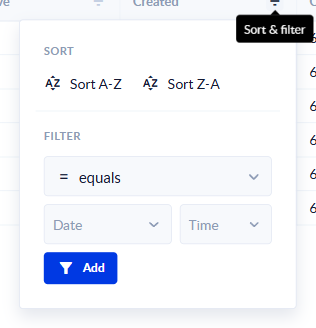
A date column's filter takes its value from two pickers — Date and Time. Leaving Time empty means 00:00, not "any time that day".
- Looking for one exact record? Pick the date and the time with equals.
- Looking for "everything on that day"? Use between — from the day at
00:00to the day at23:59— or a pair of greater than / less than conditions.
A date filter that matches nothing — "Equals 17 July" with no time means "equals 17 July at 00:00:00 exactly". This is the single most common reason a date filter comes back empty while you can see matching rows on screen. Reach for between when you mean a whole day.
Paging
Rows come back a page at a time. Two behaviours are worth knowing if you page through data from a process or the API:
- Asking for a page beyond the end returns the last page, not an empty one. Don't loop "until the page comes back empty" — it never will. Work out the number of pages from the total count instead.
- A page size of
0means every row, unpaged. Handy for small tables, risky for large ones.
Editing rows in the grid
The grid opens in Read-Only mode so nothing changes while you browse. Flip the switch to Edit Mode and the rows become editable in place: type into any cell, add new rows with Add Row, and remove a row with the bin icon at its end.
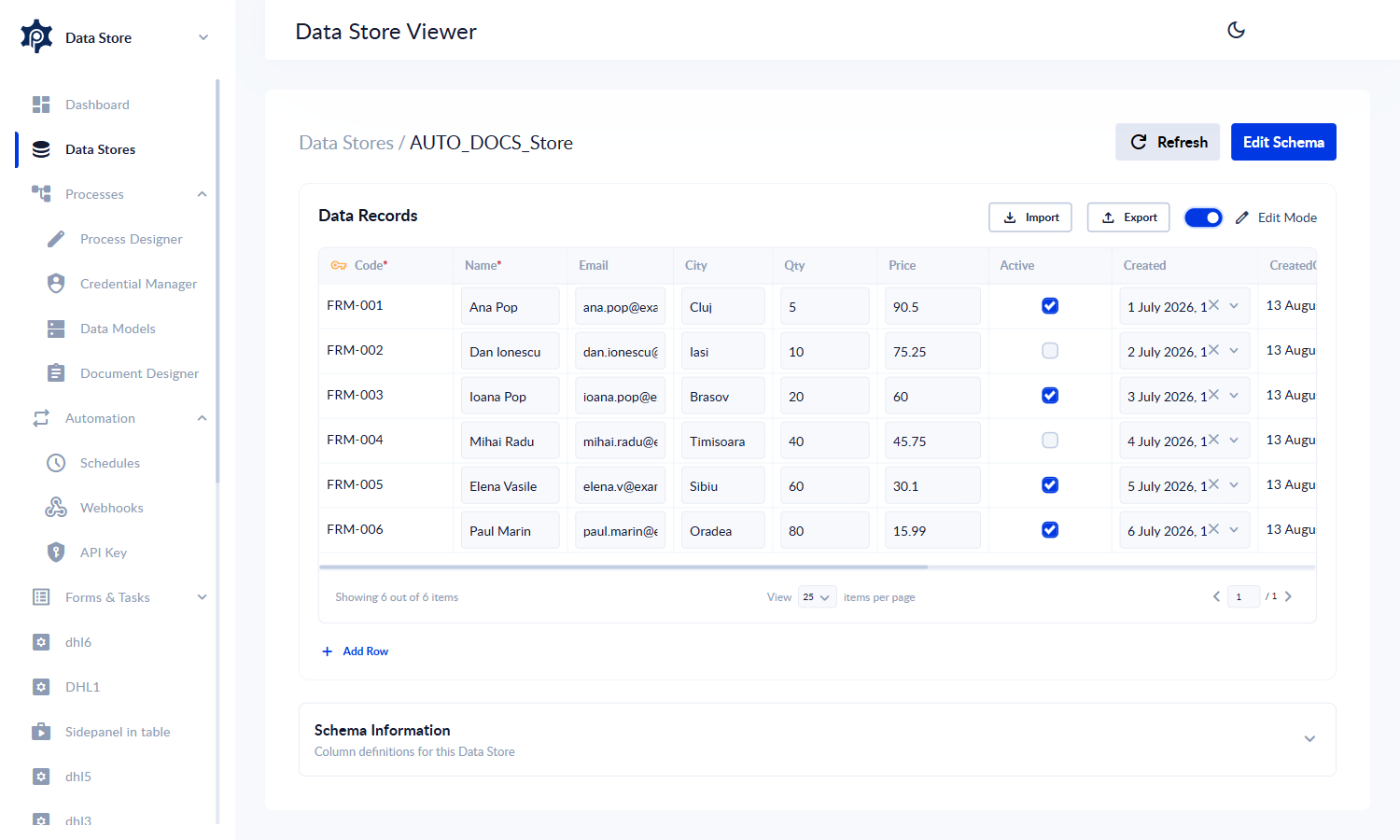
Edit Mode. Cells become inputs, Add Row appends a record, and the bin icon on each row deletes it. Nothing is saved yet — the edits are held until you commit.
Your edits are collected, not saved one by one. The Commit Changes button counts them as you go. When you are done, press it and a Confirm changes dialog tells you how many rows will be written and reminds you the write cannot be undone. Yes, commit changes writes the whole batch together; Discard Changes throws it away and puts the grid back the way it was; Cancel returns to editing with the batch intact.
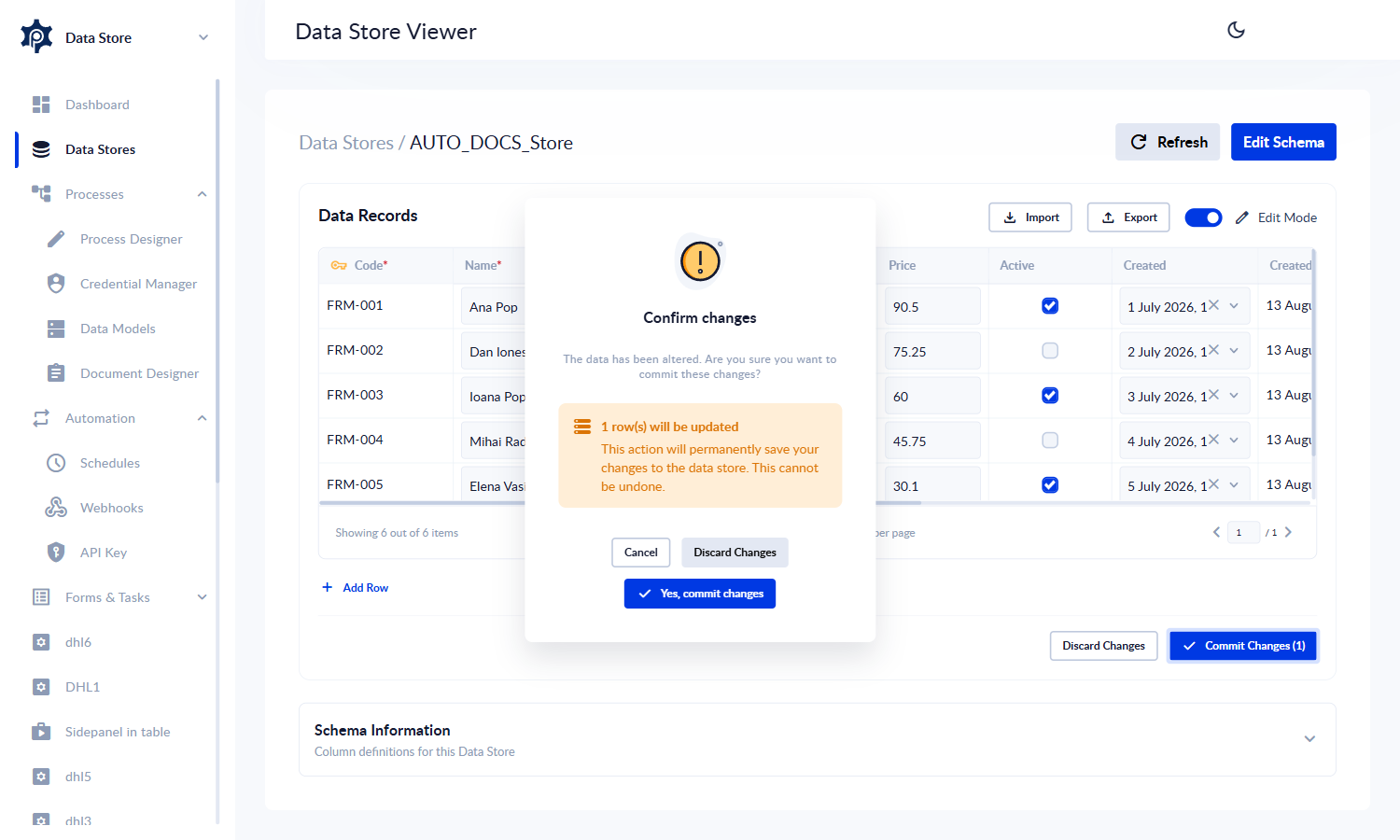
The Confirm changes dialog guards every batch of edits: Yes, commit changes writes them, Discard Changes abandons them, Cancel keeps editing.
Uncommitted edits are lost on navigation — leaving the page, or switching back to Read-Only, without committing abandons the pending edits silently. If a row you "added" is missing later, this is almost always what happened: the commit step was skipped.
Two details to know: a new row must respect the schema — required columns need a value, and the primary key must be unique — and a cell edit that violates a rule is reported when you commit, not while you type. If the Edit Mode switch is greyed out, your account lacks the Data Store rows permission — see Who can see what.
Importing and exporting CSV
Both run as background jobs — you start them, and the file becomes available when the job finishes. Large files take a moment; nothing is lost if you navigate away.
Preparing a file to import
- Comma-separated, UTF-8. A byte-order mark is tolerated.
- The first row is a header of column names. They are matched by name, ignoring case and surrounding spaces, so column order doesn't matter.
- Booleans as
true/falsein lower case. - Dates as
2026-07-17T14:30:00.
What happens to bad data
| Situation | Result |
|---|---|
| A header doesn't match any column, or a required column is missing | The whole import is rejected before anything is written. |
| Individual rows have bad values | The good rows are imported and the bad ones are collected into a failures file you can download, with the reason on each row. |
| A row's primary key already exists | The existing row is updated. Import is the supported way to bulk-update. |
That last one differs from adding rows through a process or the API, where a duplicate key is an error rather than an update.
Exporting
Export produces the user columns only — the four system columns are not included. If you need CreatedOn in a spreadsheet, copy it into a column of your own.
Opening exports in a spreadsheet — cells beginning with =, +, - or @ are exported exactly as stored. Spreadsheet applications may treat them as formulas when the file is opened. If your data can contain values like that, open exports with an import step that treats every column as text.
Using a Data Store in a process
The Data Store action reads and writes rows as part of a process. Find it in the toolbox by searching for "Data Store" and drop it onto the canvas.
Search the toolbox for "Data Store" to find the action. If the toolbox shows shapes instead of actions, switch the toolbox source back to Actions — only that side has a search box.
Setting it up
- Click the action to open its panel.
- Pick the store under Select Data Store.
- Choose an Operation — Select, Insert, Update or Delete.
- Open Configure Operation to set up the details. The fields shown change with the operation you chose.
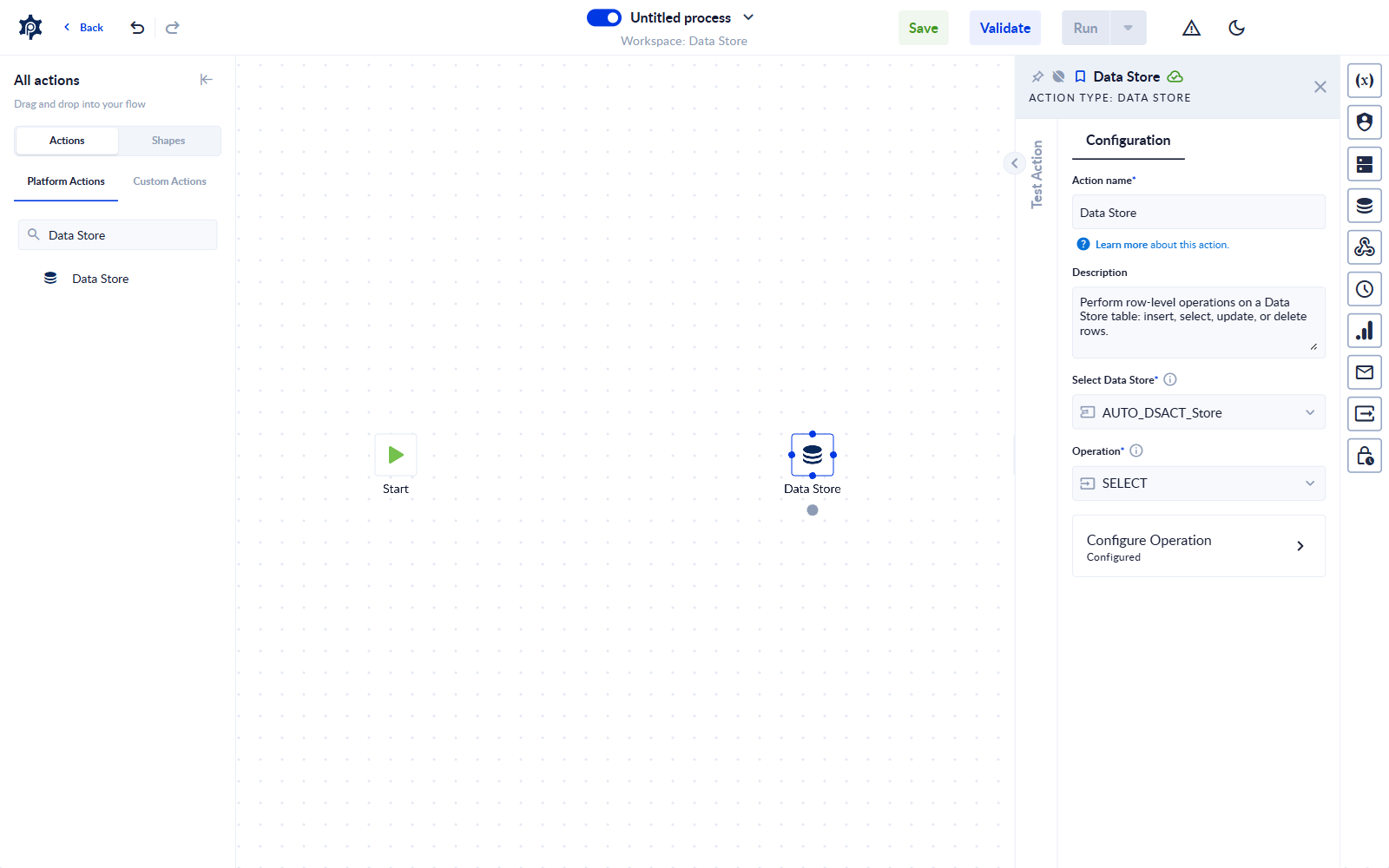
The action panel: pick the store, then the operation. Configure Operation opens the fields for the operation you chose.
Order matters — pick the store before the operation, and know these two quirks of the store list: a store created while the designer is open doesn't appear in the list until you reload the designer; and if you change the store on an action that was already configured, the previous store's columns stay on screen — re-pick the operation, Sort By and every Where column so the run doesn't fail on a column that no longer exists.
What each operation does
| Operation | You configure | You get back |
|---|---|---|
| Select | Page Number, Page Item Count, Where, Sort By, Desc | Result Rows — the matching rows. Total Count — how many rows matched in total. |
| Insert | Set Values — one entry per column you want to fill | Affected Rows |
| Update | Set Values (what to change) and Where (which rows) | Affected Rows |
| Delete | Where (which rows) | Affected Rows |
Update and Delete apply to every matching row — the Where filter is a filter, not a key lookup. An Update or Delete whose Where matches ten rows changes ten rows. Before a destructive run against real data, try the same Where on a Select first and check Total Count — it tells you exactly how many rows the write would touch.
Reading rows
Page Item Count defaults to 0, which returns every matching row. Set a number to page through instead. Total Count always reports how many rows matched your filter, not how many are on the current page — use it to work out how many pages there are. Like the viewer, a page number past the end returns the last page, never an empty one.
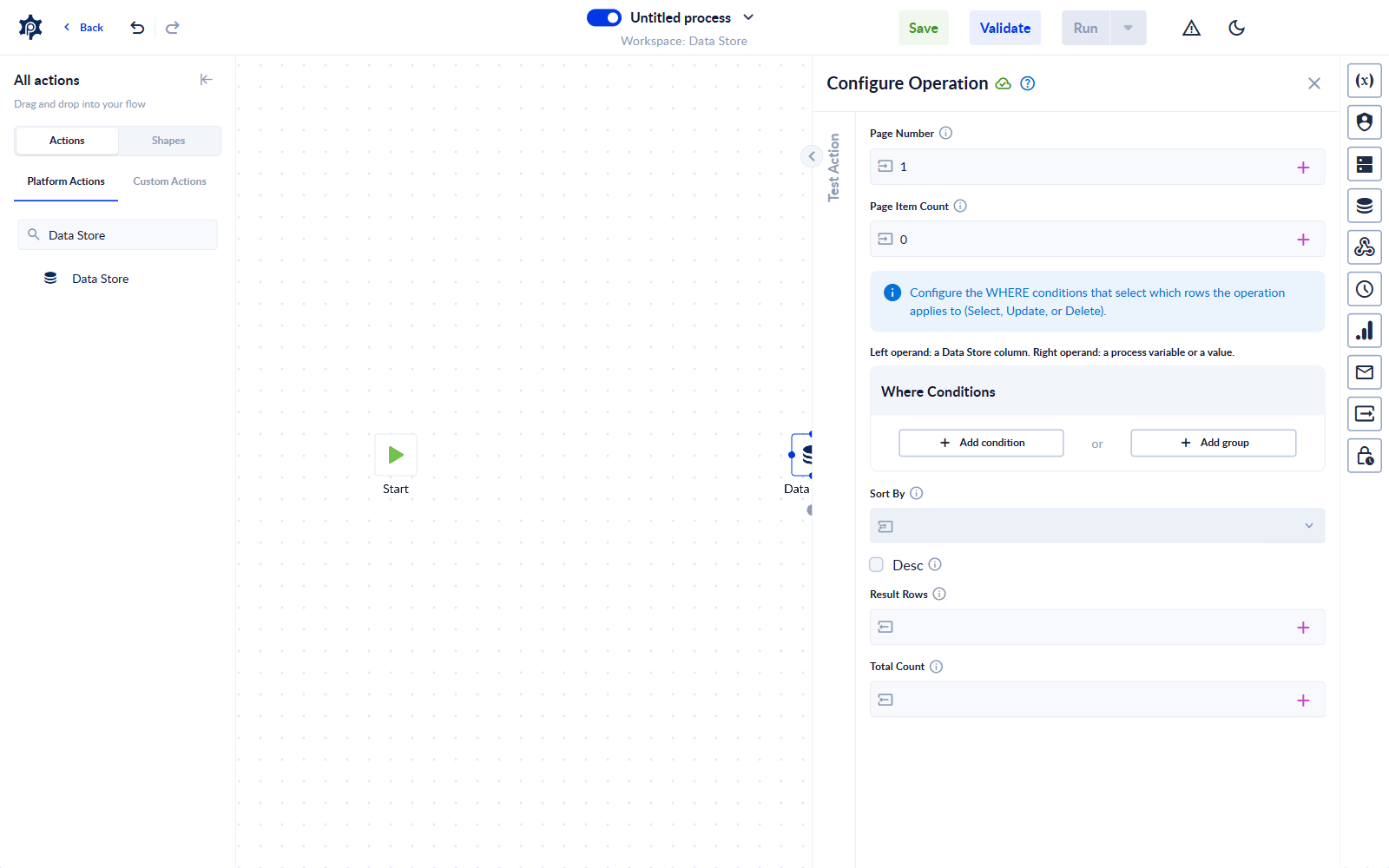
Configure Operation for a Select — paging, the Where builder, sorting, and the outputs.
Sort By lists your columns and the four system columns, so you can sort by CreatedOn to process the oldest records first. Tick Desc to reverse the order.
Writing rows
Set Values maps a column to the value you want written. Each entry can be a fixed value or a process variable, so an Insert can write data collected earlier in the run. Columns you leave out of the mapping are untouched by an Update.
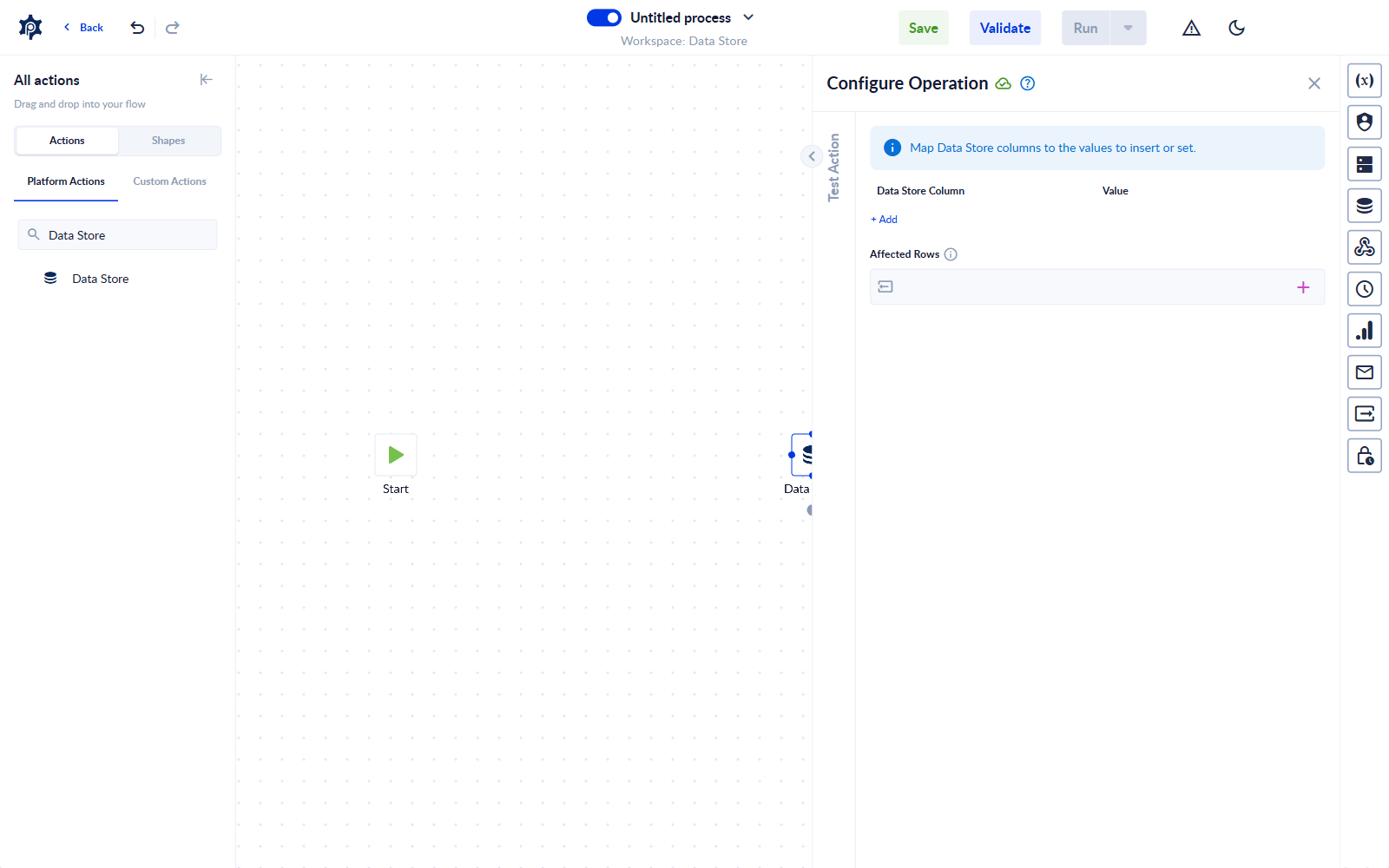
Set Values for an Insert — one entry per column you want to fill.
A primary key column cannot be changed by an Update — put it in the Where filter to choose which row to change instead. Trying to set it produces a clear error telling you the same.
Using the results downstream
The outputs are ordinary process data. Bind Result Rows to a variable and a later action can loop over it, and Total Count can drive a Decisional — for example, branch when a lookup found nothing.
If an operation fails — a failing Data Store action stops the process unless you have connected its error path. Nothing is partially written: if an Insert is rejected, no rows are added at all.
Filtering with Where
The Where builder decides which rows a Select, Update or Delete applies to. Add a condition, pick the column, pick the operator, and give a value. Add more conditions and chain them with and / or. Picking the column also decides which operators the condition offers, so always pick the column first.
You can filter on the system columns too — CreatedOn after a given date is a common way to pick up recent records.
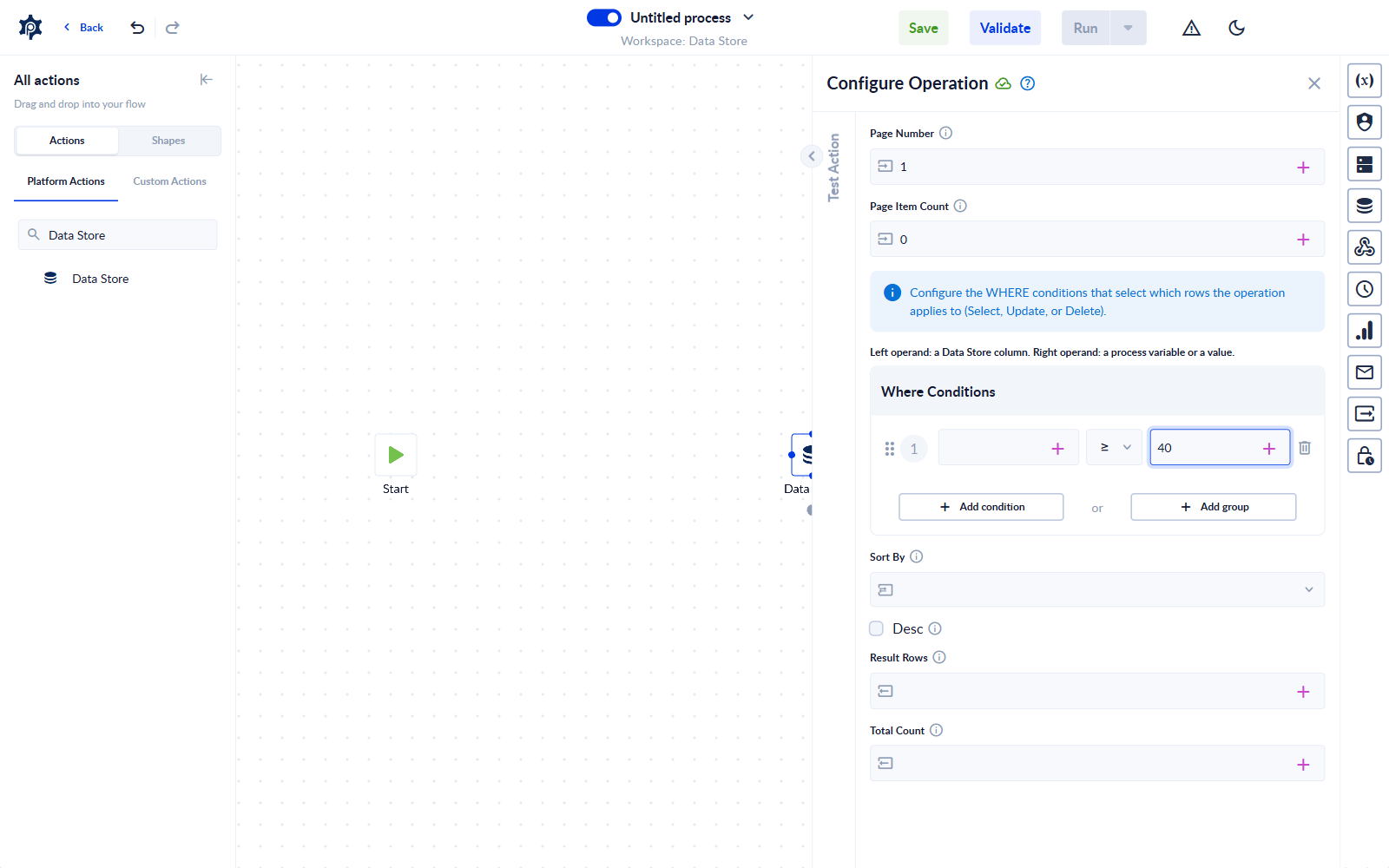
A condition on Qty — operator "greater than or equal", value 40. Once picked, the column is not redisplayed in the collapsed row (only the operator and value show) — click the left box when you need to check or change which column a condition points at. "Add condition" chains another; the badge between two conditions toggles and/or. Sort By, Desc and the outputs sit below.
Chaining conditions: and binds before or
With three or more conditions mixing and with or, the and pairs are evaluated first — exactly as the builder's own tooltip says: "AND has priority over OR in evaluating conditions." So
City = Cluj or Qty > 50 and Active is false
means City is Cluj, or (Qty over 50 and not active) — not "one of the first two, and also not active". If you mean the other grouping, put the or branch in its own group; a group is evaluated as one bracket.
Which operators you get
The list depends on the column's type:
| Column type | Operators |
|---|---|
String | Equals · Does not equal · Contains · Does not contain · Starts with · Ends with · Like · Not like · Belongs · Does not belong · Is empty · Is not empty |
Integer, Double, Float, DateTime | Equals · Does not equal · Greater than · Less than · Greater than or equal · Less than or equal · Between · Is not between · Belongs · Does not belong · Is empty · Is not empty |
Boolean | Is true · Is false · Equals · Does not equal · Belongs · Does not belong · Is empty · Is not empty |
Guid | Equals · Does not equal · Belongs · Does not belong · Is empty · Is not empty |
Json, Object | Equals · Does not equal · Is empty · Is not empty |
Operators that need a particular kind of value
- Between and Is not between need two values — a lower and an upper bound. Both bounds are included in the match; leaving the second one out fails the run with a clear message.
- Like and Not like match text with SQL wildcards:
%stands for any run of characters, so%Pop%finds "Ana Pop" and "Ioana Popescu", and%Poponly values that end in "Pop". Without a wildcard, Like is an exact match —Popalone matches only the value "Pop". If you just want "text appears anywhere", Contains is the simpler operator. - Belongs and Does not belong match against a list. Provide it as a JSON array, for example
["Draft","Pending"]. A plain comma-separated list is not accepted. - Is empty matches rows where the column has no value at all. A column holding an empty piece of text is not "empty" in this sense.
- On a date column, Equals compares date and time — the same rule as the viewer's filter menu; see Filtering dates. Use Between for a whole day.
Filtering a yes/no column — use Is true and Is false. On current builds, Equals true in a process Where returns the rows where the value is false — and reports no error. This matters most on Update and Delete, where it would change the wrong records. (Filtering a yes/no column in the viewer or in a form is not affected.)
Changing a condition's column — to point an existing condition at a different column, delete the condition and add a fresh one. Re-picking a column on a condition that already has one adds a second operand instead of replacing the first, and the condition stops meaning what it reads as.
Using a Data Store in a form
A form can read from and write to a Data Store through an event. The usual pattern is to show stored records in a table when the form opens; the same mechanism can add, update and delete records from the form's fields.
Showing records in a table
- Add a table element to the form.
- On the form, add an event with the trigger Form load and the action Run Data Store operation.
- Choose the store and the operation Read.
- Map the returned
rowsto the table's value.
A Read loads page 1 with 1,000 records per page by default. For a bigger store, raise Records per page, or better, add row filters so the form only loads what it shows.
One row showing instead of all of them? The table's row template must be a dynamic row. A static row renders exactly once no matter how many records come back — this is the single most common cause of "only the first record appears".
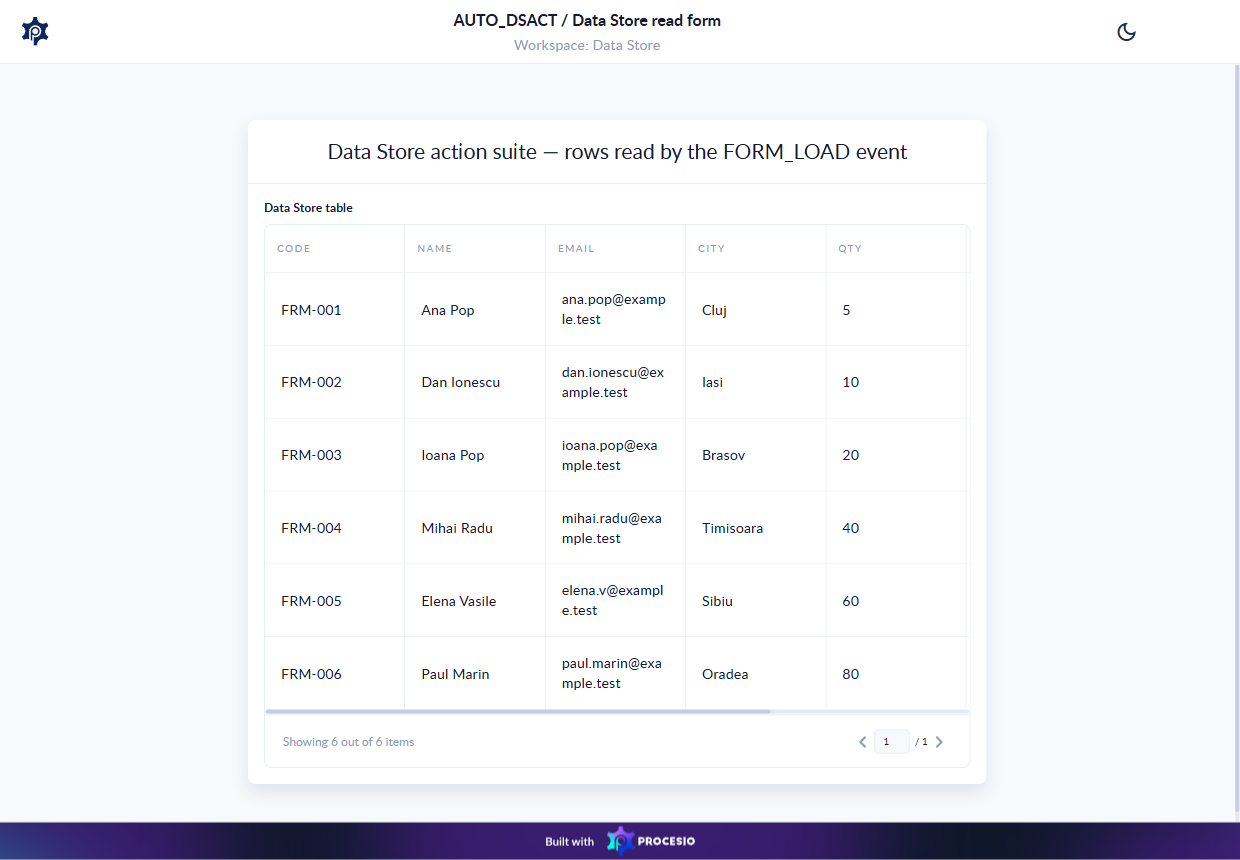
A public form whose Form load event reads a Data Store into a table. The pager reports the number of records the read returned.
Filtering what the form reads
A Read event doesn't have to load the whole store. Open the event's Map data and filter rows panel — the row carries a Filters configured / not configured badge — and use Row filters at the bottom: + Add condition adds one condition (column, operator, value), + Add group adds a bracketed sub-group, and the badge between conditions toggles and/or.
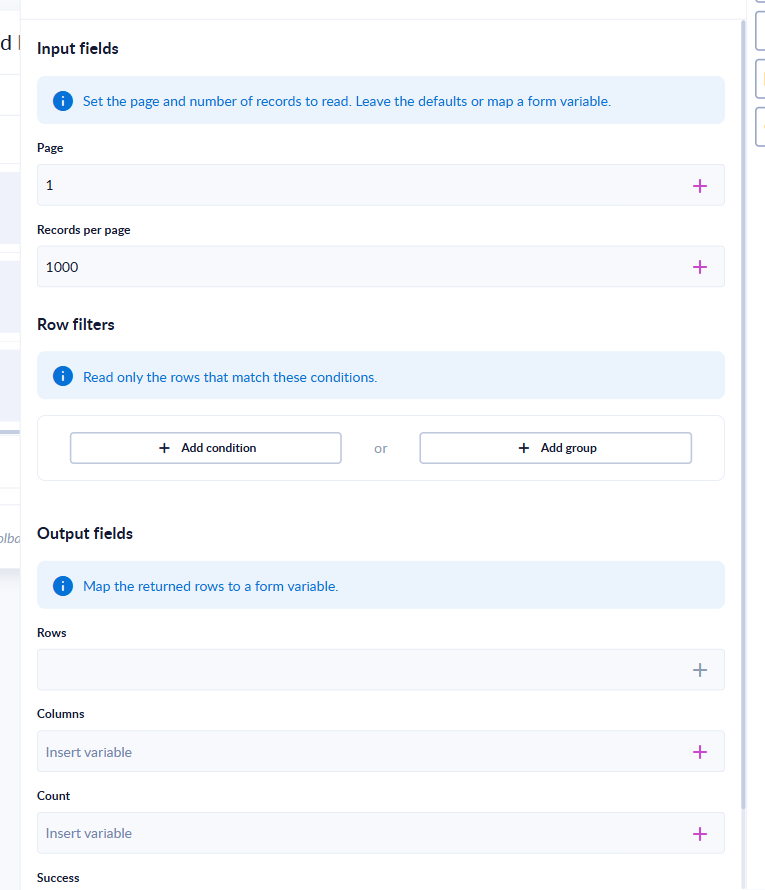
The Row filters editor inside the event's mapping panel. It is the same condition builder the process designer uses, so the operators per column type match the Where tables above.
The same and-before-or rule applies — silently. Row filters is a flat list with no brackets drawn, but mixed conditions still evaluate and pairs first. City = Cluj or Qty > 50 and Active is false loads the Cluj rows or the (over-50 and inactive) rows — fewer than a left-to-right reading suggests, with no warning. When mixing and with or, put each or branch in its own group so the grouping is explicit.
List operators in form Row filters — avoid Belongs / Does not belong in this panel for now: a list authored here reaches the form wrapped the wrong way, so belongs shows no rows and does not belong shows everything. Use several equals conditions joined with or instead — same result, reliable.
Writing from a form
The same event action offers Add, Update and Delete, typically on a button click, with the form's fields mapped to columns. All four operations work end to end: Add writes a new row (the primary key must be unique, exactly as everywhere else), Update changes the rows its filter matches, and Delete removes them.
Public forms
A form shared publicly reads and writes its Data Store without the visitor signing in. That access is granted workspace-wide, so the safe way to think about it is: any store in the same workspace as a public form may be reachable from the outside. Keep public forms — and the stores they use — in a workspace of their own, holding only data you are comfortable exposing, and never a store with personal or internal records.
Who can see what
Access to Data Stores is governed by workspace permissions, and viewing is separate from editing: an account can be allowed to see stores and rows yet not change them — for such an account the viewer's Edit Mode switch is disabled. A member with no Data Store permission at all cannot list stores, view their structure, or read their rows — those requests are refused rather than returning an empty result.
Empty store list? If the store list is empty where you expect stores — in a form's event configuration, for instance — it usually means the account lacks Data Store permission rather than that no stores exist. Ask a workspace administrator to check your access.
Troubleshooting
My filter returns nothing, but I can see matching rows
Check the operator and the value shape. On a date column, equals with only a date means midnight exactly — use between for a whole day. With Like, no wildcard means an exact match — add % (%Pop%), or use Contains. With Belongs, the value must be a JSON array such as ["A","B"]. And on a yes/no column in a process Where, use Is true / Is false rather than Equals.
My edits in the grid disappeared
Edits made in Edit Mode are held until you press Commit changes and confirm with Yes, commit changes. Navigating away — or answering the dialog with Discard Changes — abandons the whole batch.
My process fails saying a column doesn't exist
The action is pointing at a different store than the column belongs to — usually after changing Select Data Store on an action that was already configured. Re-open Configure Operation and re-pick Sort By and each Where column.
The process saved fine but does nothing when it runs
A Where condition whose operator was never chosen is saved without complaint. Open the condition and confirm an operator is selected.
My form's table only shows one record
The table's row template is static. Change it to a dynamic row — see Using a Data Store in a form.
My form filter on a list of values shows nothing (or everything)
That's the Belongs / Does not belong limitation in form Row filters — replace the list with several equals conditions joined by or. See Filtering what the form reads.
My CSV import didn't add anything
If a header doesn't match a column name, or a required column is absent, the entire import is rejected before any row is written. Compare your header row against the column names, then download the failures file for per-row reasons.
Dates are being rejected
Use 2026-07-17T14:30:00. A trailing Z, or a format like 17/07/2026, is not accepted when writing rows.