
Trigger Events for Form and Elements
Our platform provides a variety of trigger events&x20;&x74;hat allow you to define what happens when users interact with your forms or specific…
Overview
Our platform provides a variety of trigger events that allow you to define what happens when users interact with your forms or specific controls inside them. Triggers help you connect form actions with workflows, scripts, or data mappings, making your forms highly dynamic and customizable.
Key Features
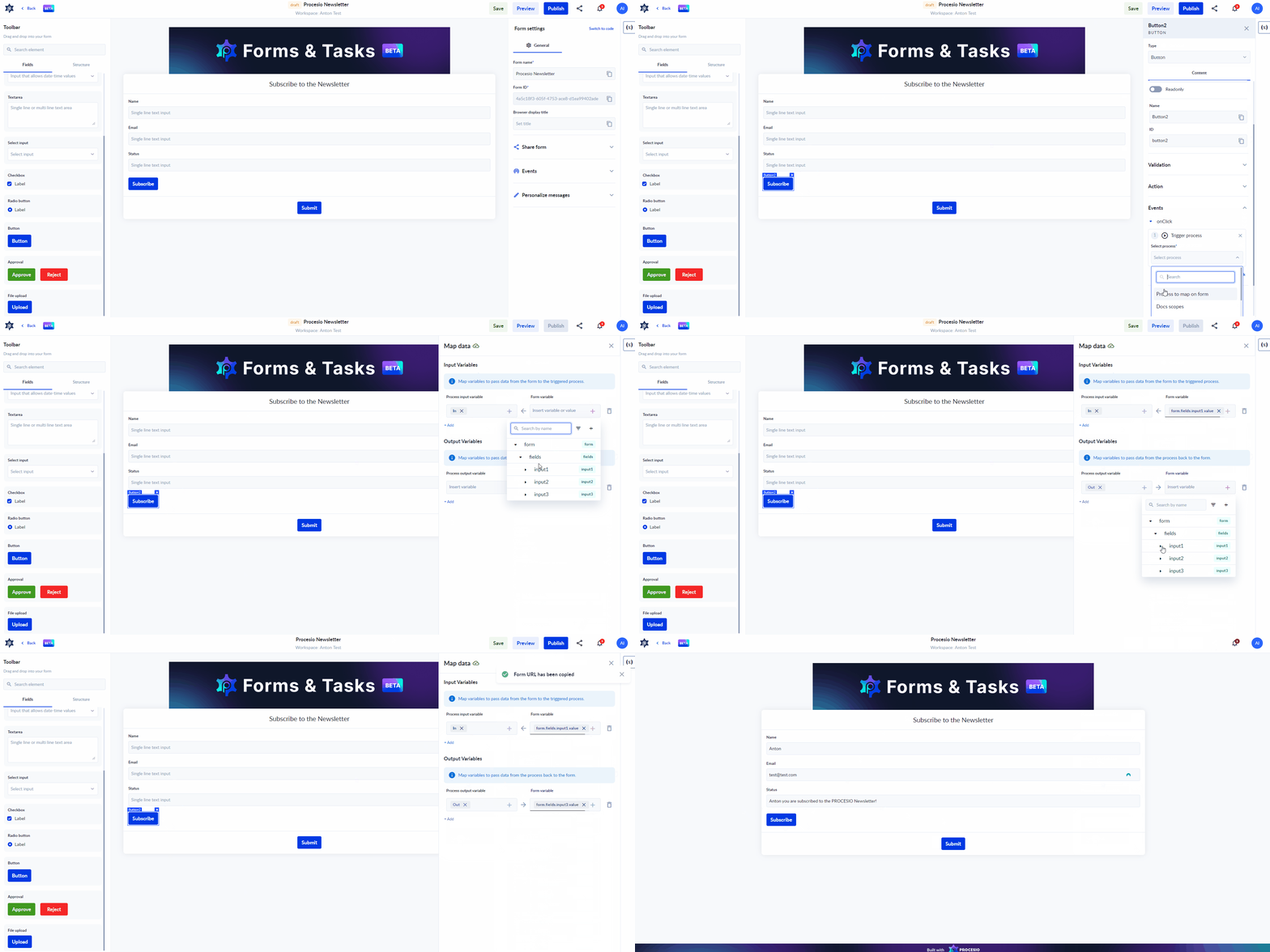
1. Data Mapping
Form Events support data mapping between form fields and process variables. This feature enables you to seamlessly transfer data from your forms to associated processes, enhancing data consistency and integrity.
Dynamic Mapping:
- Establish dynamic links between form fields and process variables.
- Automate the transfer of relevant data, reducing manual efforts.
2. Event Triggers
Form Events can be triggered by various actions within the form, creating a responsive and interactive user experience.
Trigger Events
📝 Form Lifecycle Events
- onLoad – Fires when the form is initially loaded.
- onBeforeSubmit – Fires just before the form is submitted (useful for validation or preprocessing).
- onAfterSubmit – Fires immediately after the form is submitted (useful for cleanup or navigation).
🔤 Input & Interaction Events
- onReady - Fires when a control is shown.
- onClick – Fires when a control or button is clicked.
- onHover – Fires when the user hovers over a control.
- onInput – Fires when the user types or changes a value in a field.
- onFocus – Fires when a field gains focus.
- onBlur – Fires when a field loses focus
📊 Table and Dynamic Row Events
- onPaginationChanged – Fires when table pagination changes (e.g., switching pages).
- onRowAdded – Fires when a new row is added to a table (dynamic row).
- onRowDeleted – Fires when a row is deleted from a table (dynamic row).
📑 Tabs Events
- onTabChange – Fires when the user switches between tabs.
➡️ Stepper Events
- onStepChange – Fires whenever the stepper moves to a different step — either forward or backward.
- onNextStep – Fires only when the user navigates forward to the next step.
- onPreviousStep – Fires only when the user navigates backward to the previous step.
✅ Approval Events
- onBeforeApprove – Fires before an approval action is submitted.
- onBeforeReject – Fires before a rejection action is submitted.
- onBeforeSubmit – Fires before either approval or rejection is submitted.
- onAfterApprove – Fires after an approval action is submitted.
- onAfterReject – Fires after a rejection action is submitted.
- onAfterSubmit – Fires after either approval or rejection is submitted.
💬 Chat Events
- onMessagesFetch – Fires every time chat is opened. It should be a method implementing a pagination system. Its purpose is to load older messages of a conversation when the user scroll on top.
- onMessageSent – Fires every time user sends a message.
⏱️ Debounce
Debounce delays the event until the user pauses their action. For example, when typing, the event will only run once after the user stops, instead of running on every keystroke. This helps avoid unnecessary runs and improves performance.
🔁 Interval
Interval runs an event repeatedly at a fixed time delay. Instead of waiting for user actions to stop, it triggers the event automatically every specified period.
🎛️ Run Events Conditionally
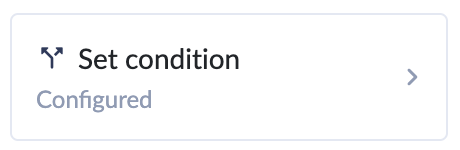
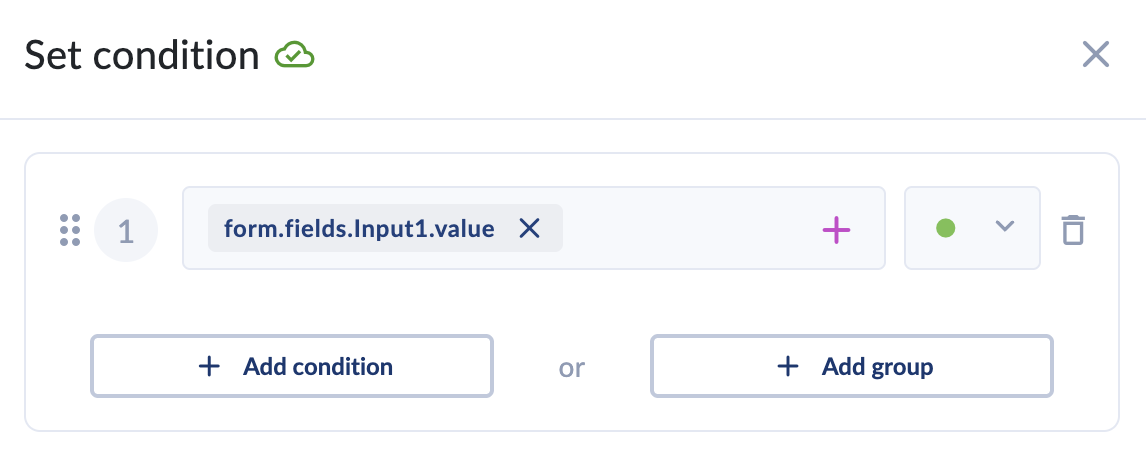
With Set condition, you can decide when an event should (or shouldn’t) run.
- By default, events run every time they are triggered.
- With a condition, the event will only run if the rule you set is true.
Getting Started
Adding Events
To add events to your forms:
- Open the form or select an element.
- Expand the Events section:
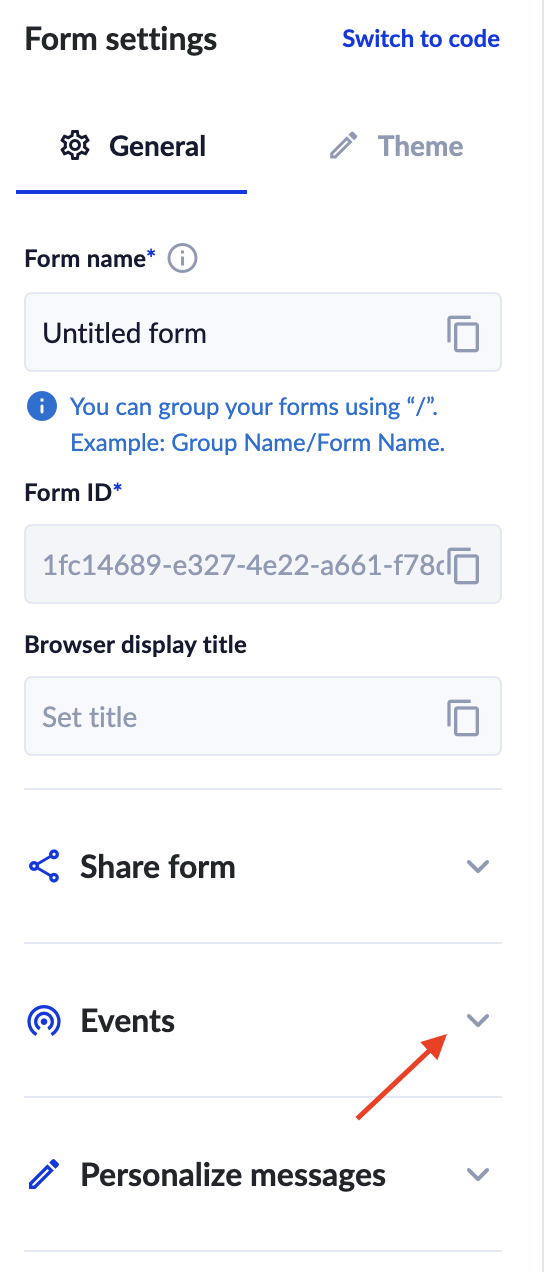
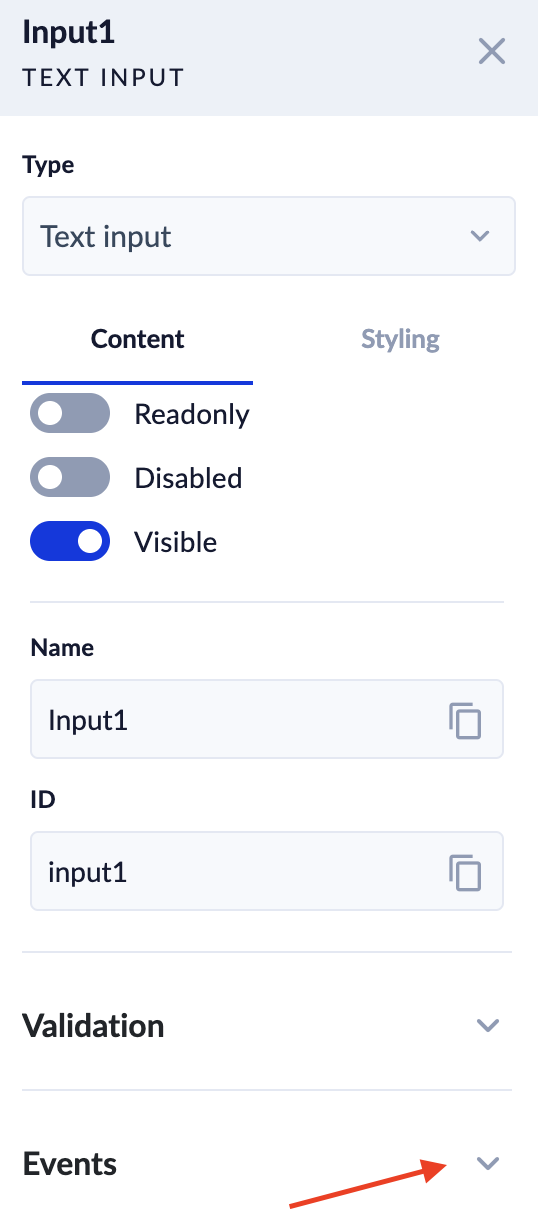
- Choose event and trigger
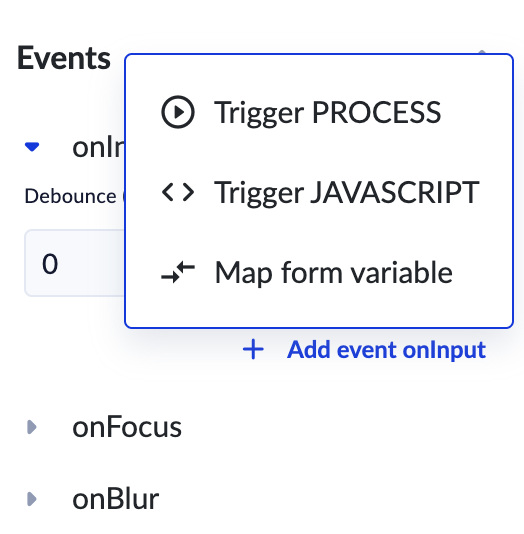
- Set debounce if needed
- Configure the event (check according documentation pages for more details).
- Set condition(s)
Changing events after tasks were created
When a task is created (a user submits a step, or a process creates the form instance), the task keeps a copy of the form as it was at that moment, including its events. Event changes you publish later apply only to tasks created after the change.
If you add, change or remove an event on a form that already has tasks waiting in Assigned to me:
- A task created before the change still runs the old events. A newly added event does not run for it, and a changed Trigger process event still starts the old process.
- If that old process was deleted, the task's button can no longer start a process.
Waiting tasks are not updated. If they must use the new events, create them again after you publish the change (for example, by running again the process that creates them). Avoid deleting a process that waiting tasks still use.
Best Practices
- Clear Naming Conventions
Use descriptive names for your events and triggers to facilitate easy identification.
- Test Extensively
Before deploying forms with events in a live environment, thoroughly test all configurations to catch and resolve any potential issues.
Troubleshooting
If you encounter issues with your form events:
- Check the event logs for error messages and details.
- Verify the event configurations (check Troubleshooting section on according documentation page):
- [Trigger process](<../spaces/SPACES/Overview/Trigger process.md>)
- [Trigger JavaScript](<../spaces/SPACES/Overview/Trigger JavaScript.md>)
- [Trigger form](<../spaces/SPACES/Overview/Trigger form.md>)
- [Map form variable](<../spaces/SPACES/Overview/Map form variable.md>)
Email Notifications
In the Form Builder, once a task is displayed in the Assinged to me section, an email will be sent to the user. The email is sent for Approvers and Task Assignees as well.
For support, please join our Discord community for further assistance and support.