

How to extract e-mail addresses from websites
Scenario:&x20;&x46;rom different websites you will extract all email addresses using a third party Web-Scraping API tool. The extracted information…
Scenario: From different websites you will extract all email addresses using a third party Web-Scraping API tool. The extracted information will be moved to a spreadsheet software in this case “SmartSheet”
Let's build this process!
In this scenario we have three elements:
- Third party API webscraping tool: https://app.scrapingbee.com/
- Third party spreadsheet software: https://app.smartsheet.com/
- Postman
- PROCESIO: https://procesio.app/
ScrapingBee
Using a free account to obtain your API key.
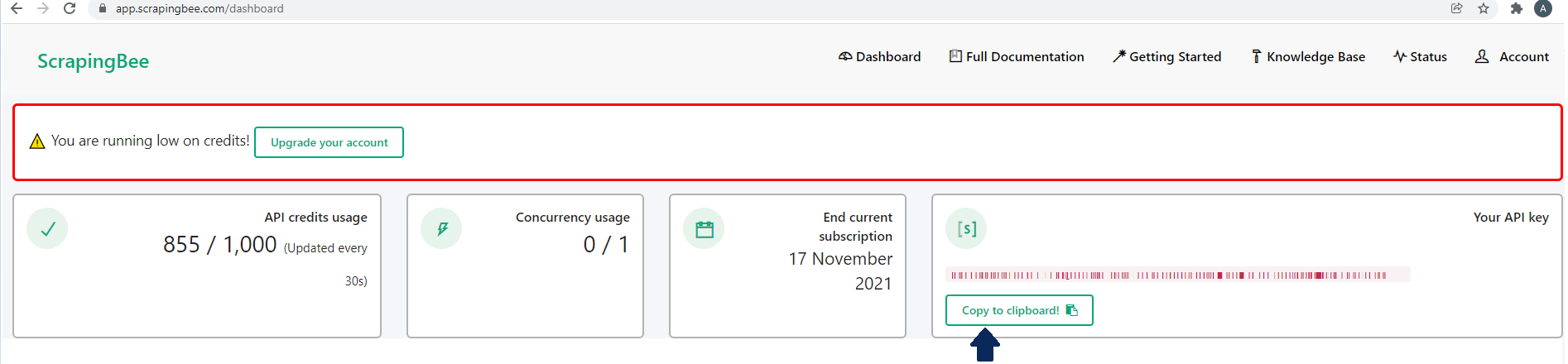
Step 1. Go to https://app.scrapingbee.com/, log into your account and from your dashboard make sure you are able to obtain your API key.
This API key will be used later when creating an REST API credential in PROCESIO.
SmartSheet
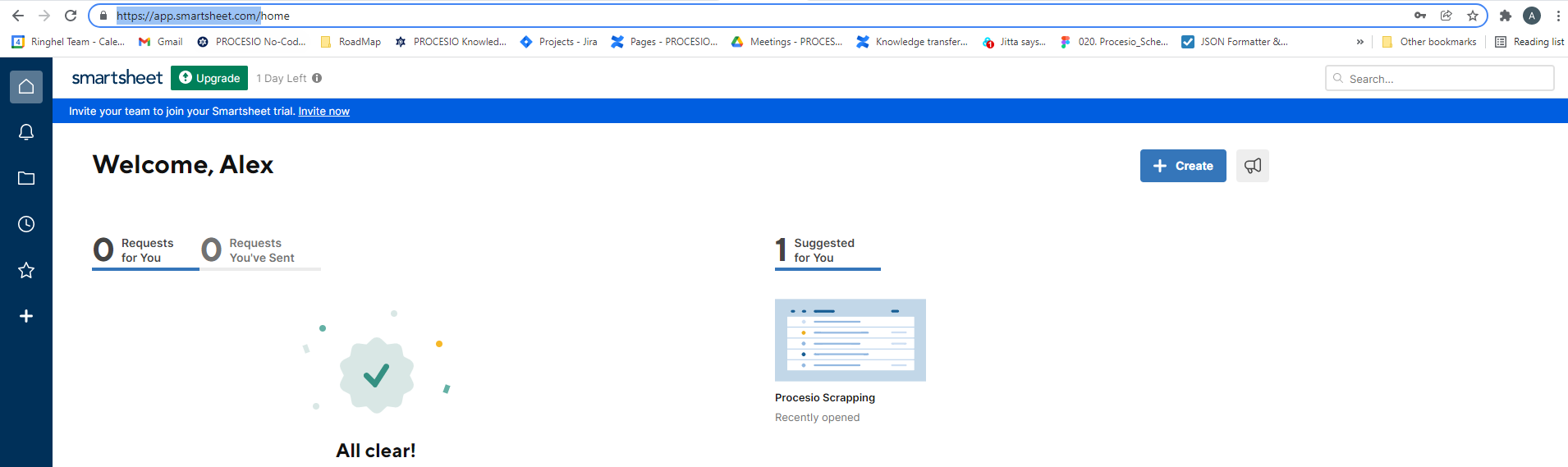
Step 1. Go to https:, and log in. From the home screen click on create.
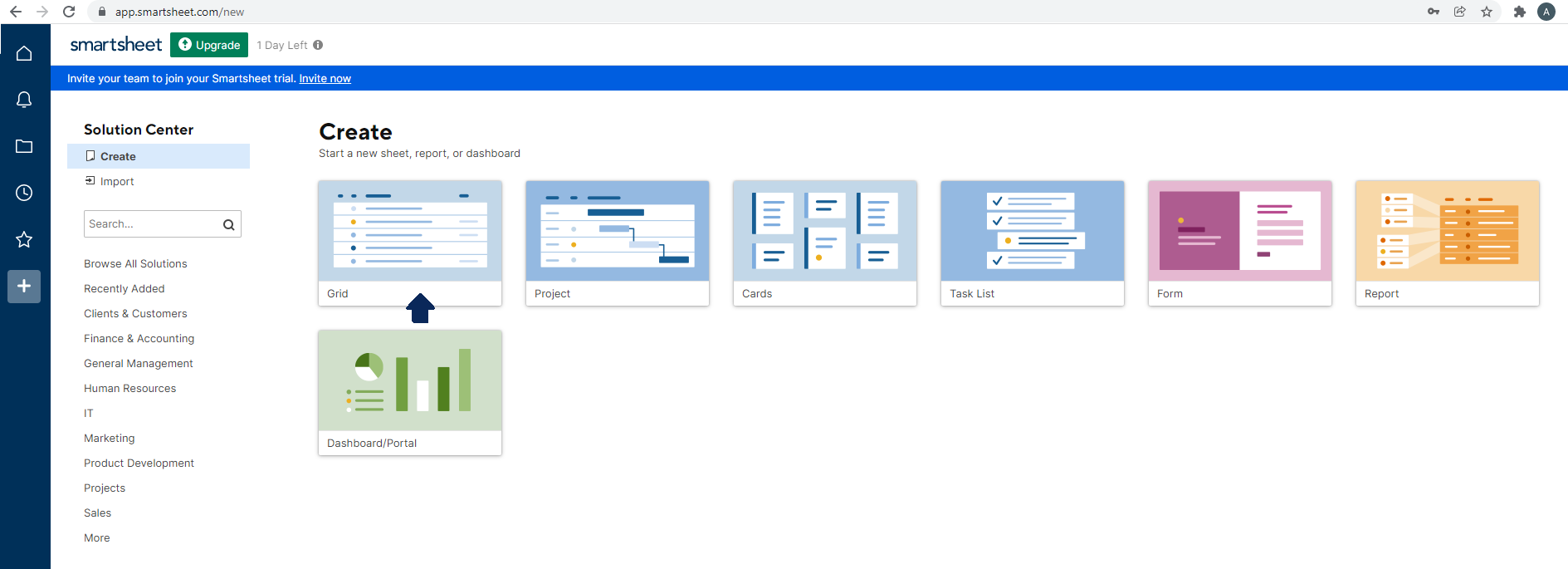
Step 2. Select the sheet type to be of type Grid, once selected name the Sheet and hit ok.
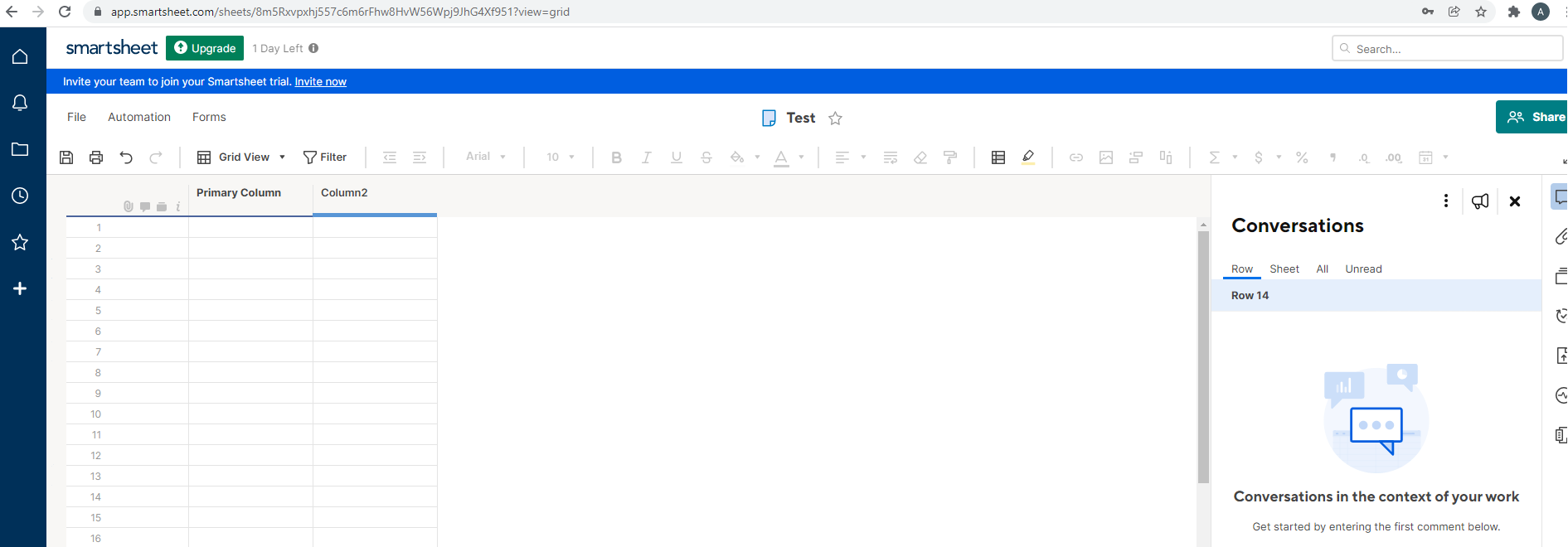
Step 3. In SmartSheet a sheet of type Grid will open. In this sheet we will only keep the first two columns. (Remove Columns 3-6, by selecting them, right click and hitting delete column)
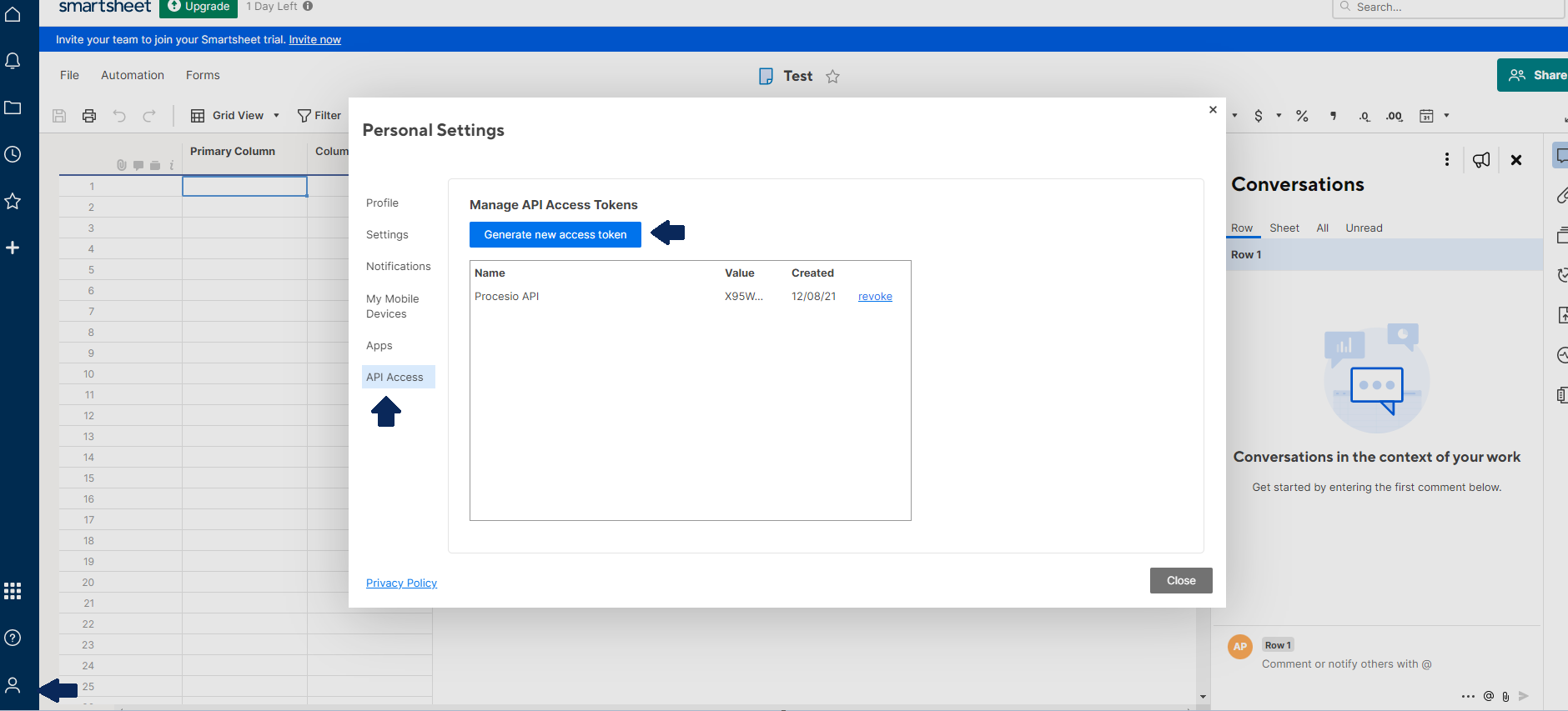
Step 4. Obtain your API key from SmartSheet by clicking Account -> Personal Settings -> API Access -> Generate new access token. Once API key generated, keep it at hand for later use.
Postman
We will use Postman in order to obtain the column IDs of the SmartSheet, spreadsheet software in which we will write the extracted e-mail addresses from the websites.
Step 1. Open Postman, by using SmartSheet API documentation we will add the following get request in Postman
End point: https://api.smartsheet.com/2.0/sheets/{SheetId}
Request method: GET
- Body: "{"version": 1}"
- Body format: application/json
- Headers:
| Name | Direction | Type | Value |
|---|---|---|---|
Authorization | In | String | the Bearer token you kept at hand from SmartSheet Step 4,(eg: Bearer *****) |
The Sheet ID can be obtained from SmartSheet by navigating to Browse -> Sheets -> Right click on the Sheet -> Properties
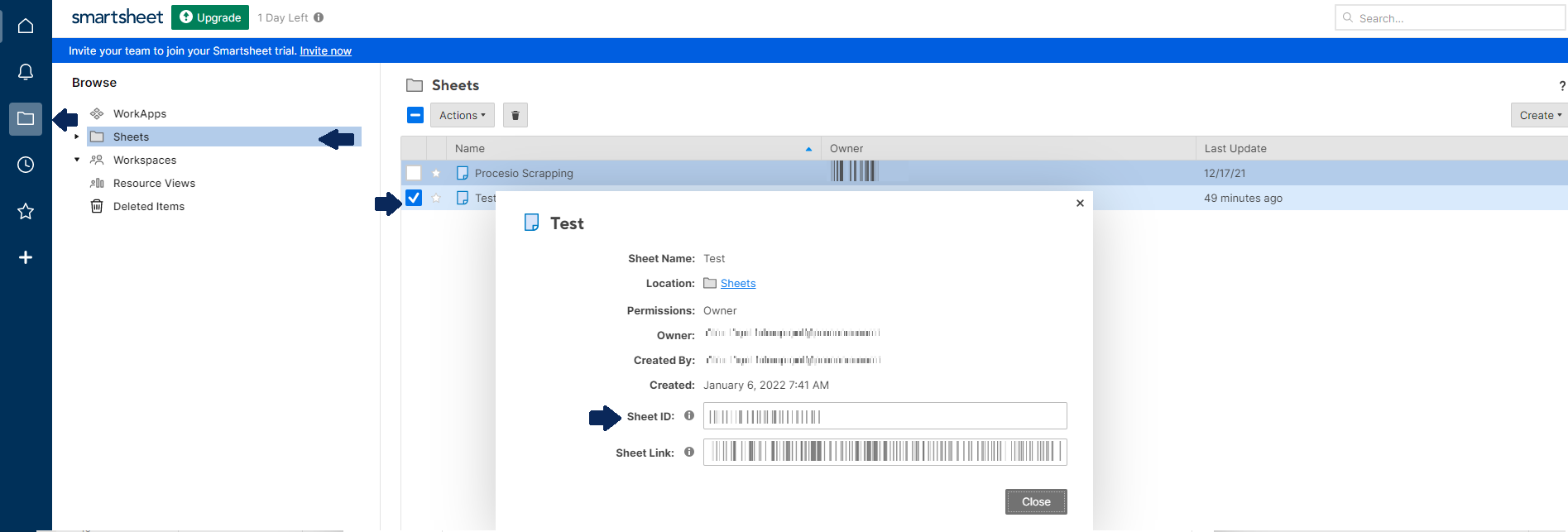
Step 2. From the response obtain the column IDs for the two columns in which you will write the data. Highlighted with red in below code box. Keep this two IDs at hand as we will use them in PROCESIO.
{ "id": ****************, "name": "Procesio Scrapping", "version": 85, "totalRowCount": 1, "accessLevel": "OWNER", "effectiveAttachmentOptions": [ "LINK", "EGNYTE", "DROPBOX", "EVERNOTE", "FILE", "ONEDRIVE", "GOOGLE_DRIVE", "BOX_COM" ], "ganttEnabled": false, "dependenciesEnabled": false, "resourceManagementEnabled": false, "resourceManagementType": "NONE", "cellImageUploadEnabled": true, "userSettings": { "criticalPathEnabled": false, "displaySummaryTasks": true }, "userPermissions": { "summaryPermissions": "ADMIN" }, "hasSummaryFields": false, "permalink": "https://app.smartsheet.com/sheets/mW7mM3VXpMhjXCXC3pccHpMWH7xJGPRvVrrvq5V1", "createdAt": "2021-12-08T09:50:32Z", "modifiedAt": "2021-12-17T09:54:35Z", "isMultiPicklistEnabled": true, "columns": [ {
"id": 8570585025406852,"version": 0, "index": 0, "title": "Primary Column", "type": "TEXT_NUMBER", "primary": true, "validation": false, "width": 150 }, {"id": 407810700797828,"version": 0, "index": 1, "title": "Email", "type": "TEXT_NUMBER", "validation": false, "width": 220 } ], "rows": [ { "id": 7053594140272516, "rowNumber": 1, "expanded": true, "createdAt": "2021-12-17T09:54:35Z", "modifiedAt": "2022-01-06T16:57:07Z", "cells": [ { "columnId": 8570585025406852 }, { "columnId": 407810700797828 } ] } ] }
PROCESIO (Create process that extracts e-mail addresses)
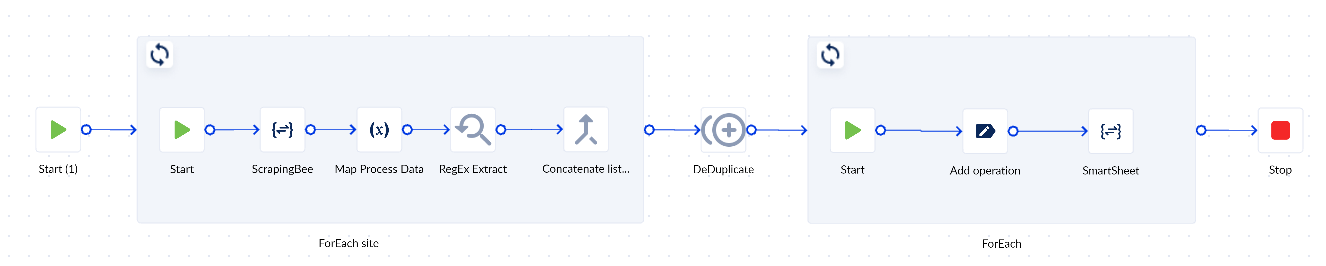
There are multiple actions involved in extracting e-mails from a website. The complete process should look like this:
Step 1. From within PROCESIO go to "Credential Manager", press the Add new button and use these values:
Name: ScrapingBee
Credential type: REST API Configuration
Step 2. Press the Next step button and use these values:
URL: https://app.scrapingbee.com``
Method: GET
Test endpoint: /api/v1
Authentication method: API key authentication
Key: api_key
Value: Your API Key obtained at ScrapingBee Step 1
- Header
- Query parameters
Step 3. Press the Save button
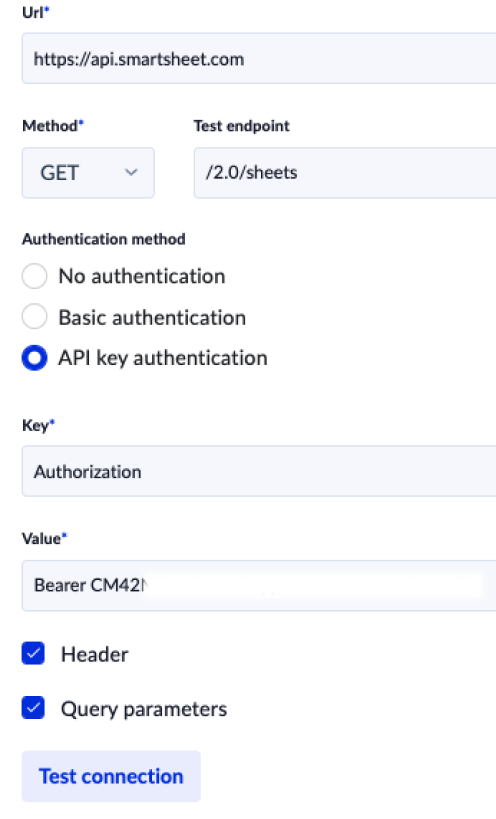
Step 4. From within PROCESIO, "Credentials Manager, press the Add new button and use these values:
Name: SmartSheet
Credential type: REST API Configuration
URL: https://api.smartsheet.com``
Method: GET
Test endpoint:/2.0/sheets
Authentication method: API key authentication
Key: Authorization
Value: Bearer Your API Key obtained at SmartSheet Step 4
- Header
- Query parameters
Please note that, for the SmartSheet API, the field Value should always contain Bearer, followed by a space before the actual value of the key.
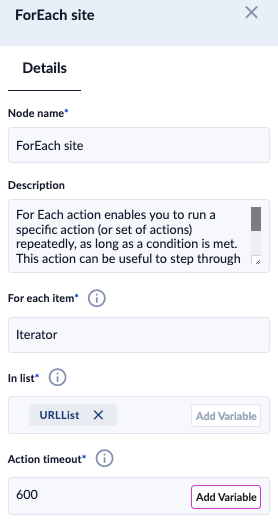
Step 5. Add a ForEach Action, name it's node ForEach site.
Configure the Action by (select Action):
- Configure field For Each Item, by typing
Iterator(this will automatically add a variable of type string to namedIteratorto the field. - Configure field In List by pressing add variable button-> Create New Variable,
URLList. Once the variable is created select it to this field.
| Variable Name | Variable Type | List Value | Default Value | Set as |
|---|---|---|---|---|
| URLList | string | ✔ | ["https://www.realitatea.net/contact","https://procesio.com"] | Input |
The URL default value, contains the list of websites through which we, will iterate for extracting e-mail addresses.
- Configure field Action timeout, by typing 600 (this impies that after 600 seconds, the process will timeout)
Step 6. Inside the ForEach frame previosly named "ForEach site", add a Call API Action and in the side panel set the Node name to ScrapingBee
Step 7. In Select API configuration select ScrapingBee
Step 8. Press the Configure Request button and add these values:
Verb: Get
Endpoint: /api/v1
Query Params:
| Key | Value |
|---|---|
| url | Iterator |
Form Configure Request, for the Status Output field, add a variable named StsOut of type integer, by clicking the Add Variable button-> Create New Variable. Once the variable is created select it to this field.
Form Configure Request, for the Body Output field, add a variable named HTMLObjectOut of type object, by clicking the Add Variable button-> Create New Variable. Once the variable is created select it to this field.
| Variable Name | Variable Type | Single Value | Set as |
|---|---|---|---|
StsOut | integer | ✔ | output |
HTMLObjectOut | object | ✔ | output |
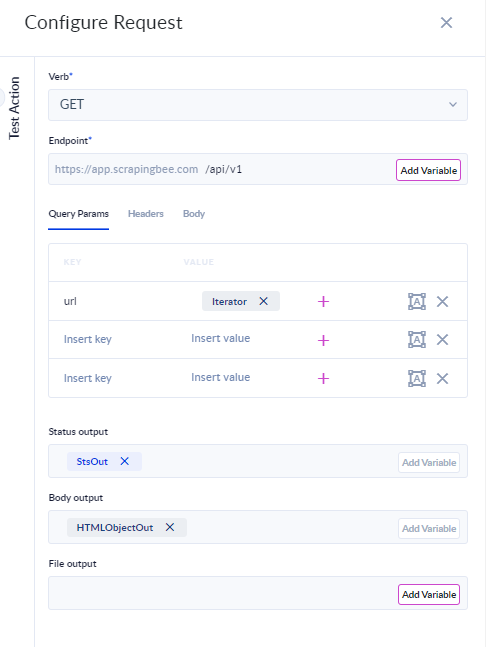
Please note that the key field is case sensitive and type url (in no caps) and in the value field add the variable Iterator, from the + icon.
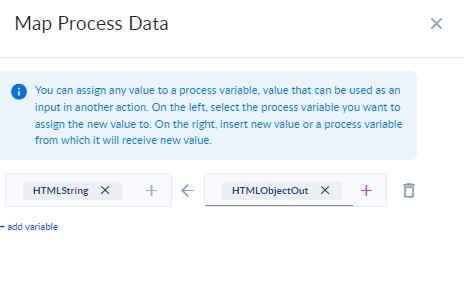
Step 9. Inside the ForEach frame previously named "ForEach site" , add a Map Process Data Action.
Configure the Action by (select Action):
- Adding in the right input field, the variable
HTMLObjectOut - Adding in the left input field a new variable named
HTMLStringby hitting the Add Variable button-> Create New Variable. Once the variable is created select it to this field.
| Variable Name | Variable Type | Single Value | Set as |
|---|---|---|---|
HTMLString | string | ✔ | output |
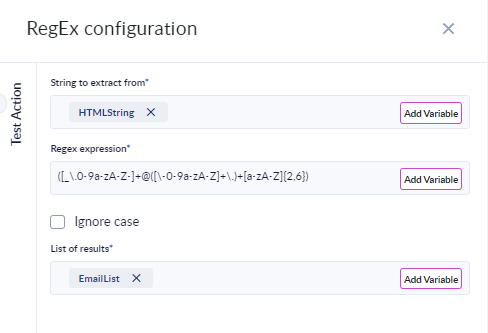
Step 10. Inside the ForEach frame previously named "ForEach site" , add a RegEx Extract Action (contained in Platform Actions under the Beta Folder).
Configure the Action by:
- Adding in the field String to Extract from, the variable
HTMLString - Adding to the field Regex Expression
([_\.0-9a-zA-Z-]+@([\-0-9a-zA-Z]+\.)+[a-zA-Z]{2,6}) - Adding to the field Lists of results a new variable named
EmailListby hitting the Add Variable button-> Create New Variable. Once the variable is created select it to this field.
| Variable Name | Variable Type | List Value | Set as |
|---|---|---|---|
EmailList | string | ✔ | output |
Step 11. Inside the ForEach frame previously named "ForEach site" , add a Concatenate Lists Action (contained in Platform Actions under the Beta Folder).
Configure the Action by:
- Adding in the field First List, a new variable named
MasterEmailListby hitting the Add Variable button-> Create New Variable. Once the variable is created select it to this field.
| Variable Name | Variable Type | Default Value | List Value | Set as |
|---|---|---|---|---|
MasterEmailList | string | [] | ✔ | output |
- Adding in the field Second List, the variable
EmailList - Adding in the field Concatenated List, the variable
MasterEmailList
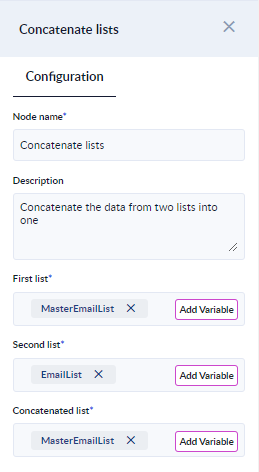
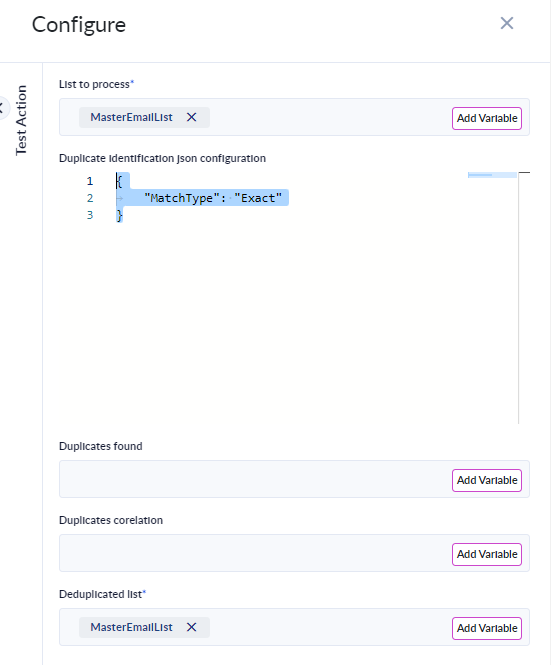
Step 12. Outside the ForEach, on the Canvas, add a DeDuplicate Action (contained in Platform Actions under the Beta Folder).

Configure the Action by (select Action):
- Adding in the field List to process, the variable
MasterEmailList - Adding to the field Duplicate Identification Json configuration,
{"MatchType": "Exact"} - Adding to the field Deduplicated list, the variable
MasterEmailList
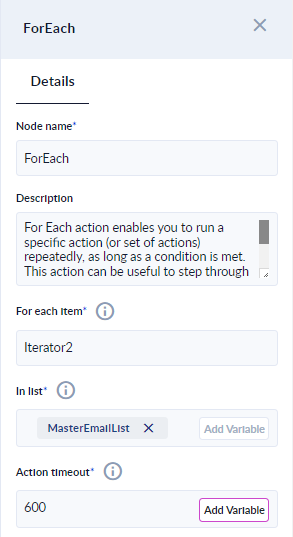
Step 13. Add a second ForEach Action on Canvas.

Configure the Action by (select Action):
- Configure field For Each Item, by typing
Iterator2(this will automatically add a variable of type string to namedIterator2to the field. - Configure field In List by pressing add variable button and adding the variable
MasterEmailList - Configure field Action timeout, by typing 600 (this impies that after 600 seconds, the process will timeout)
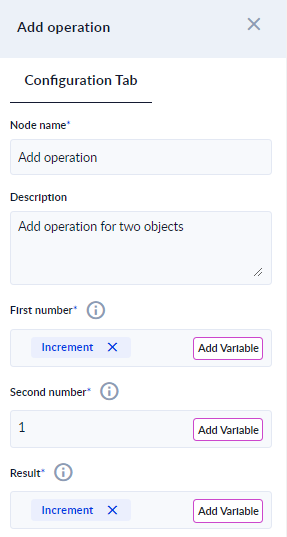
Step 14. Inside the second ForEach frame, add an Add operation Action.
Configure the Action by (select Action):
- Adding in the field First Number, a new variable named
Incrementby hitting the Add Variable button-> Create New Variable. Once the variable is created select it to this field.
| Variable Name | Variable Type | Default Value | Single Value |
|---|---|---|---|
Increment | integer | 0 | ✔ |
- Adding in the field Second Number, the value:
1 - Adding in the field Result, the variable
Increment
``
Step 14. Inside the second ForEach frame, add an Call API Action and in the side panel set the Node name to SmartSheet
Step 15. In Select API configuration select SmartSheet
Step 16. Press the Configure Request button and add these values:
Verb: POST
Endpoint: /2.0/sheets/{Your Sheet ID}/rows
- {Your Sheet ID} was obtained in Postman Step1.
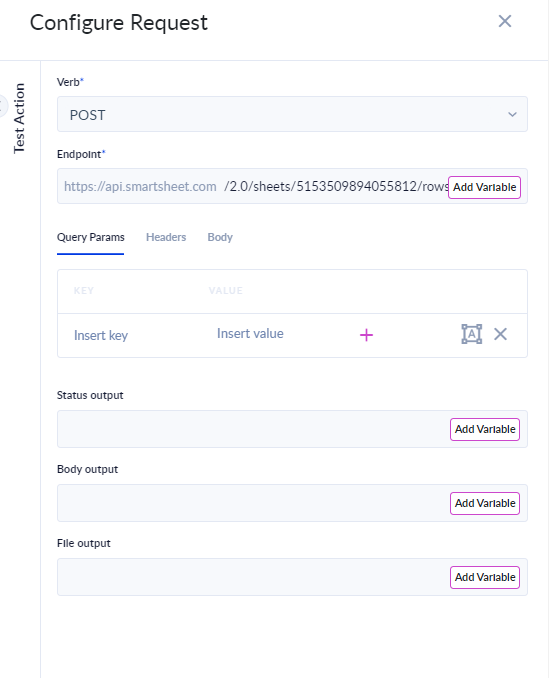
Body:
[
   {
      "toTop":true,
      "cells":[
         {
            "columnId": your column id,
            "value": <%Increment%>
         },
         {
            "columnId":your column id,
            "value":"<%Iterator2%>"

         }
      ]
   }
]
Your column id is obtained in Postman Step 2. (posting below a screenshot of how the Body of the Call API looks in PROCESIO
As observed besides the column Id(s), the body contains two variables: Increment & Iterator2
Additional hit, for inserting in the body of a Call API Action, one ca press INSERT key
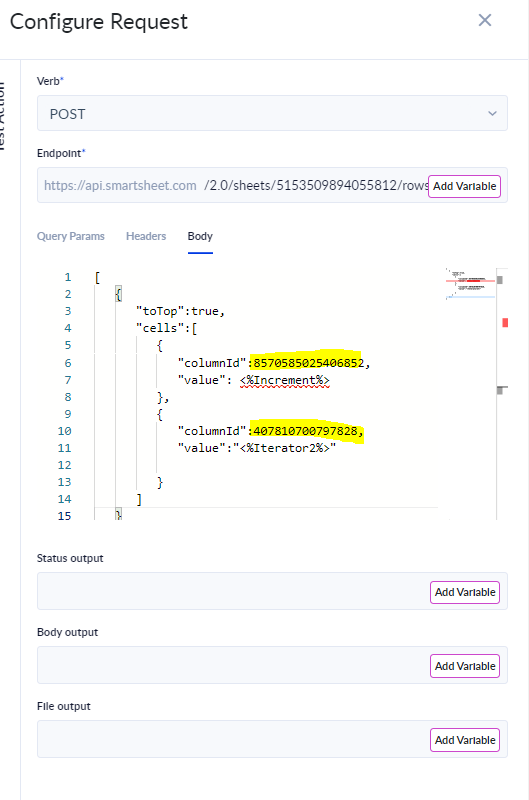
Step 17. Make sure that all your actions are connected in a sequence. Save the Process, Validate & Run.

Step 18. In SmartSheet, check for new e-mail address entries.
How to integrate with UIPath robots
Scenario: You have an unattended UIPath robot that executes some actions. These actions can now include PROCESIO. And the robot itself can also be…
SenseTask OCR integration + notifications
SenseTask uses AI and OCR (optical character recognition) to automate data entry from paper-based documents.&x20;