

Query Store
A platform action that runs SQL statements against your workspace's Data Stores — filter, join and total data, or change rows in bulk, with parameters and guardrails.
Behaviours in this guide were verified on 18 September 2026, and the several-statements behaviour on 8 October 2026. The screenshots come from a demo workspace, which is why the example Data Stores are named DEMO_QS_Customers and DEMO_QS_Orders and the processes start with DEMO_QS_.
Coming with the release after PROCESIO v2.0.6: several statements in one query, user variables, Query Store in a personal workspace, and the "Create a Data Store first" message. On a PROCESIO that still runs v2.0.6, a query holds exactly one statement (a second one is refused with "The query must contain exactly one SQL statement.") and Query Store works only in an organisation workspace.
What Query Store does
Query Store is a platform action that runs SQL statements against the Data Stores of your workspace, as a single step in a process. A query may hold one statement or several.
- No setup. There is no connection string, no credential and no external database. The action works on the Data Stores that already live in your workspace.
- Reads and writes. Filter, join, group and total your data, or insert, update and delete rows in bulk.
- Point and click. Pick Data Stores and columns from a list instead of typing their names.
- Safe values. Values from your process reach the query as parameters, so they can't change what the query does.
- Guardrails. Statements that could damage your data or reach outside your workspace are refused with a clear message.
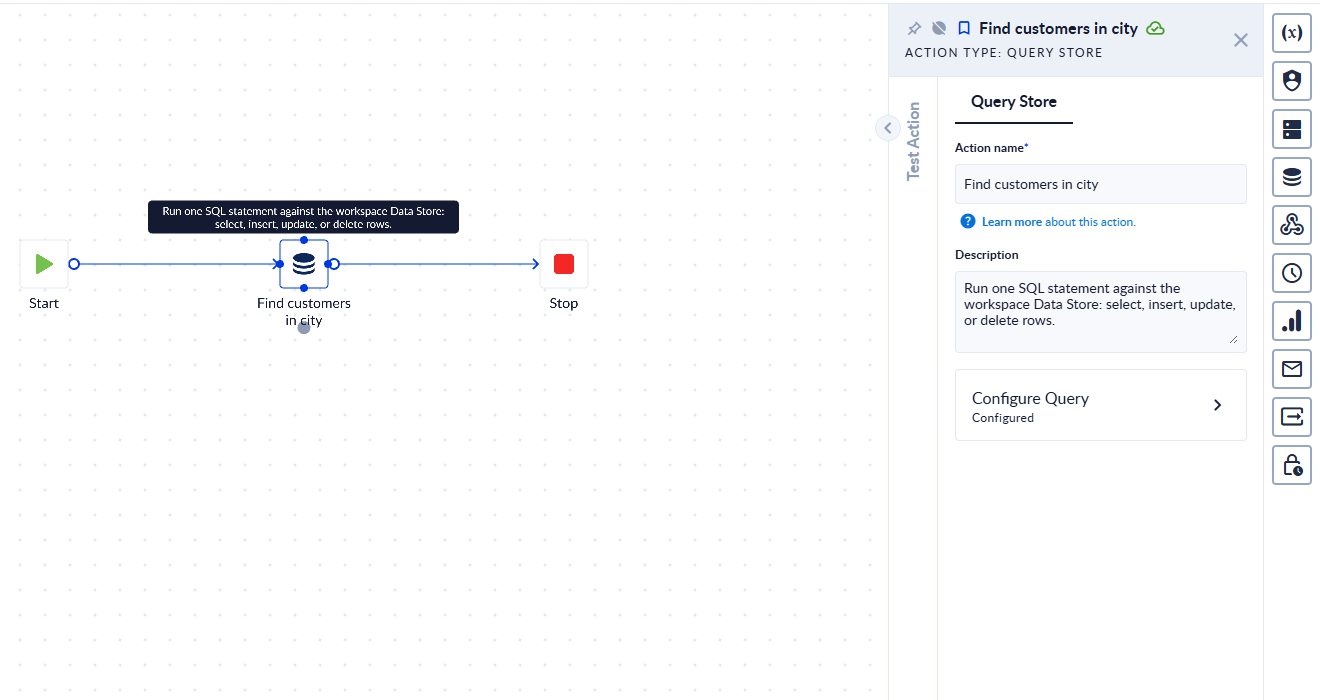
A process with a Query Store step. Click the step to open its properties; everything is set up under Configure Query.
Query Store, Data Store action or Execute Query?
| You want to… | Use |
|---|---|
| Read, add, change or delete rows in one Data Store, without writing SQL | The Data Store action |
| Join Data Stores, build totals and reports, or update many rows with one condition | Query Store |
| Query your own Microsoft SQL Server database | Execute Query |
A Query Store query behaves like Execute Query: it may hold several statements, it can use user variables, and it has the same outputs. What sets it apart is the guardrails, which exist because Data Stores run on PROCESIO's shared database server rather than on your own.
Before you start
- A workspace with at least one Data Store. Query Store works in a shared workspace and in your personal workspace. In a personal workspace it reaches only your own Data Stores. See Creating a Data Store.
- A process open in the Process Designer.
Step 1 — Add the action
In the Process Designer, type Query in the toolbox search. Query Store is at the top of the list. Drag it onto the canvas, or double-click it, then connect it between your steps.
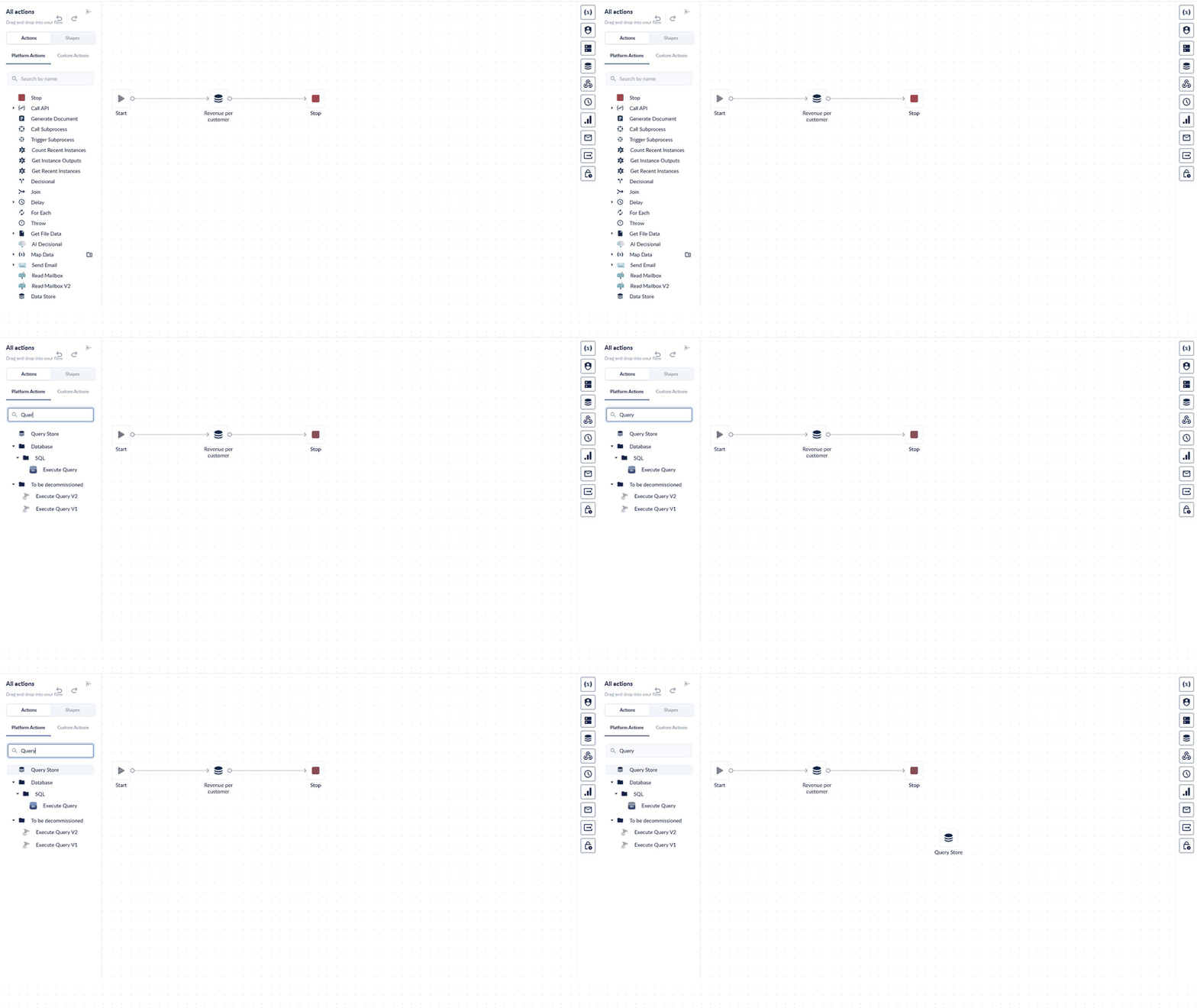
Search the toolbox for "Query" and add Query Store to the canvas.
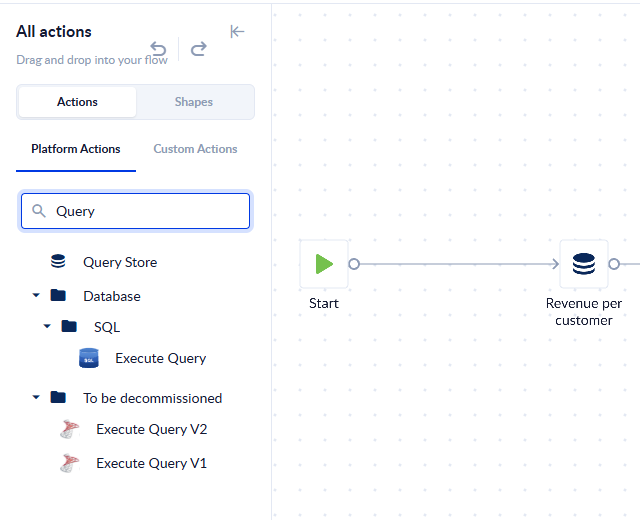
Query Store sits above the database actions. Execute Query, underneath it, is a different action: it talks to your own SQL Server.
Click the new step to open its properties panel. Give it a name that says what it does, for example Find customers in city, then click Configure Query.
Step 2 — Write the query
Configure Query opens an SQL editor with syntax highlighting.
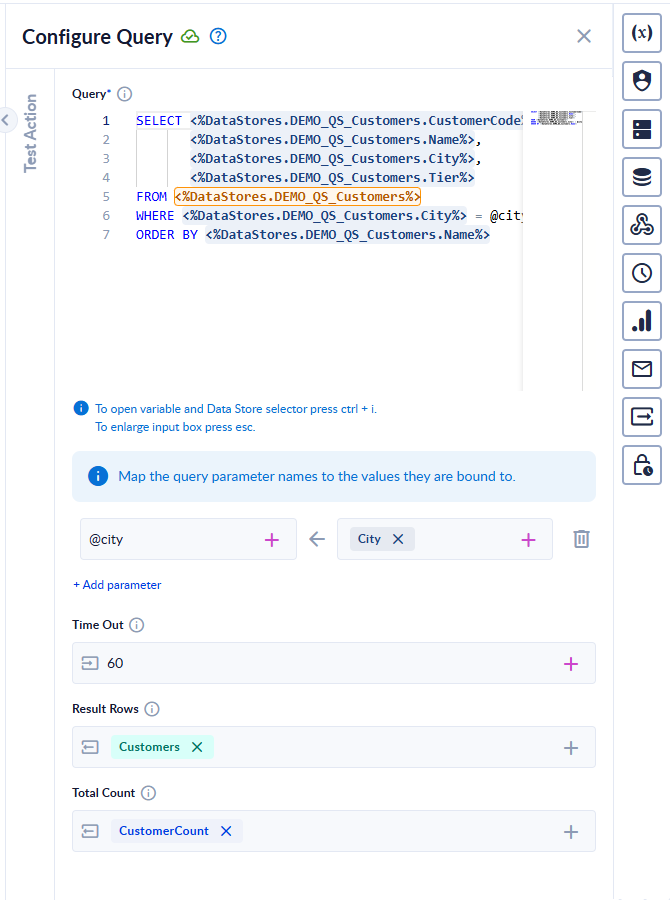
A finished query. The highlighted chips are a Data Store and its columns; @city is a parameter.
Several statements in one query
A query may hold several statements, separated by ;. They run in order, one after the other, as they do in the Execute Query action. Use this to read from one Data Store, write to another and clean up a third in one step.
| Rule | What happens |
|---|---|
| Order | Statements run in the order you wrote them. |
| Saving | Each statement is saved as soon as it runs. There is no transaction and no undo. |
| Rows | At most one statement may return rows. See One statement may return rows. |
| Checking | Every statement is checked against the guardrails before anything runs. A refused statement in second place is refused like one in first place, and nothing runs. |
| Values | Pass values through parameters, never by pasting a process variable into the query text. A pasted value can add a whole statement to your query, not only change one. |
A ; at the end of the query is fine, and so is a comment after the last statement. A ; inside quoted text is part of the text, not a separator.
When a statement fails in the middle
If a statement fails, the statements before it have already run and their changes are kept. The failing statement and everything after it do not run, and the step fails. The error does not say which statement failed, so when a query has several writes, test it on a copy of the data first.
The same applies when the Time Out is reached and when two statements return rows: the query has already run, and the step fails afterwards.
One statement may return rows
Only one statement in a query may return rows. If two or more do, the step fails after the query has run (every statement ran and the changes are kept) with error code 2003 and the message:
Expected maximum one table but received 2 tables!
The number is the number of statements that returned rows. This is the same error, with the same code, that Execute Query gives for the same mistake. SELECT @name := … returns a row, so it counts as the statement that returns rows; SELECT … INTO @name does not.
Insert Data Stores and columns with Ctrl + I
You never type a Data Store's name. Instead:
- Click in the editor where the table or column should go.
- Press Ctrl + I (Cmd + I on Mac) to open the picker.
- Type in the search box to filter, then click a Data Store to insert it as a table, or click one of its columns to insert that column.
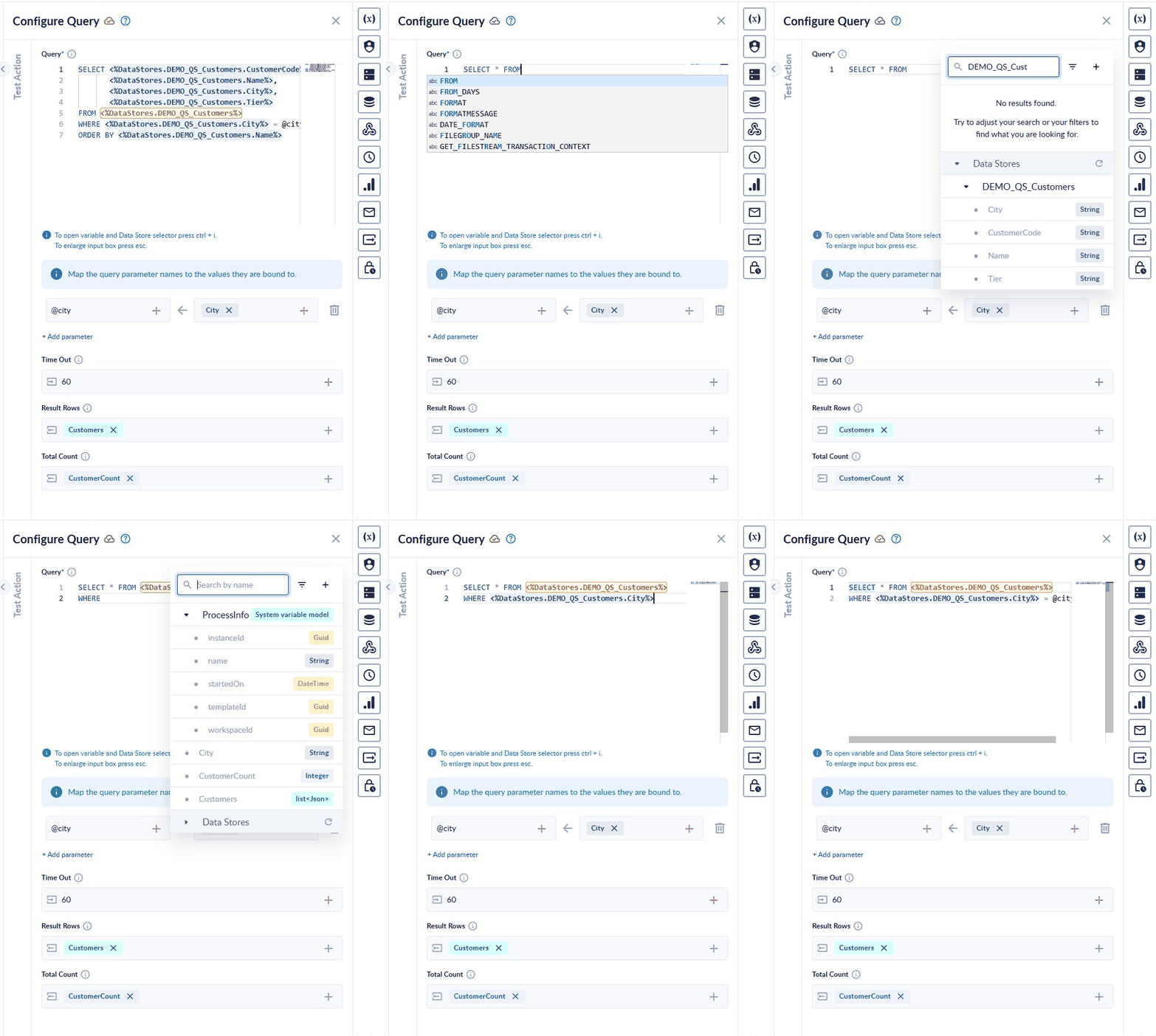
Type SQL as usual. Press Ctrl + I, pick the Data Store, keep typing, press Ctrl + I again and pick a column.
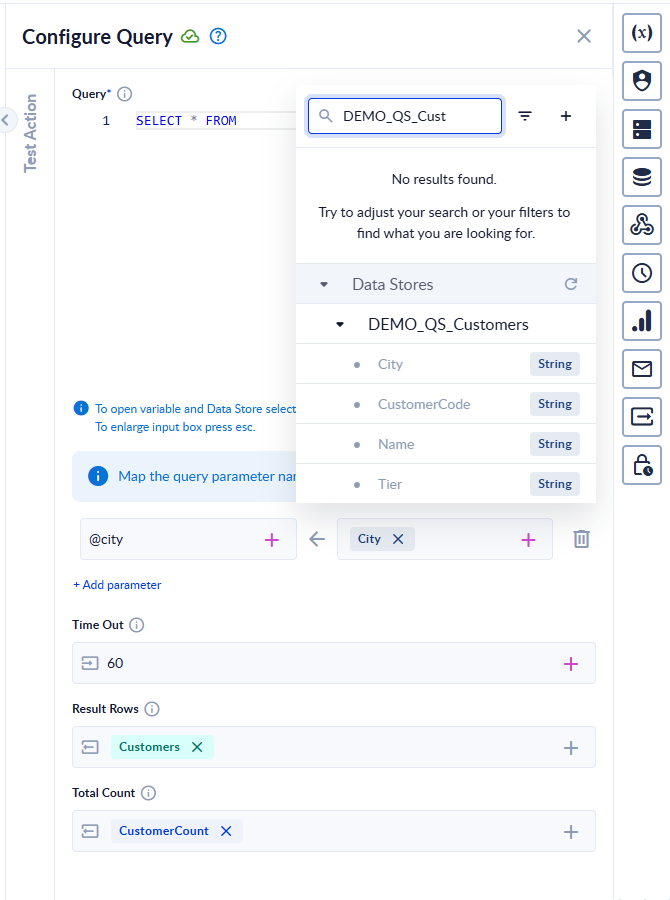
The picker lists process variables at the top and your Data Stores, with their columns, underneath.
Each chip is linked to the Data Store's ID, not its name:
- Renaming is safe. Rename a Data Store or a column and the query keeps working; the chip shows the new name.
- Deleting shows up in red. If a Data Store or column used in the query is deleted, its chip turns red and reads
Unknown. The step fails until you replace it. - Any name works. Names with spaces or special characters work, because the name never goes into the SQL.
System columns — the four columns every Data Store has (CreatedOn, UpdatedOn, CreatedById, UpdatedById) don't appear in the picker. Type them by name, for example WHERE CreatedOn > @since.
Two Data Stores in one query
When you join two Data Stores that have a column with the same name, give each one a short alias and put the alias in front of every column:
SELECT c.Name AS Customer, SUM(o.Amount) AS Revenue
FROM   DEMO_QS_Customers AS c
JOIN   DEMO_QS_Orders    AS o ON o.CustomerCode = c.CustomerCode
GROUP BY c.Name
(In the editor, each Data Store and column name above is a chip.)
Without the aliases the query is refused, because the database can't tell which CustomerCode you mean.
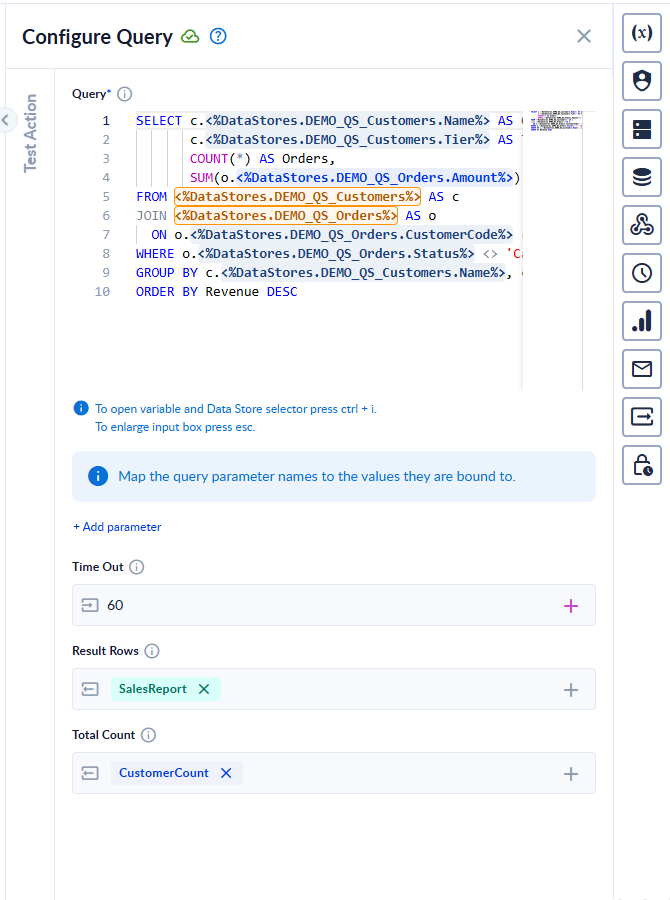
A sales report joining customers to orders, with AS c / AS o aliases.
Step 3 — Pass values in with parameters
To use a value from your process, such as a form field, an input or the output of an earlier step, write a parameter in the query and map it below the editor.
- In the query, write
@followed by a name:WHERE City = @city. - Under Map the query parameter names to the values they are bound to, click + Add parameter (the first row is already there).
- In the left field, type the parameter name and press Enter. The list suggests the names it finds in your query.
- In the right field, either type a fixed value, or click + and pick a process variable.
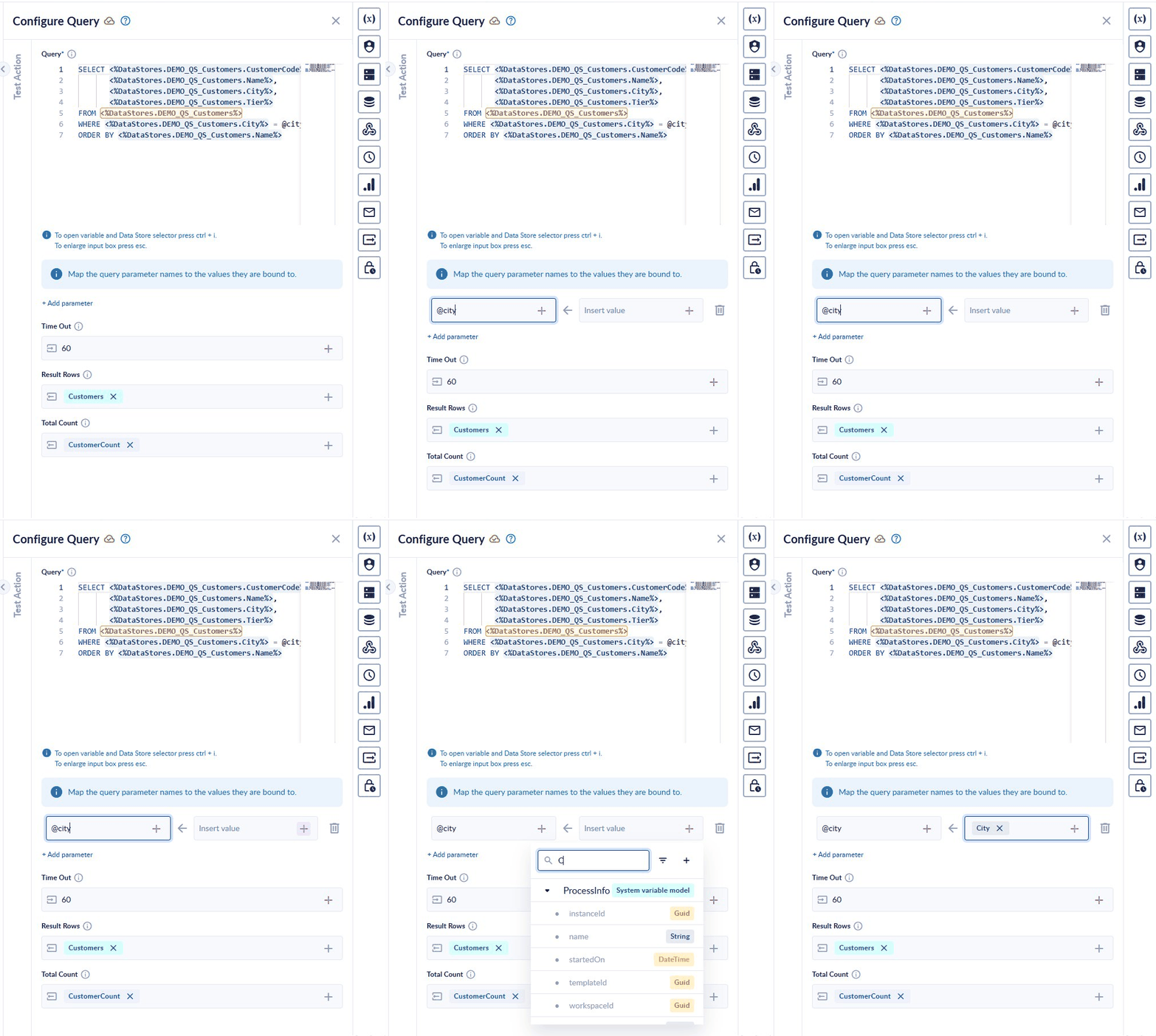
The name goes on the left (confirm it with Enter). On the right, click + and pick the variable that supplies the value.
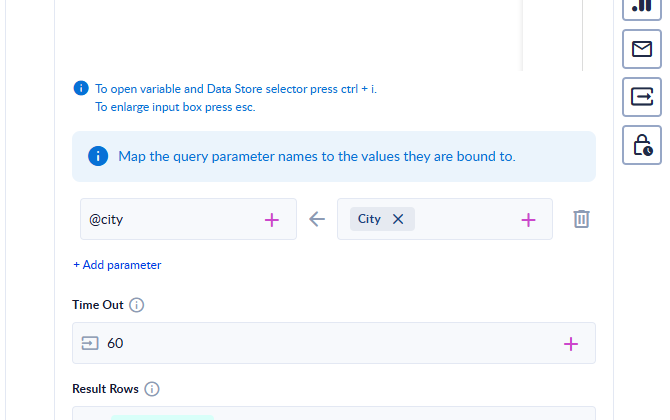
@city gets its value from the process variable City.
Why parameters matter: a parameter's value is always treated as data, never as part of the SQL. If someone types Cluj' OR '1'='1 into your form, the query looks for a city with exactly that name and finds nothing, instead of returning every row.
Avoid putting variables straight into the SQL text. The picker also lets you insert a process variable directly into the query. That pastes the value into the SQL as text, so a value containing a quote can break the query or change what it does. For anything that comes from a user, a form or another system, use a parameter.
Parameter names: start with a letter or underscore, then letters, digits and underscores only, 64 characters at most, and each name once per query. The leading @ in the mapping is optional.
User variables
You can keep a value for a later statement in the same query in a user variable. Three forms work, as they do in Execute Query on MySQL:
| Form | Example |
|---|---|
SET @name = value | SET @cutoff = DATE_SUB(NOW(), INTERVAL 30 DAY) |
SELECT … INTO @name | SELECT COUNT(*) INTO @total FROM DEMO_QS_Orders |
@name := … | SELECT @total := COUNT(*) FROM DEMO_QS_Orders |
Then use @name in any later statement of the same query. SET @a = 1, @b = 2 sets several at once, and := works in SET too. A variable lasts for that run of the step only.
| Watch out for | What happens |
|---|---|
DECLARE | DECLARE @name … is SQL Server syntax. It does not work in MySQL, so it fails with "The query contains invalid SQL syntax.", exactly as it fails in Execute Query on a MySQL database. Use SET @name = value. |
| Variable names | Don't give a variable the same name as a parameter. The parameter's value replaces every @name of that name before the query runs, so SET @city = 'Cluj' with a parameter named city becomes 'Cluj' = 'Cluj' and fails with "The query contains invalid SQL syntax." |
| A misspelled parameter | A @name in the query that is not a parameter and was never set is an empty variable: it reads as NULL, and there is no error. WHERE City = @ctiy finds nothing; an INSERT writes NULL, or fails when the column is required. Check the spelling of every parameter name against the query. |
An empty parameter row blocks Test Action. If your query has no parameters, delete the empty row with its bin icon. Otherwise Test Action stops with a message about the Parameters row.
Passing a list
A list variable, for example customer codes selected in a form, arrives in the query as a JSON array. Use one of these patterns:
| The list holds… | Write |
|---|---|
| Text values | WHERE JSON_CONTAINS(@codes, JSON_QUOTE(CustomerCode)) |
| Whole numbers | WHERE Quantity MEMBER OF (CAST(@numbers AS JSON)) |
IN (@list) returns nothing. It runs without an error but matches no rows, because the list arrives as a single JSON text. Use the patterns above.
Finding a row by Guid
A Guid column holds bytes, not text. A Data Store Guid column stores each Guid as 16 raw bytes, not as the text 3f1a7c52-0000-4000-8000-0000000000aa. So WHERE Id = '3f1a7c52-…' matches no rows, and shows no error. Write the Guid in the form the column holds: convert it with the GUID Converter action and use its Hex output without quotes, for example WHERE Id = 0x527C1A3F0000004080000000000000AA. Passing the Guid as a parameter (WHERE Id = @id) also works.
Don't use MySQL's BIN_TO_UUID or UUID_TO_BIN on a Data Store Guid column. They expect the bytes in a different order from the one a Data Store uses, so they give a different Guid, without an error:
BIN_TO_UUID(Id)on a row whose Id is1f0d8533-cf4c-44d8-b805-a4d3d6aaca4dreturns33850d1f-4ccf-d844-b805-a4d3d6aaca4d.UUID_TO_BIN('1f0d8533-cf4c-44d8-b805-a4d3d6aaca4d')in an INSERT or UPDATE saves a different Guid from the one you wrote.
What to use instead:
- To compare or save a Guid: the Hex output of GUID Converter, without quotes, or a parameter.
- To see the stored bytes:
HEX(Id)returns the same digits as the Hex output, without the0x. - To turn the column into standard text inside the query, for example to compare it with a text column, reorder the bytes:
LOWER(CONCAT_WS('-',
  HEX(REVERSE(SUBSTRING(Id, 1, 4))),
  HEX(REVERSE(SUBSTRING(Id, 5, 2))),
  HEX(REVERSE(SUBSTRING(Id, 7, 2))),
  HEX(SUBSTRING(Id, 9, 2)),
  HEX(SUBSTRING(Id, 11, 6))))
You don't need this for Result Rows: Guid columns already come back there as standard text.
Step 4 — Time out and outputs
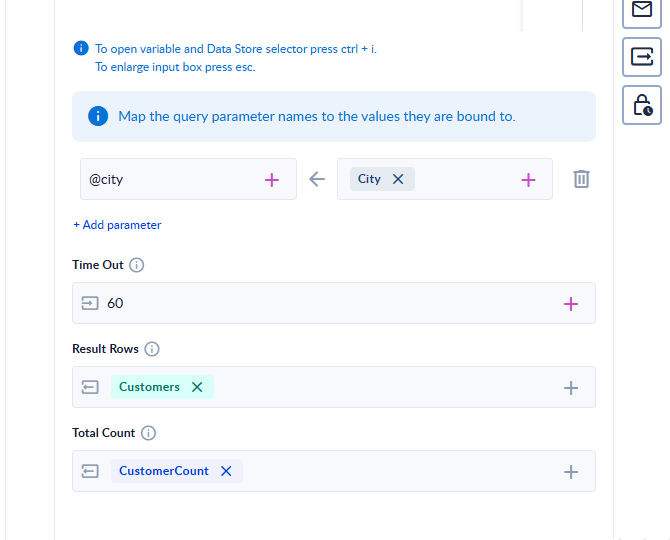
Result Rows and Total Count each write into a process variable.
| Setting | What it does |
|---|---|
| Time Out | How long, in seconds, a statement may run: 60 to 1800, default 1800. A value outside that range is refused when you validate the process. See Time Out with several statements. |
| Result Rows | The rows returned by the one statement that returns rows, as a list of JSON objects, one per row. The keys are the column names you see in the Data Store, or your AS aliases. Empty when no statement returns rows. Map it to a variable of type list of Json. |
| Total Count | When a statement returns rows: their number. Otherwise: the number of rows the whole query affected, added up over all its statements. Map it to an Integer variable. |
Two details for Total Count:
- For an
UPDATE, every row that matched theWHEREcounts, whether or not its value changed. SELECT … INTO @namecounts the rows it selected.SET @name = …counts nothing.
There is no row limit. A SELECT with no WHERE or LIMIT returns the whole table, so add a LIMIT when you only need a few rows.
Time Out with several statements
The Time Out applies to each statement that returns rows, not to the whole query, the same as Execute Query on a MySQL database. A query with two statements that each return rows can run for up to twice the Time Out. Statements that return no rows share one timer until the next statement that returns rows.
When the Time Out is reached, the step fails with "The query did not finish within the configured time limit." The statements that finished before it are kept. Whatever the query does, the step waits no longer than the Time Out plus 30 seconds; past that it fails with "The query did not finish within N seconds and was stopped. Narrow the query, or raise its Time Out."
SLEEP() and BENCHMARK() don't fail at the Time Out. When the Time Out cuts one of them off, MySQL returns a value instead of an error (SLEEP returns 1, BENCHMARK returns 0), so the step finishes successfully with that value. Don't use them to test the Time Out.
Step 5 — Test the step on its own
You can run a Query Store step without running the whole process. Open the step, click the vertical Test Action tab on the left edge of the properties panel, then click Test action.
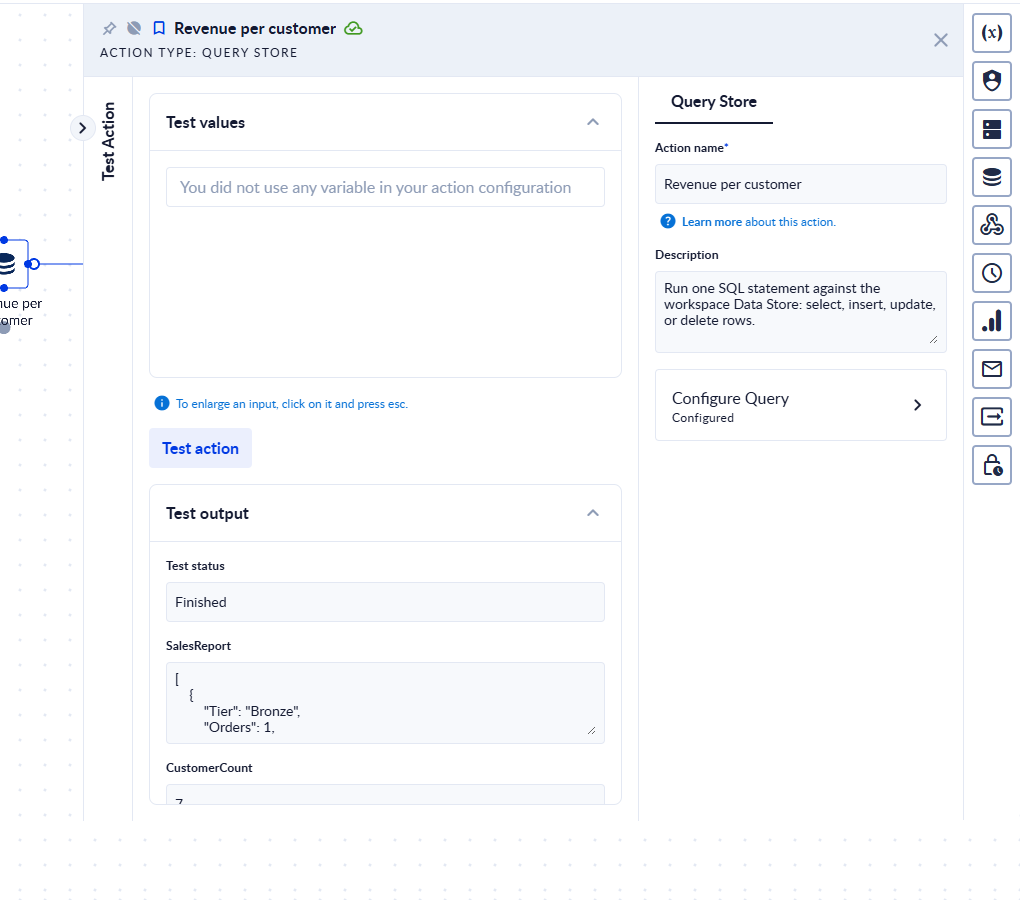
Test Action runs only this step. Test output shows the status and the value of each output.
Step 6 — Run the process and see the results
Click Save, Validate and Run. If the process has inputs, a dialog asks for them. Enter them and click Run.
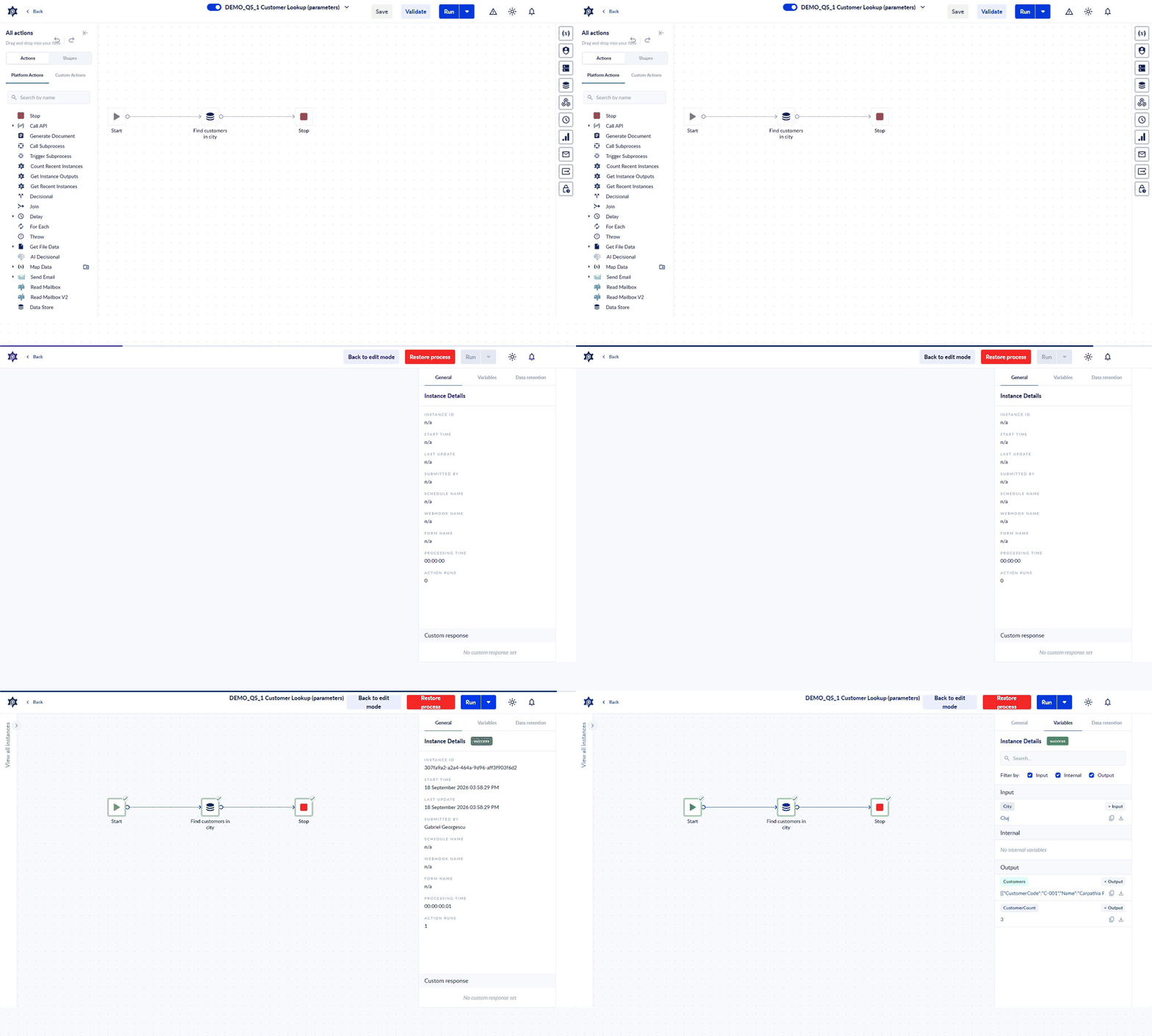
Run, fill in the input, then open the instance. The results are on the Variables tab.
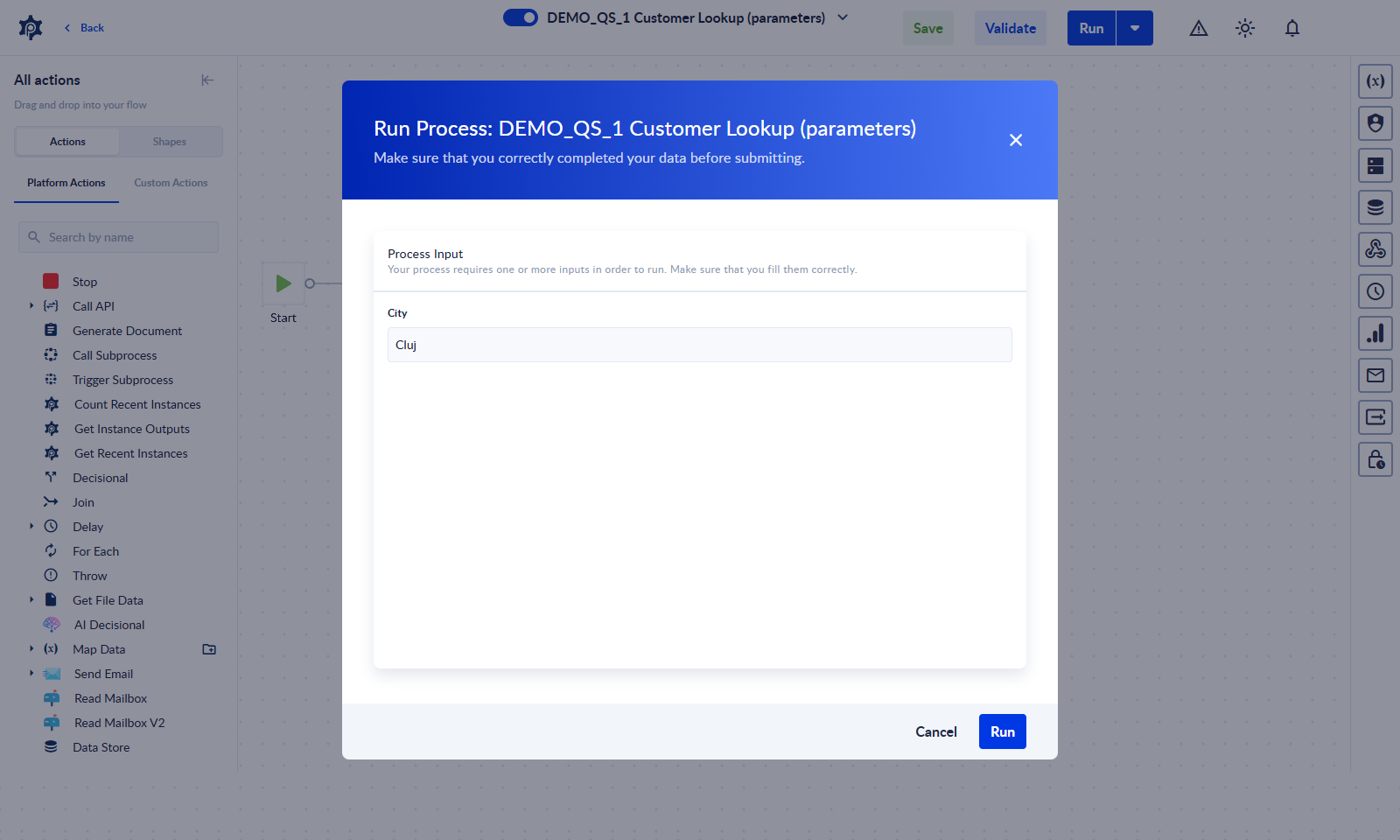
The process's inputs appear in the Run dialog.
When the run finishes, click Check instance (it opens in a new tab), or open the process's instances and choose History → Show details. On the Variables tab, the query's outputs are listed under Output.
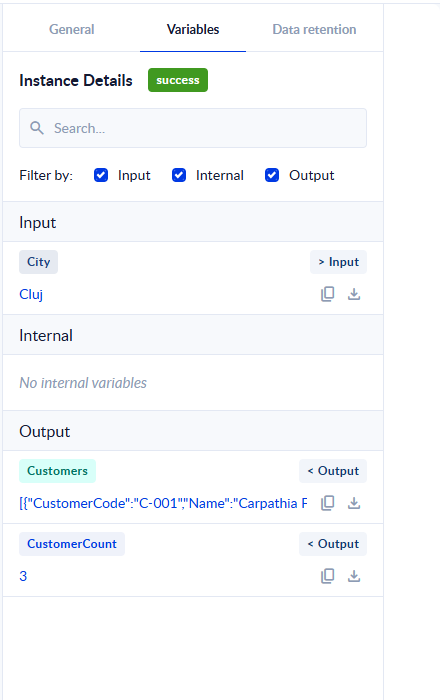
Customers holds the rows as JSON; CustomerCount holds how many there were.
What you can write
A query holds one or more statements, each of one of these types:
| Statement | Use it to… | Total Count |
|---|---|---|
SELECT | Read, filter, sort (ORDER BY), page (LIMIT), join, group (GROUP BY) and total (COUNT, SUM, AVG, MIN, MAX) | Rows returned |
WITH | Break a query into named steps (CTEs), including WITH RECURSIVE | Rows returned |
INSERT | Add one row, several rows (VALUES (…), (…)), or copy rows (INSERT … SELECT) | Rows added |
REPLACE | Add a row, or overwrite the existing row with the same primary key | Rows changed |
UPDATE | Change every row that matches a condition | Rows changed |
DELETE | Remove every row that matches a condition | Rows removed |
SET @name = … | Keep a value in a user variable for a later statement | Nothing |
UNION, subqueries and the usual MySQL functions work inside these statements.
Examples
In the editor, each Data Store and column name below is a chip inserted with Ctrl + I.
Filter with a parameter
SELECT CustomerCode, Name, City, Tier
FROM   DEMO_QS_Customers
WHERE  City = @city
ORDER BY Name
A report across two Data Stores
SELECT c.Name AS Customer, COUNT(*) AS Orders, SUM(o.Amount) AS Revenue
FROM   DEMO_QS_Customers AS c
JOIN   DEMO_QS_Orders    AS o ON o.CustomerCode = c.CustomerCode
WHERE  o.Status <> 'Cancelled'
GROUP BY c.Name
ORDER BY Revenue DESC
Update in bulk
UPDATE DEMO_QS_Orders
SET    Status = 'Shipped'
WHERE  CustomerCode = @customer AND Status = 'New'
Total Count tells you how many orders were shipped.
Several statements: clean up, then report
SET @cutoff = DATE_SUB(NOW(), INTERVAL 90 DAY);
DELETE FROM DEMO_QS_Orders WHERE Status = 'Cancelled' AND CreatedOn < @cutoff;
SELECT Status, COUNT(*) AS Orders FROM DEMO_QS_Orders GROUP BY Status
The DELETE runs first and is saved. Result Rows holds the report from the last statement, and Total Count the number of report rows.
Add rows
INSERT INTO DEMO_QS_Customers (CustomerCode, Name, City, CreatedById, UpdatedById)
VALUES (@code, @name, @city, @userId, @userId)
INSERT and REPLACE must fill CreatedById and UpdatedById. Pass a user ID (a Guid) as a parameter, as above. Two more details: an UPDATE through Query Store does not refresh UpdatedOn, and a REPLACE counts as a new row, so it resets the created-by and created-on values.
Guardrails: what is refused
Query Store only ever touches the Data Stores of the workspace the process runs in. Allowed statement types are SELECT, WITH, INSERT, REPLACE, UPDATE, DELETE, and SET @name = value for user variables.
The Data Store runs on a database server that every workspace shares, so a query may not change how the server behaves for the rest of the query, hold locks on it, or reach outside its own tables. These are refused before anything runs, whatever else the query holds. Execute Query and Execute Command run on your own database server and have no such limits.
| Refused | Message you see |
|---|---|
Session settings and system variables: SET SESSION …, SET GLOBAL …, SET @@sql_mode = …, SET sql_mode = …, SET autocommit = 0, SET NAMES …, SET CHARACTER SET …, SET TRANSACTION …, a mixed list SET @x = 1, sql_mode = '' | SET can only assign user variables, as in SET @name = value. Session settings and system variables cannot be changed in a query. |
Switching database: USE … | Statement type 'USE' is not allowed. Session, transaction, lock, and prepared-statement control is not available in queries. |
Transactions: START TRANSACTION, BEGIN, COMMIT, ROLLBACK, SAVEPOINT, RELEASE | The same message, with the statement type named |
Table locks: LOCK TABLES, UNLOCK TABLES | The same message, with the statement type named |
Prepared statements: PREPARE, EXECUTE, DEALLOCATE | The same message, with the statement type named |
Distributed transactions and low-level table reads: XA …, HANDLER … | The same message, with the statement type named |
Named locks: GET_LOCK(…), RELEASE_LOCK(…), RELEASE_ALL_LOCKS(…) | Advisory lock functions are not allowed in queries. |
File access: INTO OUTFILE, INTO DUMPFILE, LOAD_FILE(…) | File access operations are not allowed in queries. |
System schemas: information_schema.…, mysql.…, performance_schema.…, sys.… | References to system schemas are not allowed in queries. |
Executable comments /*! … */ | Executable comments (/*! ... */) are not allowed in queries. |
Structure changes and anything else: CREATE, ALTER, DROP, TRUNCATE, GRANT, CALL, SHOW, … | Statement type '…' is not allowed. Allowed statement types: SELECT, WITH, INSERT, REPLACE, UPDATE, DELETE, SET. |
In a query of several statements, the message starts with the position of the refused statement, for example Statement 2: Statement type 'USE' is not allowed. ….
| Instead of | Use |
|---|---|
DECLARE @x … | SET @x = value |
BEGIN … COMMIT | One statement, or Execute Query on a database of your own |
SET sql_mode …, SET SESSION … | Write the query for the server's default settings |
Building SQL text with PREPARE | Parameters, or several plain statements |
All messages
You always get one of these messages, never a raw database error.
| Message | When |
|---|---|
| Expected maximum one table but received N tables! (error code 2003) | Two or more statements returned rows. The query has run. |
| Statement type '…' is not allowed. Allowed statement types: SELECT, WITH, INSERT, REPLACE, UPDATE, DELETE, SET. | A statement type outside the allowed list. Nothing ran. |
| Statement type '…' is not allowed. Session, transaction, lock, and prepared-statement control is not available in queries. | USE, transactions, locks, prepared statements, XA, HANDLER. Nothing ran. |
| SET can only assign user variables, as in SET @name = value. … | A SET that is not a user-variable assignment. Nothing ran. |
| The statement does not start with a supported SQL statement keyword. | A statement that does not begin with a keyword. Nothing ran. |
| File access operations are not allowed in queries. | INTO OUTFILE, INTO DUMPFILE, LOAD_FILE. Nothing ran. |
| Advisory lock functions are not allowed in queries. | GET_LOCK and relatives. Nothing ran. |
| References to system schemas are not allowed in queries. | information_schema, mysql, performance_schema, sys. Nothing ran. |
| Executable comments (/*! ... */) are not allowed in queries. | Nothing ran. |
| The query does not contain an executable statement. | A query that holds only a comment, or only ;. Nothing ran. |
| The query contains invalid SQL syntax. | A database syntax error, including DECLARE, an empty statement between two others, or a variable named like a parameter. Statements before it have run. |
| The query did not finish within the configured time limit. | The Time Out was reached. Statements that finished before it are kept. |
| The query did not finish within N seconds and was stopped. Narrow the query, or raise its Time Out. | No answer within the Time Out plus 30 seconds. |
| The specified database does not exist. Create a Data Store first. | The workspace has no Data Store yet. |
Handling errors in the process
When a Query Store step fails, because a query was refused, a SQL error or a time-out, the process stops and the instance is marked with errors. To handle the failure yourself, add an error branch: drag a connection from the step's error port to the step that should run instead. You can store the error in a variable of type Error to use its message.
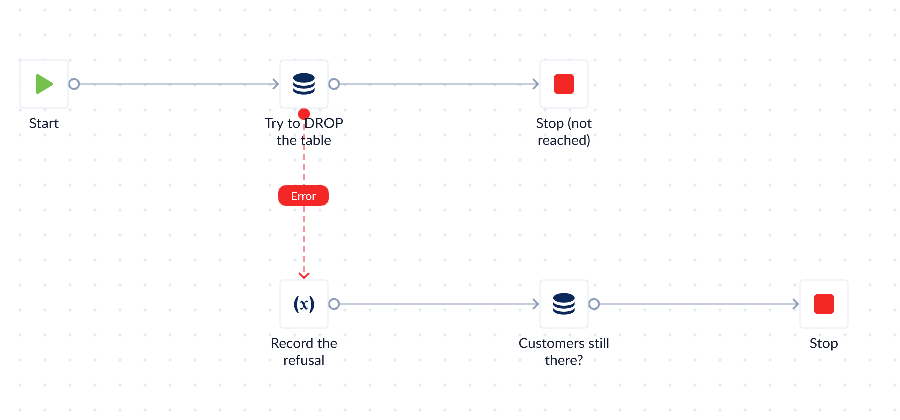
When the DROP TABLE is refused, the process follows the red Error line. The error branch records the message and the process finishes successfully.
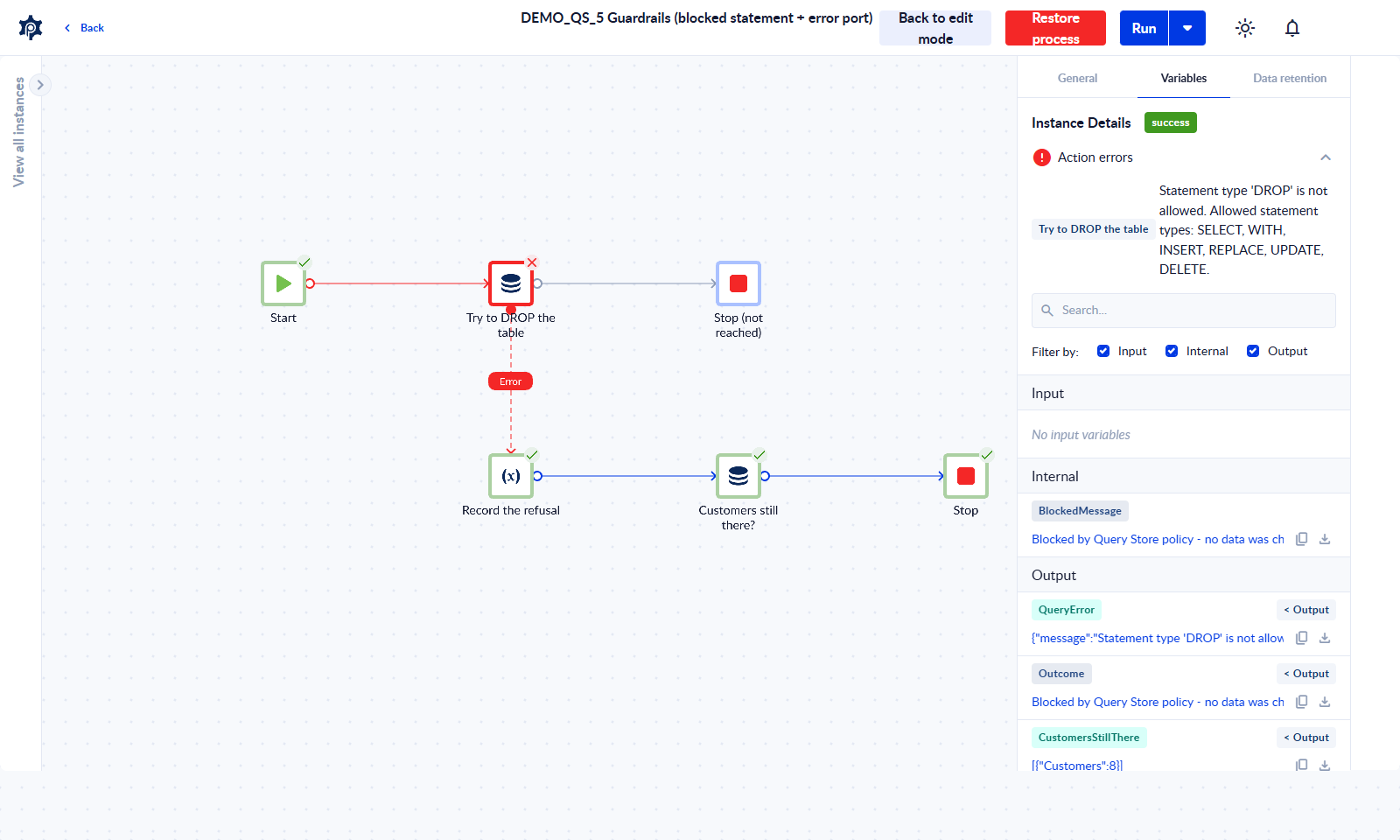
Action errors shows the message for the failed step. The error variable holds the same message for later steps.
Combining Query Store with other features
| Together with | You can… |
|---|---|
| Forms | Save each submission (INSERT), check for a duplicate first (SELECT), or look up extra data for the person who submitted. |
| Forms & Tasks | Query the open requests, assign a task for each one, and write the decision back with UPDATE. |
| Webhooks + custom response | Offer a small API over your data: the caller sends a filter, and the process returns Result Rows. |
| Schedules | Clean up on a timer, for example DELETE rows older than 90 days every night. |
| Generate Document + Send Email | Send a weekly report: a GROUP BY query fills a document template, and the PDF is emailed. |
| Call API | Copy data from another system into a Data Store with REPLACE (it adds new rows and updates existing ones), then report on it with SQL. |
| For Each | Go through Result Rows one by one, for example calling an API or sending an email for each row. |
| Decisional | Branch on Total Count (for example, 0 rows → create, otherwise update) or on a value in the results. |
| Call Subprocess | Keep a query you use often in one subprocess and call it from many processes. |
Troubleshooting
| What you see | What to do |
|---|---|
| "The specified database does not exist. Create a Data Store first." | A workspace's database is created together with its first Data Store. In a workspace (personal or shared) with no Data Store yet, there is nothing to run against: create a Data Store, then run the process again. |
| "Expected maximum one table but received 2 tables!" | Two statements return rows. Keep one statement that returns rows; turn the others into SELECT … INTO @name. The writes before the error are already saved. |
| "The query contains invalid SQL syntax." with several statements | Look for an empty statement between two others (…; ; …), a DECLARE (use SET @name = value), or a variable named like a parameter. Statements before the error have already run. |
A red Unknown chip in the query | The Data Store or column was deleted. Remove the chip and pick a replacement with Ctrl + I. |
| A JOIN is refused, although each Data Store works on its own | Two Data Stores share a column name. Add aliases (AS c, AS o) and prefix every column with its alias. |
The query runs but returns 0 rows with IN (@list) | Use JSON_CONTAINS or MEMBER OF. See Passing a list. |
A WHERE on a Guid column returns 0 rows, although the row exists | The column holds bytes, not text. Use the Hex output of GUID Converter without quotes. See Finding a row by Guid. |
| Test Action stops with a message about the Parameters row | Fill in the row, or delete it if the query has no parameters. |
| "A required column has no default value and was not supplied." | An INSERT is missing a required column, often CreatedById / UpdatedById. |
| Validation fails on Time Out | Use a value between 60 and 1800. |