

Subscription and billing
See your plan, its billing dates and prices, turn auto-renew on or off, request a refund and buy more processing time.
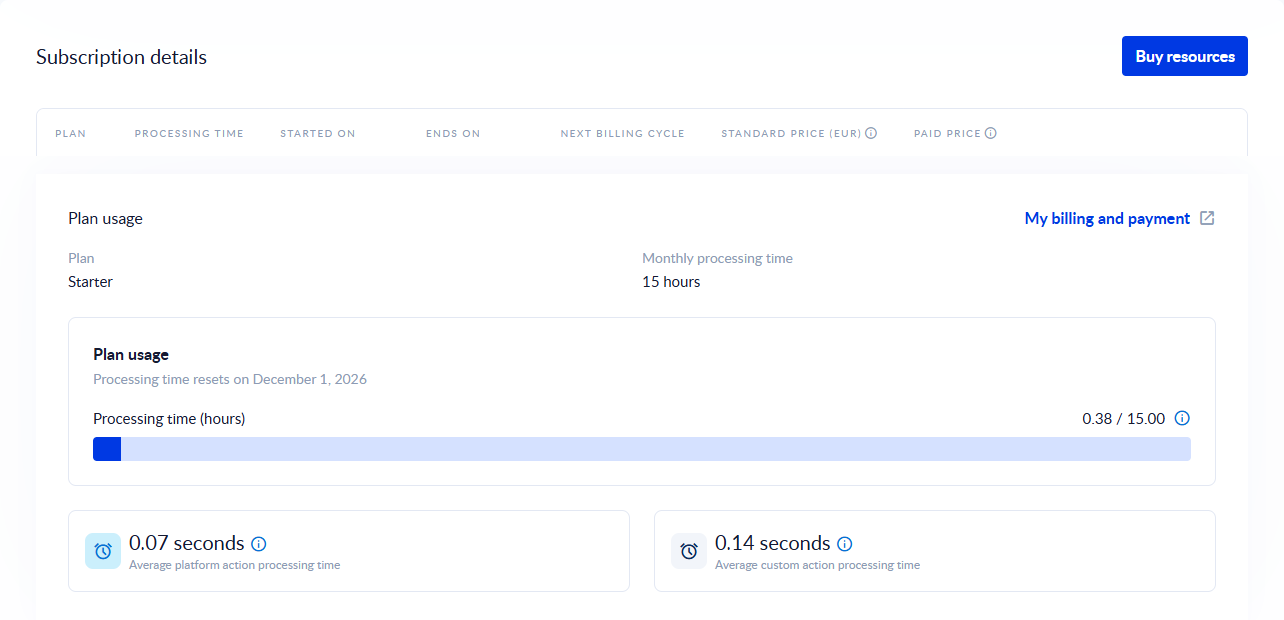
Subscription and billing shows the subscriptions of your account, their billing dates and prices, and how much of your plan you have used.
Open the page
In the left menu, click Subscription and billing.
The page is available in a master workspace, to users who can manage the master workspace. You do not see it in sub-workspaces or in your personal workspace.
Subscription details
The Subscription details table has one row per subscription, with these columns:
| Column | What it shows |
|---|---|
| Plan | The name of the plan. |
| Processing time | The monthly processing time included, in hours. |
| Started on | When the subscription started. |
| Ends on | When the current period ends. |
| Next billing cycle | The day of the next billing. It shows - once the subscription has expired. |
| Standard price (EUR) | The price without VAT. |
| Paid price | The price you paid, with VAT, in the currency you paid in. |
Hover over the info icon next to a price column to read how it is calculated. The price you pay may vary with the daily currency exchange rate.
Turn auto-renew on or off
Each subscription has an Auto-renew checkbox. Check it to renew the subscription automatically at the end of the period, or clear it to stop the renewal. A message confirms "Subscription auto-renew was updated successfully."
You cannot change auto-renew on a subscription that has already expired.
Request a refund
You can ask for a refund within 30 days of buying a subscription.
- In the subscription's row, click Refund.
- In the Refund payment? dialog, pick a reason from the list.
- Click Refund.
The request is reviewed before it is approved, and you receive emails about its status. The row then shows Refunded.
Refund is disabled when a refund is not possible: the tooltip says "Refund is not possible", or "Refund is possible only within 30 days from acquisition." once the 30 days have passed.
Buy more processing time
Click Buy Resources at the top of the page. In the dialog, under Select monthly processing time:, pick the number of hours per month you want. Each option shows its monthly price.
Plan usage
Under the table, Plan usage shows your Plan, your Monthly processing time and how much processing time you have used. See Processing time and usage for how to read these figures.
Click My billing and payment to open your billing and payment account with our payment provider in a new tab.