

Gmail - incoming
You can open and read your messages from Gmail in PROCESIO as it supports POP.
You can open and read your messages from Gmail in PROCESIO as it supports POP.
1. Set up POP in Gmail
- On your computer, open Gmail.
- In the top right, click Settings > See all settings
- Click the Forwarding and POP/IMAP tab.
- In the "POP download" section, select Enable POP for all mail or Enable POP for mail that arrives from now on.
- At the bottom of the page, click Save Changes.
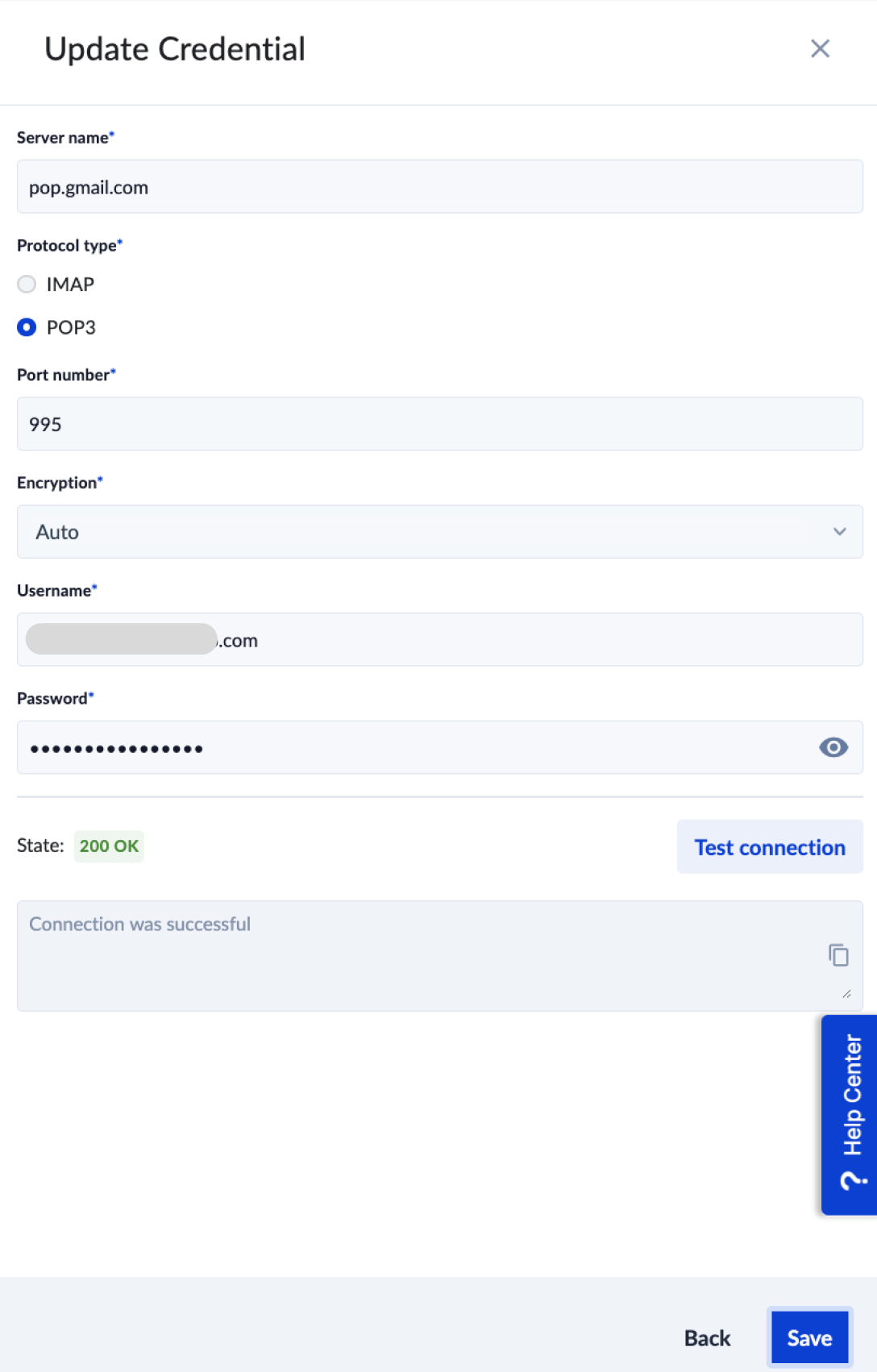
2. Next, create an inbound email credential in PROCESIO
Go to PROCESIO > Credentials Manager.
Click "+Create new".
Give it a name and select credential type "SMTP Inbound Configuration".
| Incoming Mail (POP) Server name | pop.gmail.com |
|---|---|
| Protocol type | POP3 |
| Port number | 995 |
| Encryption | Auto |
| Username | Your email address |
| Password | Your App Password (not the same as your Gmail password); read the below steps on how to generate an app password |
3. Go to your Google account and generate an app-specific password
Sign in with App Passwords
Tip: An App Password is a 16-digit passcode that gives PROCESIO permission to access your Google Account. App Passwords can only be used with accounts that have 2-Step Verification turned on.
Create & use App Passwords
If you use 2-Step-Verification and get a "password incorrect" error when you sign in, you can try to use an App Password.
- Go to your Google Account.
- Select Security.
- Under "Signing in to Google," select "2-Step Verification". You may need to sign in. If you don’t have this option, it might be because:
- 2-Step Verification is not set up for your account.
- 2-Step Verification is only set up for security keys.
- Your account is through work, school, or other organization.
- You turned on Advanced Protection.
- At the bottom of the page, select "App passwords" and choose the app you using Select device and choose the device you’re using Generate. If you can't find it, here is a link: https://myaccount.google.com/apppasswords
- Follow the instructions to enter the App Password. The App Password is the 16-character code in the yellow bar on your device.
- Tap Done.
Use the generated app password to create/update the credential for Inbound Configuration in PROCESIO (in step 2).
4. Go to Process Designer and start using the Inbound Email action in your processes.
Gmail - outgoing
Sometimes you will need to send an email from a printer, scanner, or app using an SMTP relay service. Google provides such a service for free and you…
SendSMS
With Procesio you can administrate your SendSMS marketing account and campaigns in a no-code environment where your marketing department can…