
SendinBlue
Procesio helps you create a flow that is custom to your email sending needs by allowing you to customize the process according to your sending…
Procesio helps you create a flow that is custom to your email sending needs by allowing you to customize the process according to your sending requirements with automation in mind while being in control of the SMTP platform from a no code environment.
We are assuming that you already signup on Procesio and SendinBlue. If not then first make an account and activate them.
You can use the Credential Manager to configure the authentication credentials of the SendinBlue API by following the following steps:
Create the credential
1. Navigate to the Credential Manager section.
2. Select the Add New button from the upper right corner.
3. Give a Name to the newly created connection, select the Rest API Configuration from the Credential Type dropdown and optionally add the Description.
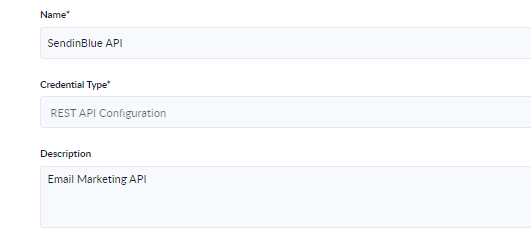
4. Select the Next step button.
5. Enter the SendinBlue API connection data as shown in the screenshot with the mention that in the Value field you will need to enter your SendinBlue API key.
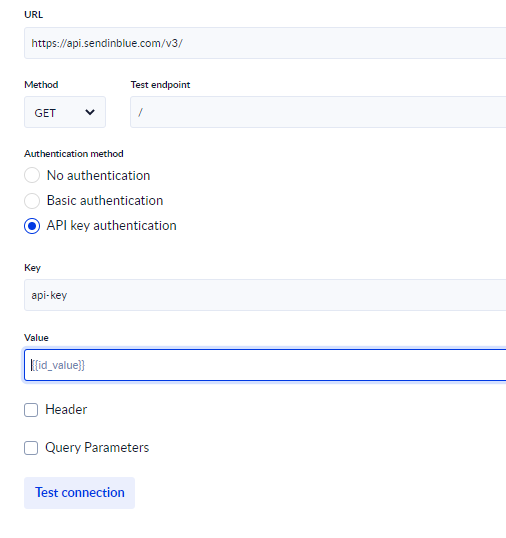
6. When you click the Test connection button Procesio will test the connection and give the Successfully tested! message.
7. If at step 4 you select SMTP Server Configuration enter the following SMTP configuration, with the mention that your SMTP login can be found here.
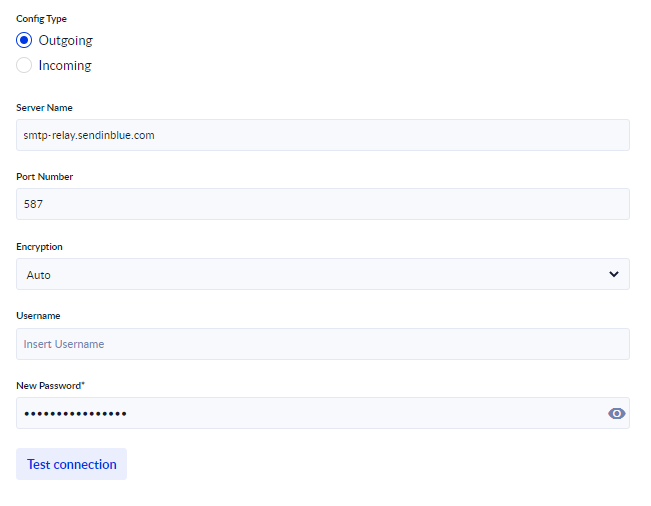
8. Save the connection.
Process configuration
1. Create a process using your newly created connection.
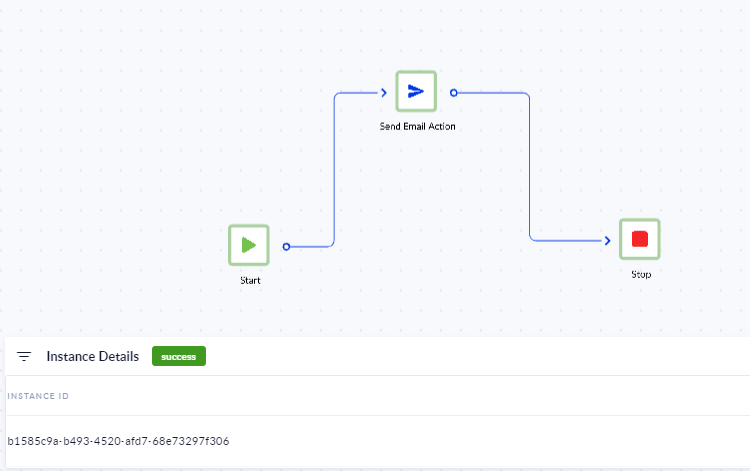
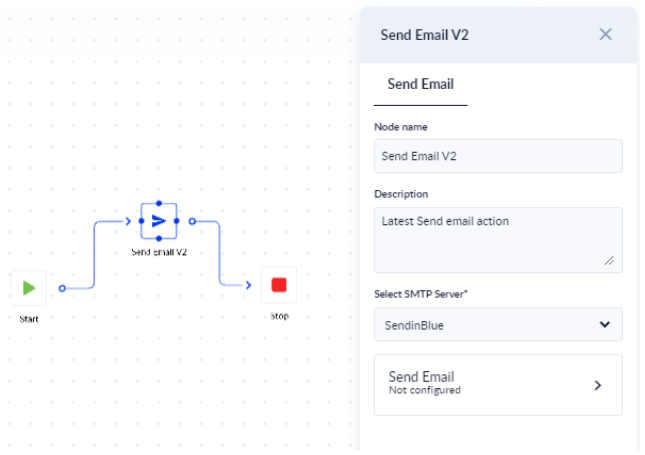
2. After creating the flow using the drag and drop functionality you can give the Send Email Action a name, description and from the Select SMTP Configuration dropdown select the connection created at step 8 of the previous section.
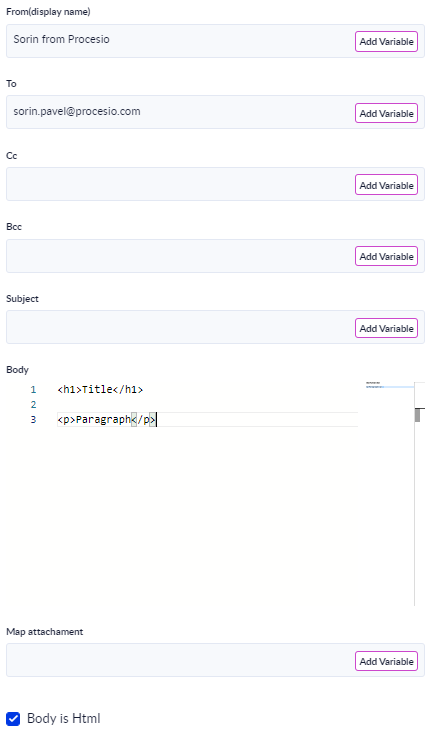
3. In the Send Email screen enter the From(display name), To, Cc, Bcc, Subject and Body information and click Save. If the Body will use HTML tags you will need to check Body is HTML.
4. From the upper right corner you will need to Save the process, Validate the process and click Run.
5. By clicking Check instance you can see if the process you just ran was a success.