

Gmail - outgoing
Sometimes you will need to send an email from a printer, scanner, or app using an SMTP relay service. Google provides such a service for free and you…
Sometimes you will need to send an email from a printer, scanner, or app using an SMTP relay service. Google provides such a service for free and you can easily add it to your flow to easily increase functionality.
Google account
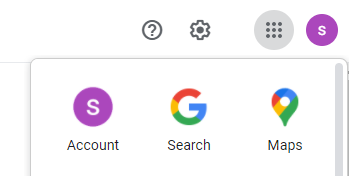
1. From the Google Apps menu, navigate to your Google Account.
2. From the Security tab navigate to Signing in to Google and turn on the 2-Step Verification.
3. From the Security tab navigate to Signing in to Google and select App passwords.
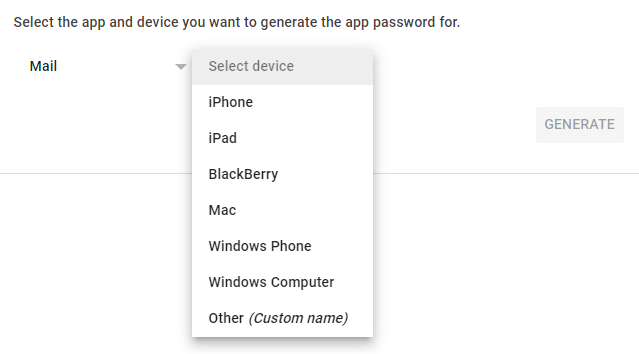
4. Select Mail and Other(Custom name) (for our case) and provide a name for this password. You will be able to see the generated password only once.
Create the credential
1. Navigate to the Credentials Manager section.
2. Select the Add New button from the upper right corner.
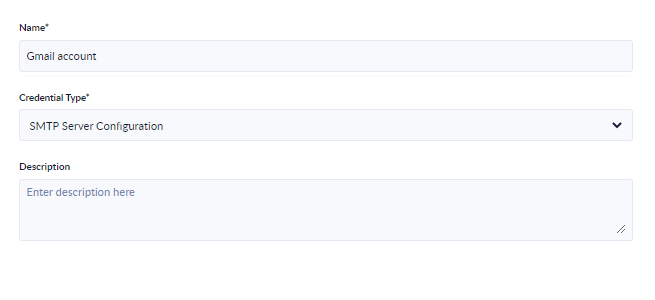
3. Give a Name to the newly created connection, select SMTP Server Configuration from the Credential Type dropdown and optionally add the Description.
4. Select the Next step button.
5. Enter the GMail connection data as shown in the screenshot. The password is the one that was generated in a previous step.
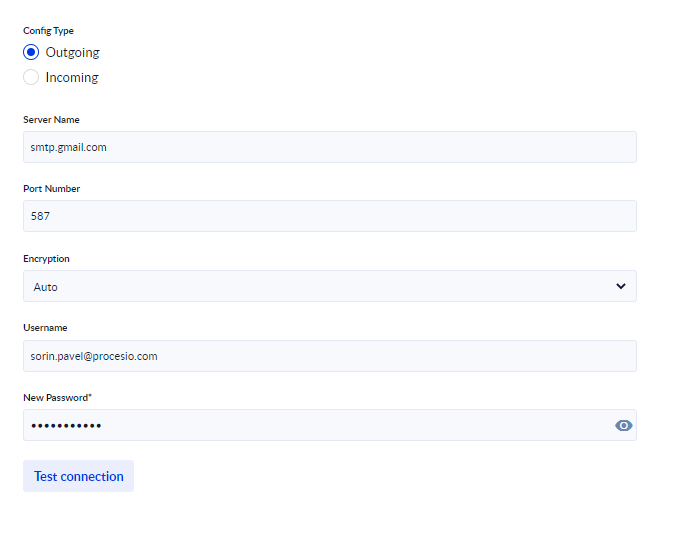
6. When you click the Test connection button PROCESIO will test the connection and give the Successfully tested! message.
7. Save the connection.
Create and configure the process
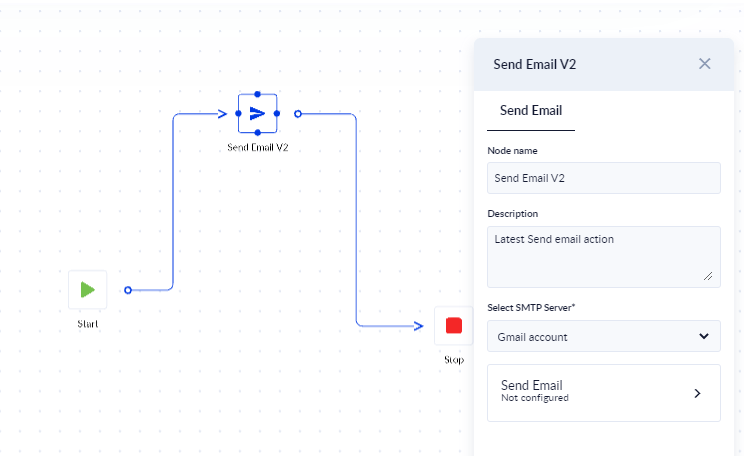
1. After creating the flow using the drag and drop functionality you can give the Send Email Action a name, description and from the Select SMTP Server dropdown select the connection created at step 7.
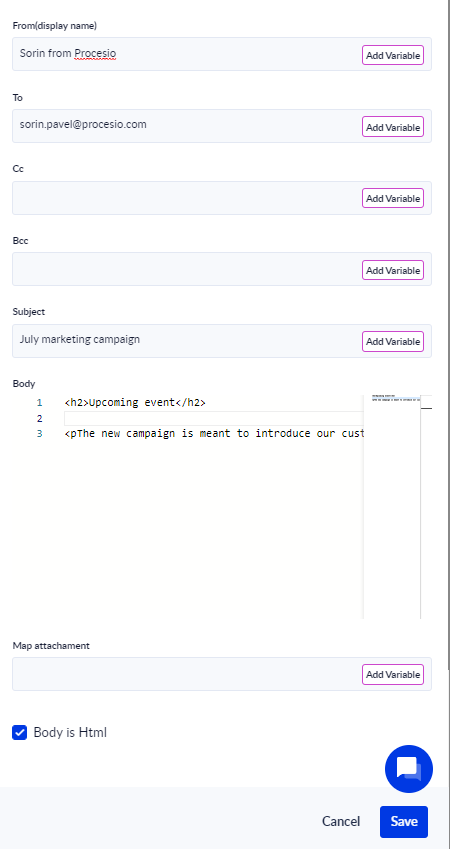
2. In the Send Email screen enter the From(display name), To, Cc, Bcc, Subject and Body information and click Save.
3. If the Body will use HTML tags you will need to check Body is HTML.
4. From the upper right corner you can Save, Validate and Run the Process.
