

Microsoft Outlook
Microsoft Outlook is a well known email service used by professionals. The SMTP service it offers for free can be easily used in conjunction with…
Microsoft Outlook is a well known email service used by professionals. The SMTP service it offers for free can be easily used in conjunction with your apps, printer or scanner and added to your Procesio flows.
Before we begin you must first configure your Outlook account:
Outlook configuration
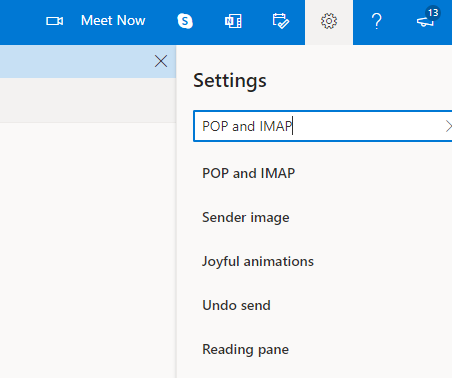
1. Click the Settings widget from the upper right corner and type and select in the in the Search box POP and IMAP.
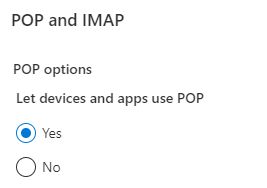
2. Under the POP and IMAP options area, select Yes under the Let devices and apps use POP option. You can then choose whether or not to let apps and devices delete emails from Outlook or preserve them permanently.
Create the connection
Create the connection between Procesio and your Outlook account:
- Navigate to the Credentials Manager section.
- Select the + Add New button from the upper right corner.
- Give a Name to the newly created connection, select SMTP Server Configuration from the Credential Type dropdown and optionally add the Description.
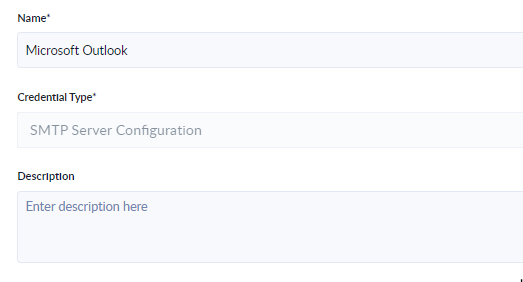
- Add the connection data like in the screen.
- Config Type: Outgoing
- Server Name*: smtp-mail.outlook.com
- Port Number*: 587
- Encryption: TLS
- The username and password of your Outlook account.
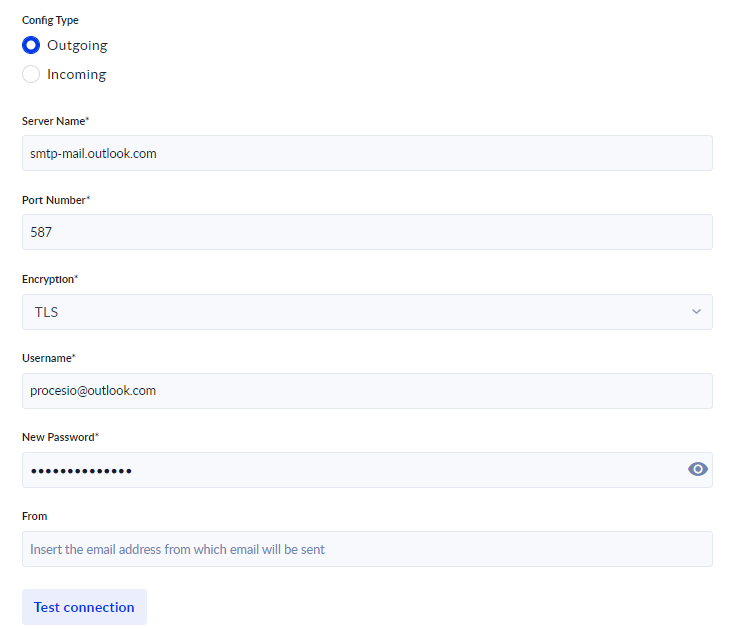
- Test and Save the connection.
Create and configure the process
1. Create a process using your newly created connection.
2. Select the SMTP credential you just created.
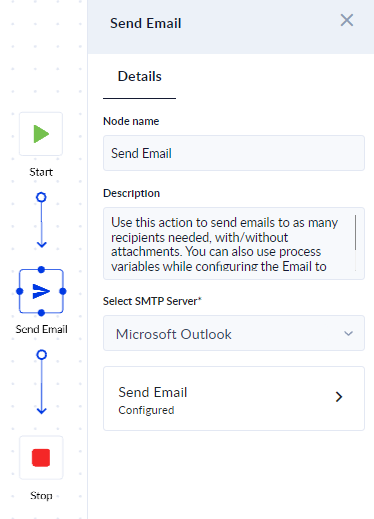
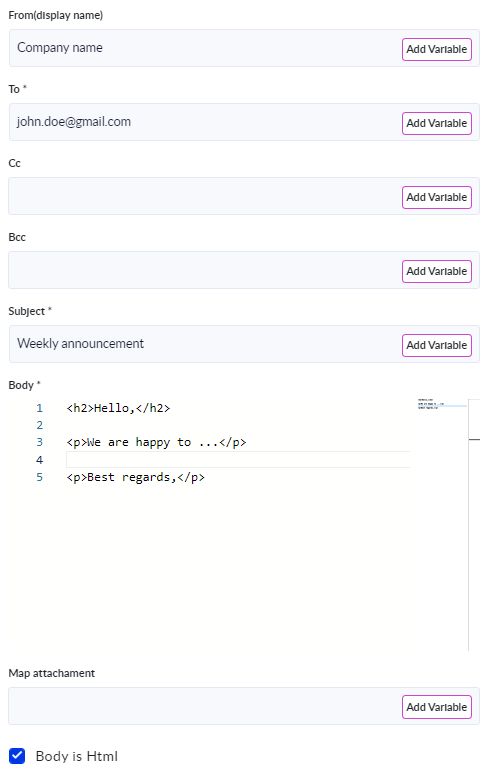
3. Add the email configurations and the email Subject and Body.
SmartSheet
Smartsheet is a work execution platform that empowers organizations to plan, track, automate, and report on work. It is an online spreadsheet app…
Hubspot
Hubspot is a CRM platform that's both powerful and easy to use at the same time. To integrate PROCESIO with Hubspot let's start by configuring your…