

Run a process with files via Call API
How to run a process via Call API:
How to run a process via Call API:
1. Create a process in PROCESIO - Process Designer.
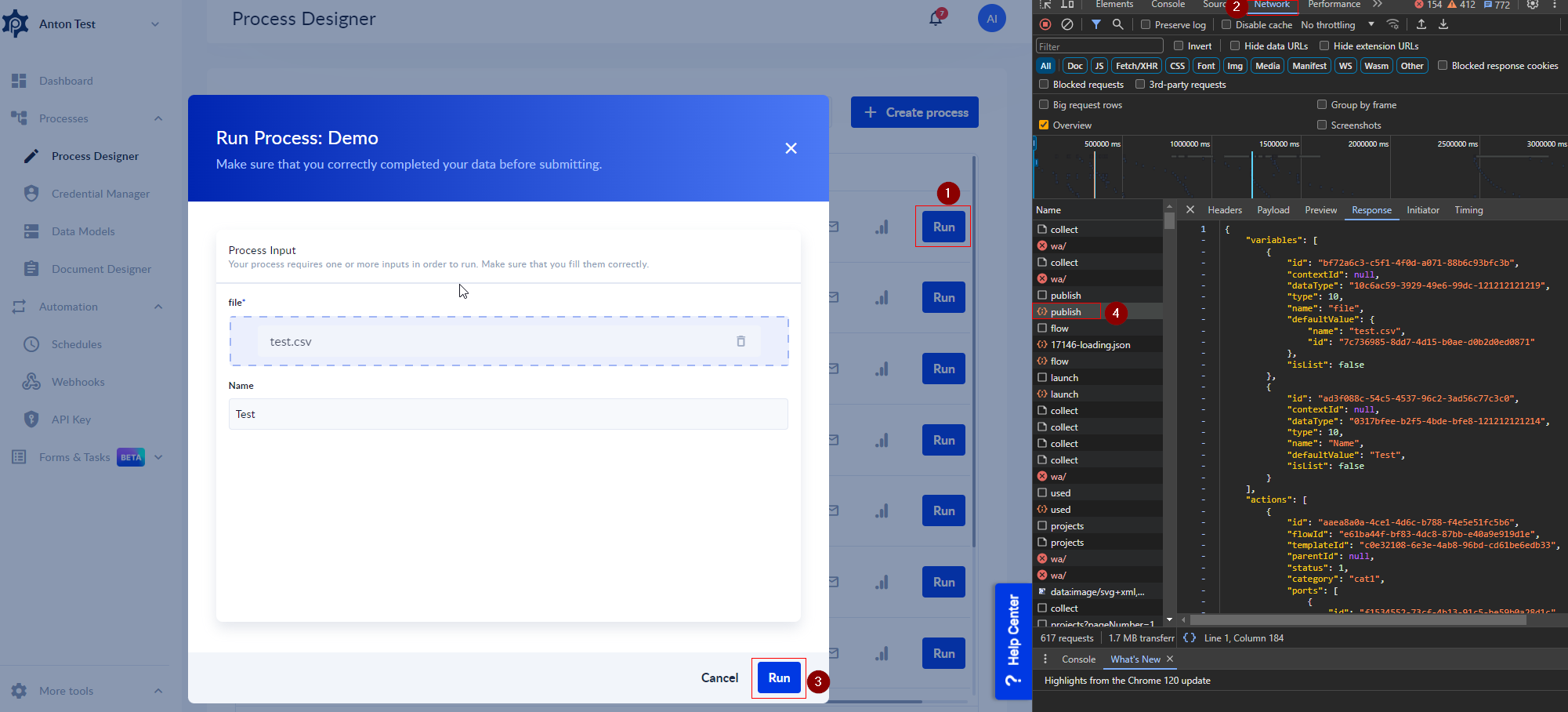
For this demo I created a process - Demo, with 2 input variables: a file and a string.
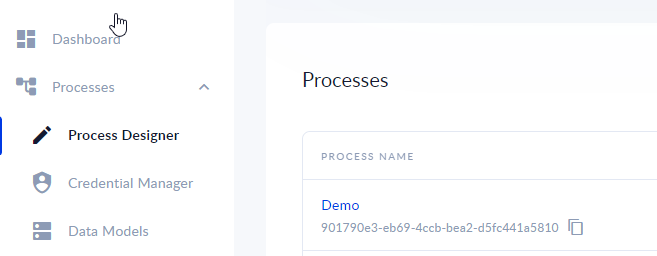
2. Create a API key in Automation - API Key.
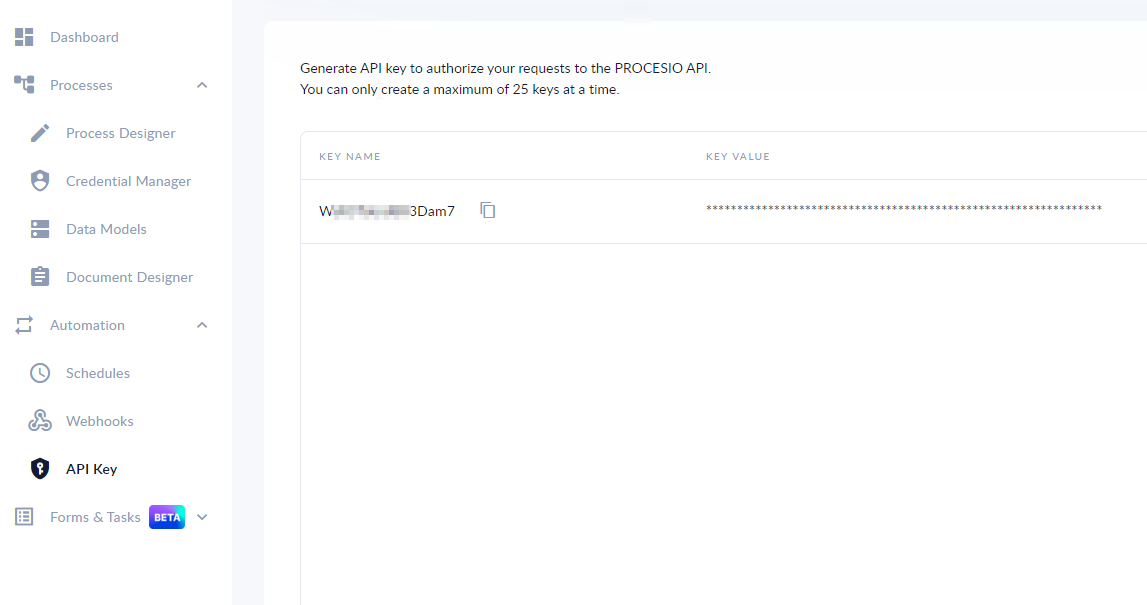
3. Send a Post Request to the endpont:
https://webapi.procesio.app/api/projects/{projectID}/instances/publish
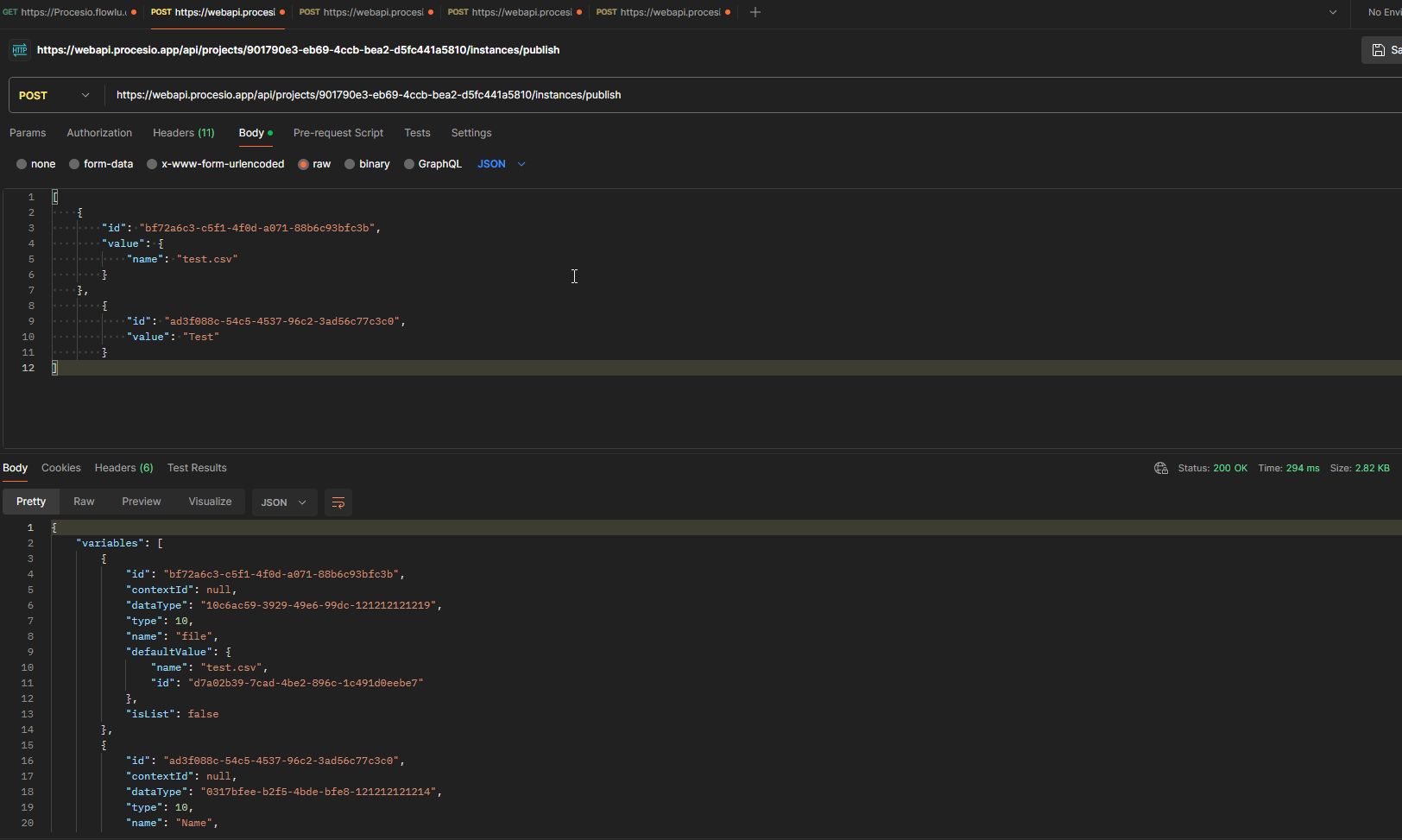
curl --location 'https://webapi.procesio.app/api/projects/projectIdValue/instances/publish' \ --header 'workspaceId: WorkspaceIDValue' \ --header 'key: ApiKeyName' \ --header 'value: ApiKeyValue' \ --header 'Content-Type: application/json' \ --data '[ { "id": "fileIdValue", "value": { "name": "filenNameValue" } }, { "id": "VariableIdValue", "value": "VariableValue" } ]'
Follow the instructions below to replace the highlighted text.
Headers:
| Key | Value |
|---|---|
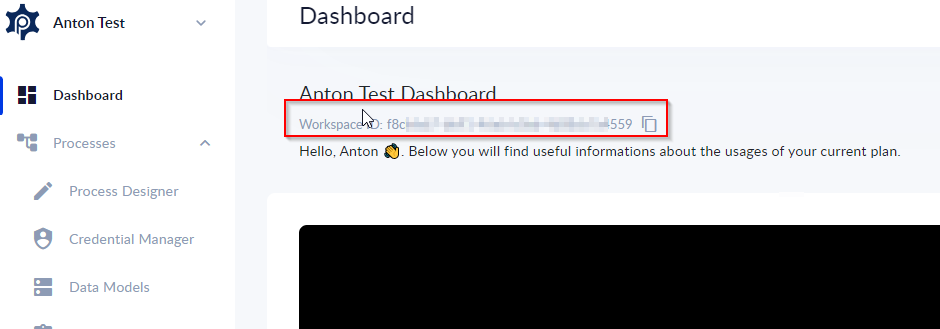
| workspaceId | {worspaceID value} |
| key | {API key name} |
| value | {API key value} |
- The project ID is displayed in the Process Designer under the name of the process.
- The workspace ID is displayed in Dashboard:
Body:
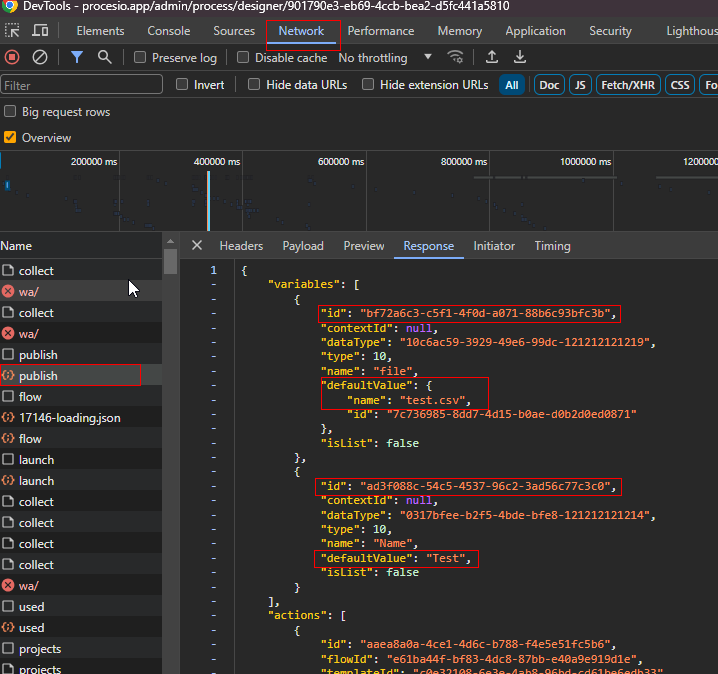
[ { "id": "bf72a6c3-c5f1-4f0d-a071-88b6c93bfc3b", "value": { "name": "test.csv" } }, { "id": "ad3f088c-54c5-4537-96c2-3ad56c77c3c0", "value": "Test" } ]
- In the body, the input variables must be initialized by ID with their values.
- Navigate to Process Designer, open developer tools and go to Network, then Run the process.
- In the Publish request you can find the variables IDs for your process. ( In my case I have a file and a string ):
4. Send a Post Request to the endpont:
https://webapi.procesio.app/api/file/upload/flow
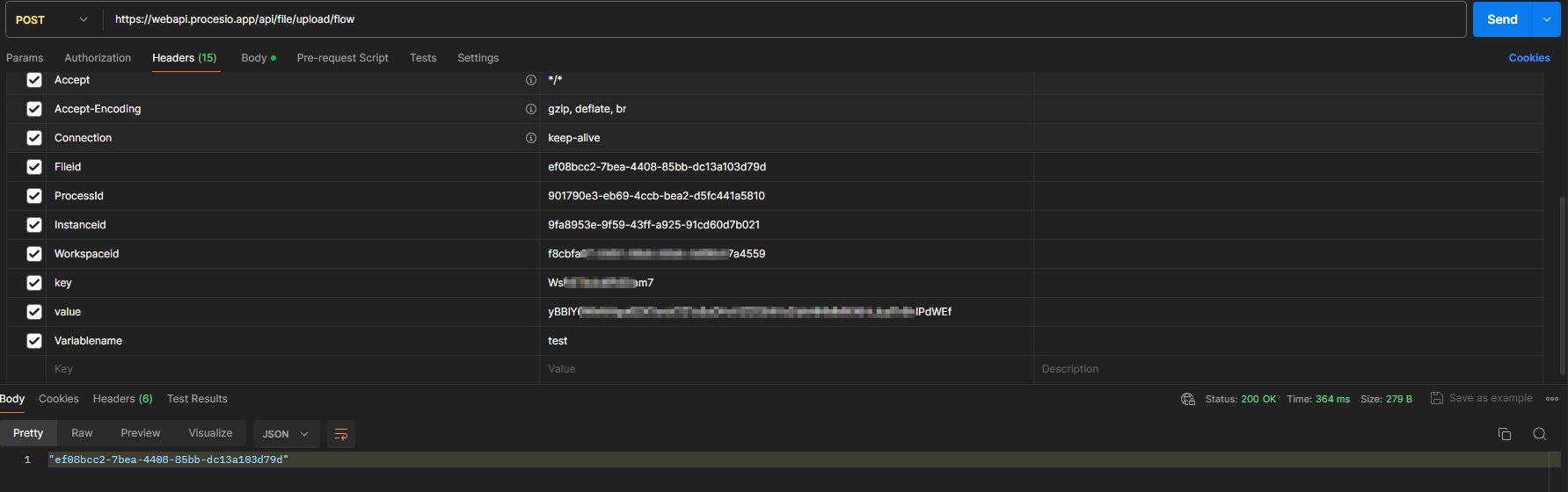
curl --location 'https://webapi.procesio.app/api/file/upload/flow' \ --header 'Fileid: FileIdValue' \ --header 'ProcessId: ProcessIdValue' \ --header 'FlowInstanceid: InstanceIdValue' \ --header 'Workspaceid: WorkspaceIdValue' \ --header 'key: ApiKeyName' \ --header 'value: ApiKeyValue' \ --header 'Variablename: VariableNameValue' \ --form 'package=@"/FilePath"'
Follow the instructions below to replace the highlighted text.
Headers:
| Key | Value |
|---|---|
| workspaceId | {worspaceID value} |
| key | {API key name} |
| value | {API key value} |
| fileId | {file Id value} |
| projectID | {project Id value} |
| FlowInstanceID | {Flow Instance Id value} |
| Variablename | {Variable name value} |
- File ID and Flow Instance ID are displayed in the response from the Publish api Call:
File ID: $.variables[?(@.name == 'filename')].defaultValue.id
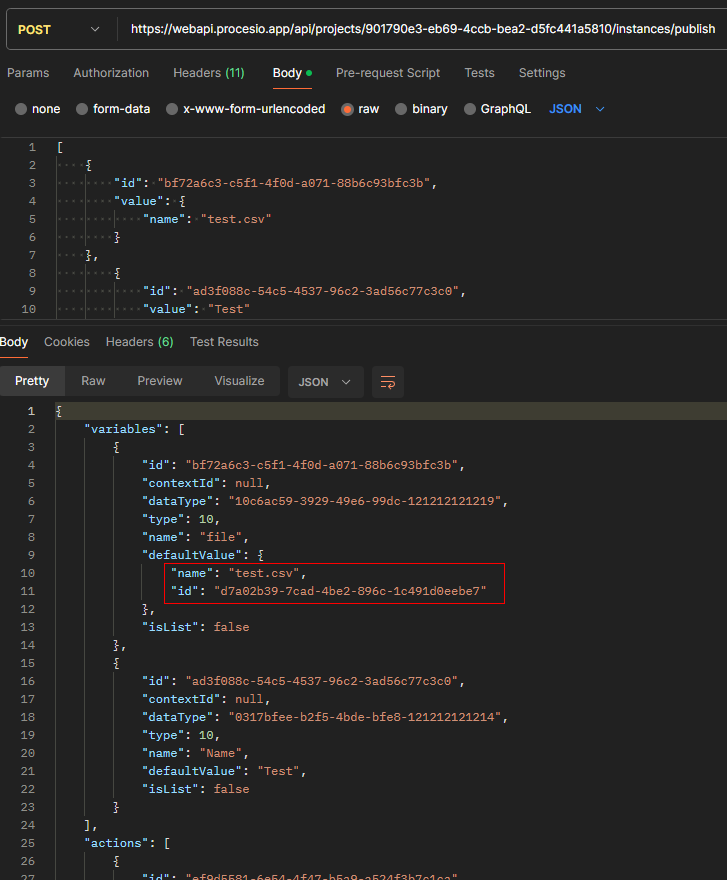
Flow InstanceID: $.id
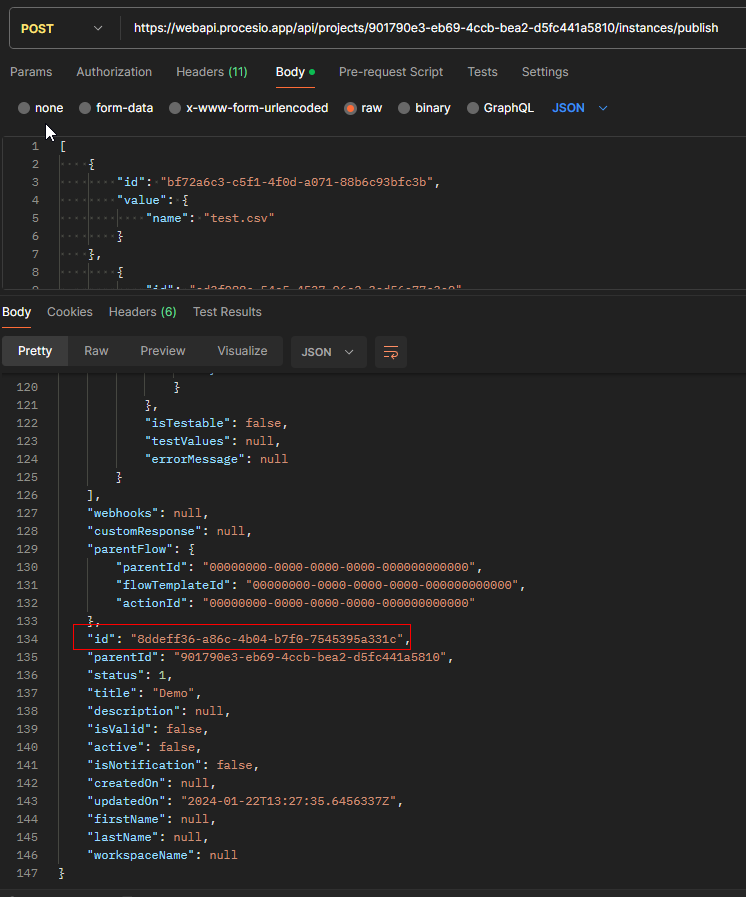
Body:
| key | Value | |
|---|---|---|
| package | {file} |

4. Send a Post Request to the endpont:
https://webapi.procesio.app/api/Projects/instances/instanceID
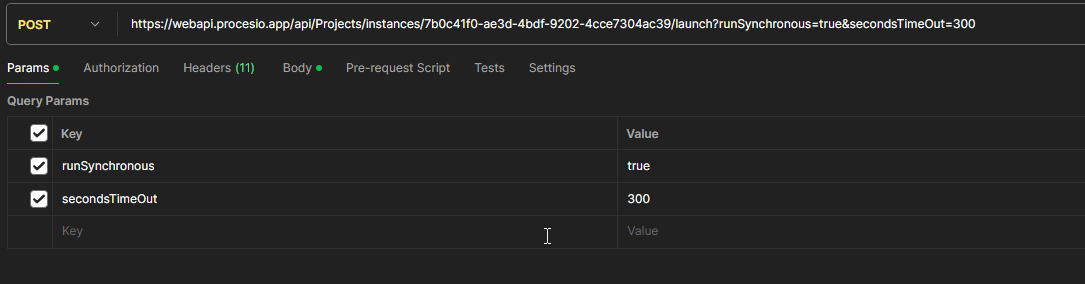
curl --location 'https://webapi.procesio.app/api/Projects/instances/FlowInstanceID/launch?runSynchronous=true&secondsTimeOut=300' \ --header 'key: ApiKeyName' \ --header 'value: ApiKeyValue' \ --header 'workspaceId: WorkspaceIdValue' \ --header 'Content-Type: application/json' \ --data '{ "ProcessID": "ProcessIdValue" }'
Params:
| Key | Value |
|---|---|
| runSynchronous | true |
| secondsTimeOut | 300 |
Headers:
| Key | Value |
|---|---|
| workspaceId | {worspaceID value} |
| key | {API key name} |
| value | {API key value} |
Body:
{ "ProcessID": "{ProcessIdValue" }
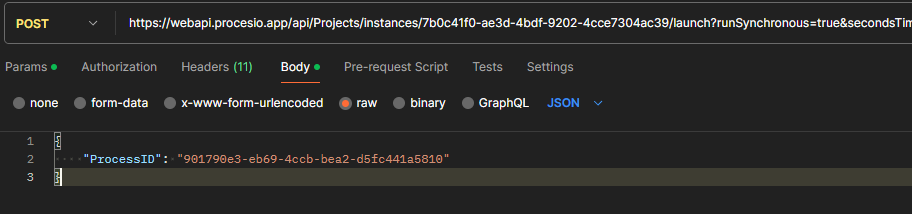
5. Check Project Instances and verify if the process was completed:

RSign x PROCESIO
The RSign® integration with Procesio allows users to create automated workflows, integrating RSign® with thousands of platforms via a low-code…
Google OAuth2
The Google APIs credentials relies on the OAuth2 protocol. OAuth2 is an industry-standard protocol for authorization. It allows a client to easily…