

Resources Map
See how a process, webhook or schedule is connected to the rest of your workspace: the subprocesses it calls and what starts it.
The Resources Map draws the connections between the processes, webhooks and schedules of a workspace. Use it to see what starts a process, which subprocesses it calls, and what else would be affected if you change it.
Open the Resources Map
In the left menu, open More tools and click Resources Map.
The Resources Map is available in your personal workspace and in sub-workspaces. You see it only if you can view processes, webhooks and schedules in the workspace.
Show the connections of one resource
- In Show connections for:, open the list and pick a process, webhook or schedule. Use the All, Processes, Webhooks and Schedules tabs or Search by name to find it.
- The map shows the resource and everything connected to it.
The Legend shows which icon stands for a Process, a Webhook and a Schedule.
A connection is drawn:
- from a webhook or a schedule to the process it starts;
- from a process to each subprocess it starts with Call Subprocess or Trigger Subprocess, and on to their own subprocesses.
If the resource has no connections, the map says "The component does not have connections".
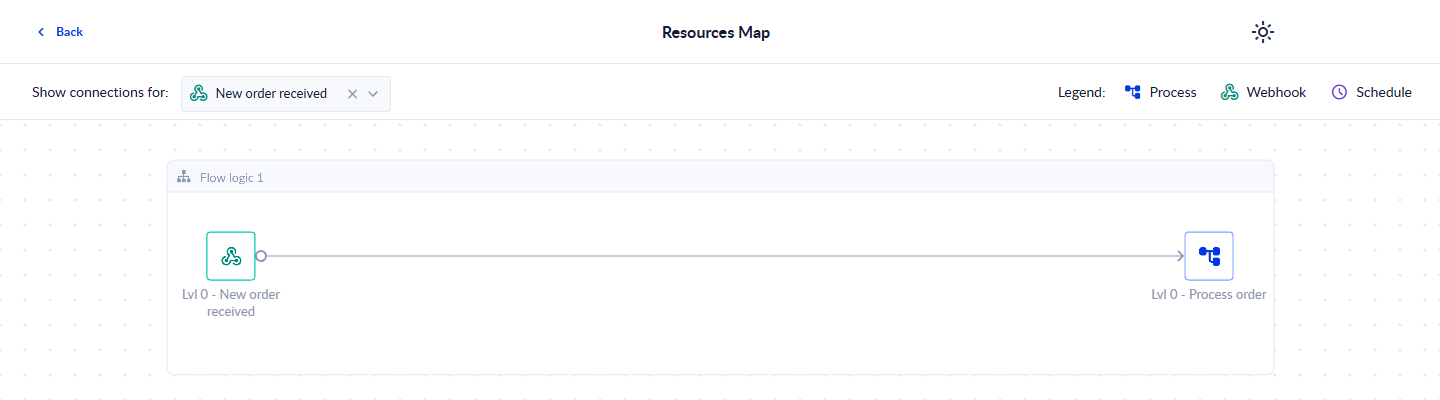
Click an item on the map to see its details in a read-only panel: the settings of a webhook or a schedule, or the variables, webhooks, schedules and credentials of a process. Double-click a process to open it in the Process Designer.
Processing time and usage
What processing time is, how the soft and hard limits work, and what happens to your processes when you reach them.
Import / Export resources
Export processes, data models, Data Stores, credentials, documents and forms to a .procesio file and import them into another workspace.