

Appearance and accessibility
Choose the Light, Dark or System theme and turn high contrast on or off from the Appearance menu in the PROCESIO top bar.
The Appearance menu lets you choose how PROCESIO looks: a light or dark theme, and a high contrast mode with stronger borders and lines that are easier to see.
Open the Appearance menu
Click the Appearance icon at the top right of the top bar, to the left of the notifications. The icon is a sun in the light theme and a moon in the dark theme. You also find it on the Sign in page, in the Form Designer and in the Action Designer.
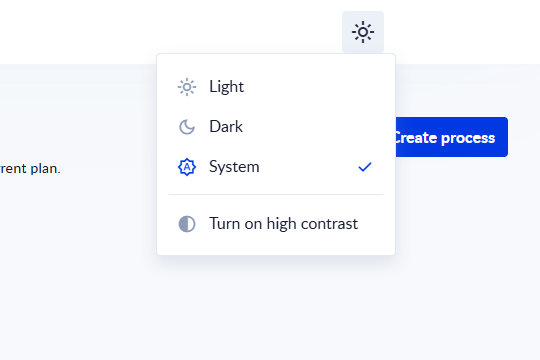
Choose a theme
In the Appearance menu, click one of:
| Option | What it does |
|---|---|
| Light | Always uses the light theme. |
| Dark | Always uses the dark theme. |
| System | Follows your computer's setting, and changes when your computer switches between light and dark. This is the default. |
A check mark shows the theme in use.
Turn high contrast on or off
High contrast makes borders and lines stronger and easier to see.
- To turn it on, open the Appearance menu and click Turn on high contrast.
- To turn it off, click Turn off high contrast.
High contrast works with both the light and the dark theme.
Automatic high contrast
If your computer is set to use more contrast, PROCESIO turns on high contrast automatically. If you then click Turn off high contrast, PROCESIO keeps it off, even though your computer asks for more contrast.
Where your choice is kept
PROCESIO remembers your theme and contrast choices in the browser you use. On another browser or computer, choose them again.
Signing in
Sign in to PROCESIO with your email and password or with Google, GitHub or Microsoft, reset a forgotten password, and what happens after too many failed attempts.
Your profile and user menu
Change your first and last name, open your keyboard shortcuts, turn on two-factor authentication and sign out from the user menu.