

Signing in
Sign in to PROCESIO with your email and password or with Google, GitHub or Microsoft, reset a forgotten password, and what happens after too many failed attempts.
You can sign in to PROCESIO with your email address and password, or with a Google, GitHub or Microsoft account.
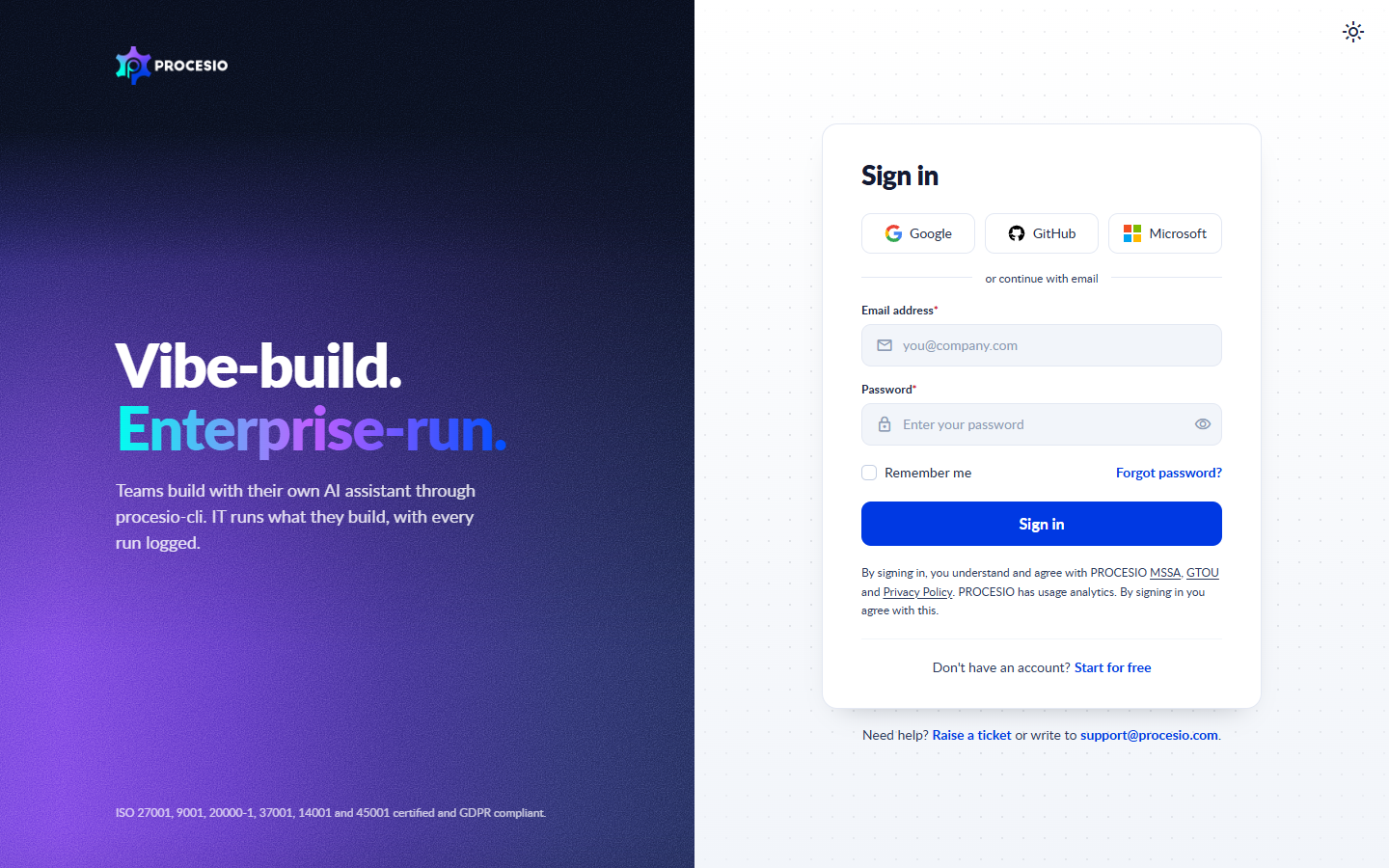
Sign in with Google, GitHub or Microsoft
- On the Sign in page, click Google, GitHub or Microsoft.
- A pop-up window opens. Sign in to that account and allow access.
- The window closes and PROCESIO opens.
The sign-in opens in a pop-up window. If nothing happens, your browser may be blocking pop-ups: allow pop-ups for PROCESIO and try again.
If the provider cannot be reached, PROCESIO shows "Unexpected error encountered." and says which provider is unavailable. Try again, or sign in with your email and password.
Sign in with your email and password
- On the Sign in page, under or continue with email, type your Email address and Password.
- Click Sign in.
If the email address or the password is wrong, you see "Error! Invalid login credentials."
Select Remember me to have PROCESIO sign you in automatically the next time you open it in this browser. Do not use it on a computer that other people use.
Two-factor authentication
If two-factor authentication (2FA) is on for your account, a Code field appears after you click Sign in. Type the code from your authenticator app and click Sign in again.
To turn on 2FA, or to learn what happens in a workspace that requires it, see Two-factor authentication.
Forgot your password
- On the Sign in page, click Forgot password?.
- Type your Email address and click Send reset link.
- Open the email from PROCESIO and click the link. The link is valid for 24 hours.
- On the Change your password page, type the new password in New Password and again in Confirm Password, then click Change password.
If the email does not arrive, check your spam or junk folder.
Your new password must:
- be at least 8 characters long (and at most 256);
- contain at least one uppercase letter (A-Z);
- contain at least one lowercase letter (a-z);
- contain at least one digit (0-9);
- contain at least one special character, for example
?,!,#,%or$.
Too many failed attempts
For your security, PROCESIO locks your account for a short time after several failed sign-in attempts. The Sign in page then says "For security reasons, your account has been locked after several failed login attempts."
Wait a little and try again. If you still cannot sign in, contact your administrator.
Stay signed in and sign out
PROCESIO keeps you signed in while you work. To sign out, open the user menu at the top right and click Sign Out.
No account yet
On the Sign in page, click Start for free to create a PROCESIO account.
Need help
If you cannot sign in, raise a ticket from the Need help? link on the Sign in page, or write to support@procesio.com.
Two-factor authentication
Turn on two-factor authentication (2FA) for your account, require it for everyone in a master workspace, and what users see when a workspace requires it.
Appearance and accessibility
Choose the Light, Dark or System theme and turn high contrast on or off from the Appearance menu in the PROCESIO top bar.