

Notification center
Read the notifications PROCESIO sends you, see which ones are new, and mark them as read.
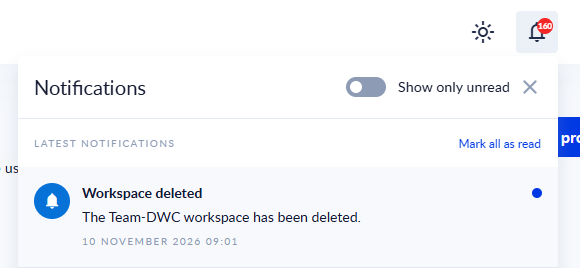
The Notification Center is the bell icon in the topbar. A number on the bell shows how many notifications you have not read yet.
Click the bell to open the list. Each notification has a title, a message and the date and time it was sent. New ones are marked as unread.
PROCESIO notifies you, for example, when an export or an import of resources starts and when it completes (see Import and export resources), about workspace administration and resource usage, and when an action you use is being retired.
Read and filter
- Hover over an unread notification and click Mark as read to mark that one.
- Click Mark all as read to mark every notification as read.
- Switch on Show only unread to hide the ones you have read.
When you have no notifications, the list says "No notifications yet". With Show only unread on and nothing new, it says "No unread notifications".
Notifications that pop up on screen while you work, such as "Custom URL was saved.", are separate from this list. You can close them with their close button.