

Two-factor authentication
Turn on two-factor authentication (2FA) for your account, require it for everyone in a master workspace, and what users see when a workspace requires it.
Two-factor authentication (2FA) asks for a code from an authenticator app each time you sign in, on top of your password.
Turn on 2FA for your account
- Open the user menu at the top right of PROCESIO.
- Under Preferences, click Enable 2FA.
- A setup window opens. Follow its steps to connect your authenticator app.
When setup finishes you see "Two-factor authentication enabled!", and the user menu shows 2FA enabled instead of Enable 2FA.
The setup opens in a pop-up window. If your browser blocks it, you see "The setup window was blocked. Please, allow pop-ups for this site and try again." Allow pop-ups for PROCESIO and click Enable 2FA again.
If 2FA is already on for your account, the menu shows 2FA enabled and there is nothing to set up.
Require 2FA in a master workspace
The owner and co-owners of a master workspace can require 2FA for everyone who works in it.
- Open the master workspace and click Workspaces in the left menu.
- At the top of the Workspace Management page, switch on Enable 2FA Enforcement.

The setting applies to the master workspace and to every workspace inside it, including workspaces created after you switched it on. It doesn't affect anyone's personal workspace.
Turn on 2FA for your own account first. Once enforcement is on, anyone without 2FA, including you, has to set it up before they can keep working in these workspaces.
When a workspace requires 2FA
If you open a workspace that requires 2FA and your account doesn't have it yet, PROCESIO shows this message:
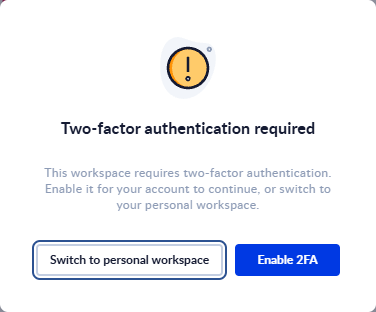
- Enable 2FA opens the setup window. As soon as 2FA is on, the workspace opens.
- Switch to personal workspace takes you to your personal workspace instead.