

Your profile and user menu
Change your first and last name, open your keyboard shortcuts, turn on two-factor authentication and sign out from the user menu.
Click your avatar in the upper-right corner to open the user menu.
| Item | What it does |
|---|---|
| Your name, with a pencil | Change your first and last name (see below). |
| Preferences → HotKeys | Shows the keyboard shortcuts. See Keyboard shortcuts. |
| Preferences → Enable 2FA | Turns on two-factor authentication for your account. When it is on, the menu shows 2FA enabled instead. See Two-factor authentication. |
| Sign Out | Signs you out. |
Change your name
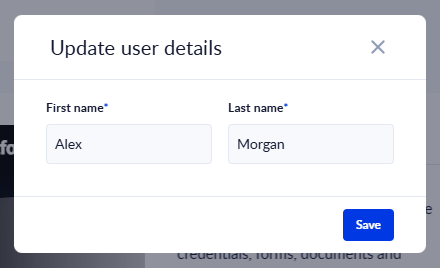
- Open the user menu and click the pencil next to your name (Update user details).
- In the Update user details dialog, change First name and Last name. Both are required.
- Click Save.
After saving, the dialog offers Reload page, which reloads PROCESIO so that every screen picks up the new name, and Close.
Your email address is not changed here.