

Azure Storage Account Credential
Connect PROCESIO to an Azure Storage account with a Shared Key or a Service Principal (Microsoft Entra ID), for the Azure Storage action.
An Azure Storage Account credential stores the connection to one Azure Storage account. The Azure Storage action uses it. Secrets are stored encrypted and are masked when you open the credential again.
Create the credential
- Open Credential Manager from the main menu and click Create credential.
- Enter a Credential name, choose Azure Storage Account as the Credential Type, add a description if you like, and click Next step.
- Choose the Authentication type and fill in the fields below.
- Click Test connection to check the details, then Save.
Test connection only reads: it lists the containers of the account. On success it shows, for example, "Connected to storage account 'contosostorage' using Shared Key." followed by the first 20 container names.
Shared Key
Use the storage account's name and one of its access keys.
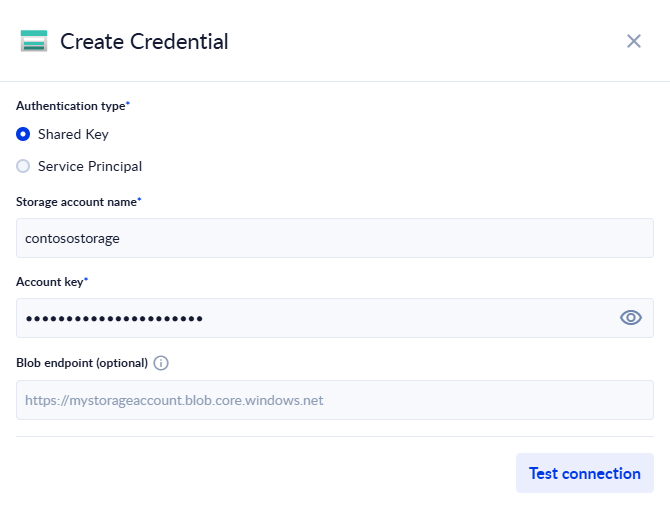
| Field | Required | What to enter |
|---|---|---|
| Storage account name | Yes | The storage account's name: 3 to 24 lowercase letters and digits, for example contosostorage. |
| Account key | Yes | One of the account's access keys. In the Azure portal: your storage account → Security + networking → Access keys. |
| Blob endpoint (optional) | No | Leave it empty. See Blob endpoint. |
Shared Key does not work if the storage account has access keys turned off. Use a Service Principal then.
Service Principal
Use an app registration in Microsoft Entra ID. This is the usual choice when your organisation doesn't allow access keys.
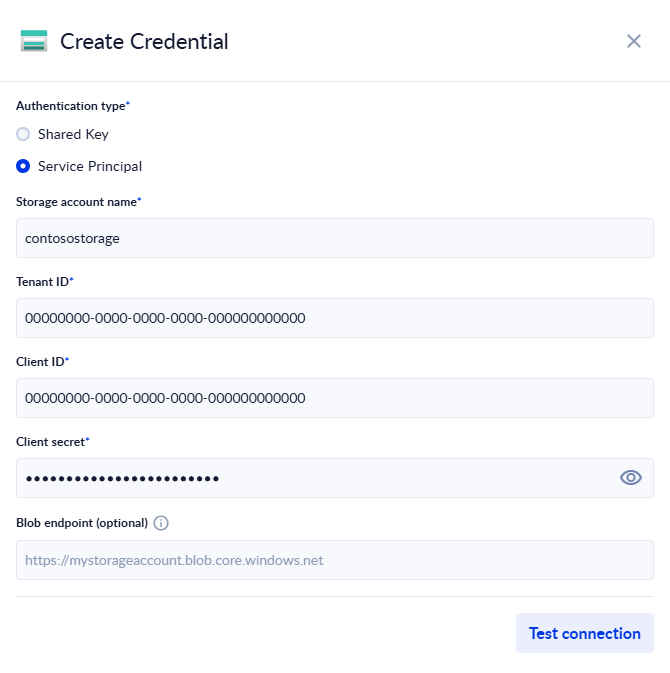
| Field | Required | What to enter |
|---|---|---|
| Storage account name | Yes | The storage account's name. |
| Tenant ID | Yes | The Directory (tenant) ID of the app registration, a GUID. |
| Client ID | Yes | The Application (client) ID of the app registration, a GUID. |
| Client secret | Yes | The secret's Value, not its Secret ID. |
| Blob endpoint (optional) | No | Leave it empty. See Blob endpoint. |
Set up the app registration in Azure:
-
In Microsoft Entra ID, create an app registration (or use an existing one) and add a client secret under Certificates & secrets. Copy the secret's Value right away: Azure shows it only once.
-
On the storage account, open Access control (IAM) and add a role assignment for the app registration:
- Storage Blob Data Contributor to read and write blobs and containers, or
- Storage Blob Data Reader if your processes only read.
Assign the role on the storage account itself, so that container operations work too.
The Owner, Contributor and Reader roles do not give access to blob data. Without a Storage Blob Data role, every operation fails with "The principal '…' lacks a Storage Blob Data role …".
Client secrets expire. When you create a new secret in Azure, update the credential in PROCESIO.
Blob endpoint
Leave Blob endpoint (optional) empty to use the public endpoint, https://<storage account name>.blob.core.windows.net. Fill it in only for a private endpoint or a sovereign cloud. It must be a full https:// address.
If the connection fails
- Check that the storage account name is spelled exactly as in Azure.
- Shared Key: check that the account key is complete and that access keys are allowed on the account.
- Service Principal: check the tenant ID, client ID and client secret value, and that the secret has not expired. A wrong value shows "ClientSecretCredential authentication failed". Check that the app registration has a Storage Blob Data role on the account.
- If PROCESIO runs on your own servers, it must be able to reach the blob endpoint over HTTPS and, for a Service Principal,
login.microsoftonline.com.