

Azure Storage
One action for Azure Blob Storage: upload, download, list, copy, move and delete blobs, and create, read, list and delete containers, with a reusable Shared Key or Service Principal credential.
What the Azure Storage action does
Azure Storage is a platform action that works with blobs and containers in an Azure Storage account. One action covers 14 operations: you pick a Resource (Blob or Container), then the Operation, and the action shows only the inputs that operation needs.
The action connects through an Azure Storage Account credential that you create once in the Credential Manager and reuse in every process. The credential signs in with either:
- Shared Key: the storage account name and one of its access keys, or
- Service Principal: an app registration in Microsoft Entra ID (tenant ID, client ID and client secret). Use it when your storage account does not allow access keys.
See Azure Storage Account credential for how to create it.
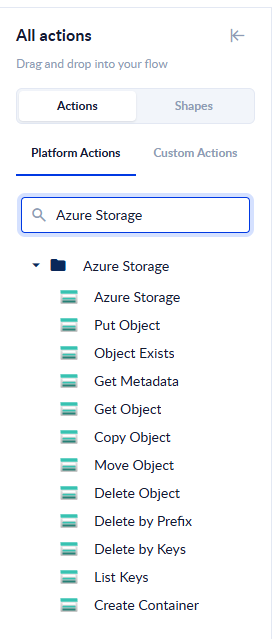
The older single-purpose Azure actions (Put Object, Get Object, Copy Object and the others in the same folder) still work, and existing processes that use them don't need to change. For new processes, use the Azure Storage action: it uses a stored credential instead of an account key typed into each action, and it adds container operations.
Add the action
In the Process Designer, open the Azure Storage folder of the toolbox, or type Azure Storage in the search box. Azure Storage is the first action in the folder. Drag it onto the canvas, or double-click it, then connect it between your steps.
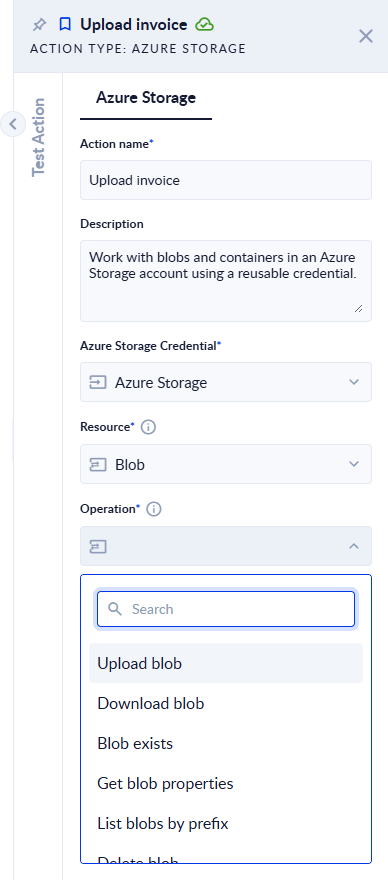
Click the step to open its properties, then fill in, in this order:
- Azure Storage Credential: pick an Azure Storage Account credential. Choose Create credential in the list if you don't have one yet.
- Resource: Blob or Container. This filters the operation list.
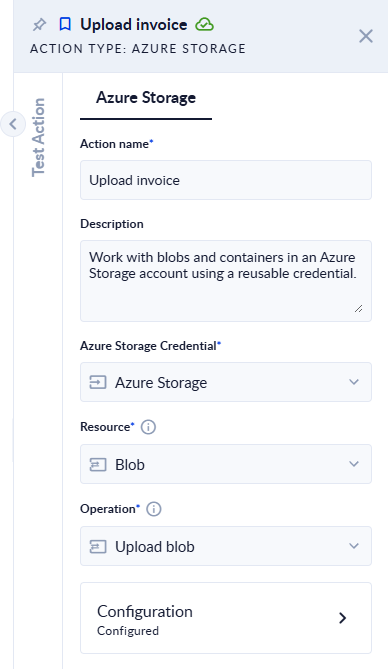
- Operation: the operation to run. The list appears once a Resource is chosen.
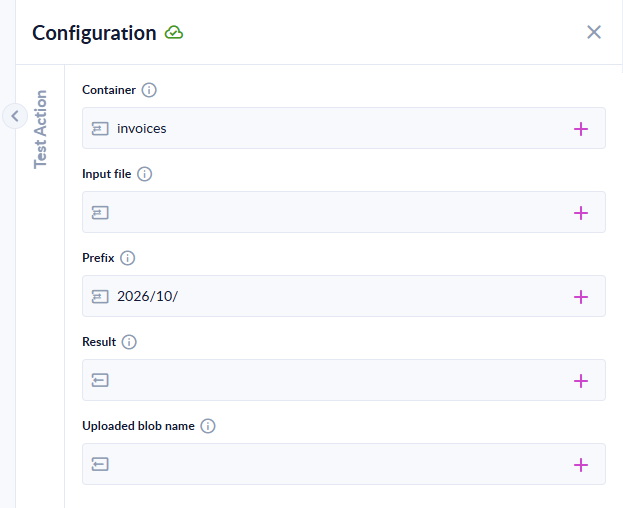
- Open the Configuration card to fill in the operation's inputs and map its outputs to process variables.
You can try an operation without running the whole process: open the step, click the vertical Test Action tab on the left edge of the properties panel, then click Test action. Remember that Test Action really runs the operation, so a delete really deletes.
Operations
Inputs are checked when the step runs. If one that the operation needs is empty, the step fails with "<Input> is required for the selected operation."
Blob operations
| Operation | Inputs | Outputs | What it does |
|---|---|---|---|
| Upload blob | Container, Input file, Prefix (optional) | Result, Uploaded blob name | Uploads a file. The blob is named after the file, with the Prefix in front of it, for example Prefix invoices/2026/ and file inv-001.pdf give invoices/2026/inv-001.pdf. A blob with the same name is replaced. |
| Download blob | Container, Blob name | Output file | Downloads a blob into a file variable. The file is named after the last part of the blob name. |
| Blob exists | Container, Blob name | Result | true if the blob exists, false if it doesn't. |
| Get blob properties | Container, Blob name | Details | The blob's name, content type, ETag, size, last modified date and metadata. |
| List blobs by prefix | Container, Prefix (optional) | Names, Details | Lists the blobs whose name starts with the Prefix. Leave the Prefix empty to list the whole container. |
| Delete blob | Container, Blob name | Result | Deletes the blob and its snapshots. Returns false when the blob doesn't exist. |
| Delete blobs by names | Container, Blob names (a list of names) | Result | Deletes several blobs in one request, for example ["reports/2024.csv", "reports/2025.csv"]. |
| Delete blobs by prefix | Container, Prefix (required) | Result | Deletes every blob whose name starts with the Prefix. Returns false when nothing matched. |
| Copy blob | Container, Blob name, Destination container, Destination blob name | Result | Copies the blob inside Azure. The copy keeps the content type and metadata. The destination can be the same container. |
| Move blob | Container, Blob name, Destination container, Destination blob name | Result | Copies the blob, then deletes the original. If the copy doesn't succeed, the original is kept. |
Container operations
| Operation | Inputs | Outputs | What it does |
|---|---|---|---|
| Create container | Container | Result | Creates a container. The step fails if a container with that name already exists. |
| Delete container | Container | Result | Deletes the container and every blob in it. Returns false when the container doesn't exist. |
| Get container | Container | Details | The container's name, ETag, last modified date, metadata and public access level. |
| List containers | Prefix (optional) | Names, Details | Lists the containers in the account, or only those whose name starts with the Prefix. |
Outputs
| Output | Type | Meaning |
|---|---|---|
| Result | Boolean | true when the operation applied, or when the blob or container exists. |
| Uploaded blob name | Text | The full name of the uploaded blob, including the prefix. |
| Output file | File | The downloaded blob. |
| Names | List of text | The blob or container names returned by a list operation. |
| Details | Object, or a list of objects | The properties of the blob or container, or of every item returned by a list operation. |
Names and prefixes
Azure Blob Storage has no real folders. A name such as invoices/2026/inv-001.pdf is one blob whose name contains /. The Azure portal shows the parts as folders.
- Blob name is always the full name, including the folder-like part:
invoices/2026/inv-001.pdf, notinv-001.pdf. - Prefix narrows by the start of the name.
reportsmatchesreports/2025.csvand alsoreports-archive/old.csv. Add the/(reports/) to match only that folder. - Values are used exactly as you type them. Spaces are part of the name.
- Container names follow Azure's rules: 3 to 63 characters, lowercase letters, digits and hyphens.
Good to know
- Delete blobs by prefix needs a Prefix. An empty Prefix is refused, so a missing value can't empty the whole container.
- Deletes that find nothing don't fail. Delete blob, Delete blobs by prefix and Delete container return
falseinstead. - Delete blobs by names and missing blobs. If one of the names doesn't exist, the other blobs are still deleted, but the step fails. Check with Blob exists or List blobs by prefix first if your list can contain names that are already gone.
- List operations return everything. There is no page limit, so use a Prefix on large containers.
- Create container on an existing name fails. Check with Get container or List containers first, or connect the step's error route.
Errors
When an operation fails, the message names the operation and the storage endpoint, followed by the reason, for example:
- "The account key is not valid for storage account '…'.": check the Account key in the credential.
- "Container '…' not found in storage account '…'" or "Blob '…' not found in container '…'": check the names, including letter case and the folder-like part.
- "The principal '…' lacks a Storage Blob Data role …": give the app registration a Storage Blob Data role on the storage account. See the credential page.
- "ClientSecretCredential authentication failed": the tenant ID, client ID or client secret in the credential is wrong or has expired.
Other errors show Azure's own message. Connect the step's error route to handle a failure in your process.