

Form notifications
Get an e-mail each time someone submits a form, or each time a submission fails.
Form notifications send an e-mail to the addresses you choose when someone submits the form. You can be told about successful submissions, failed submissions, or both.
Turn on notifications
-
Open the form in the Form Designer.
-
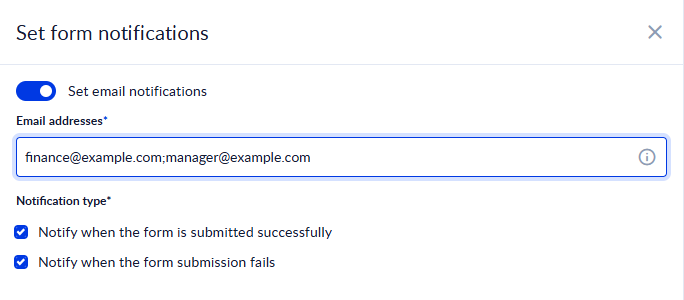
In the side tabs on the right, click Form notifications (the envelope icon). The Set form notifications panel opens.
-
Turn on Set email notifications.
-
In Email addresses, type the addresses that should get the e-mail. Separate several addresses with
;, for exampleanna@example.com;team@example.com. -
Under Notification type, choose when to send the e-mail. Both are ticked by default:
- Notify when the form is submitted successfully
- Notify when the form submission fails
Keep at least one ticked. With neither ticked, the panel shows "You need to select a type from above in order to complete the notification configuration."
-
Click Save in the panel.
-
Save the form, then publish it. The notification settings are part of the form, so the published form uses them only after you publish it again.
Turn off notifications
Open Form notifications, turn off Set email notifications, click Save, then save and publish the form.
Who can change them
You see the Form notifications tab if you can view forms in the workspace. To change the settings you need permission to edit forms; otherwise the panel is read-only.
Related pages
For support, please join our Discord community for further assistance and support.