

Custom code (JavaScript and CSS)
Add your own JavaScript and CSS to a form from the Form Designer's code view, and learn what the code can reach.
Every form can carry its own JavaScript and CSS. Use JavaScript to prepare the form when it opens, for example to fill in fields or change their settings. Use CSS to change how the form looks beyond what the theme offers.
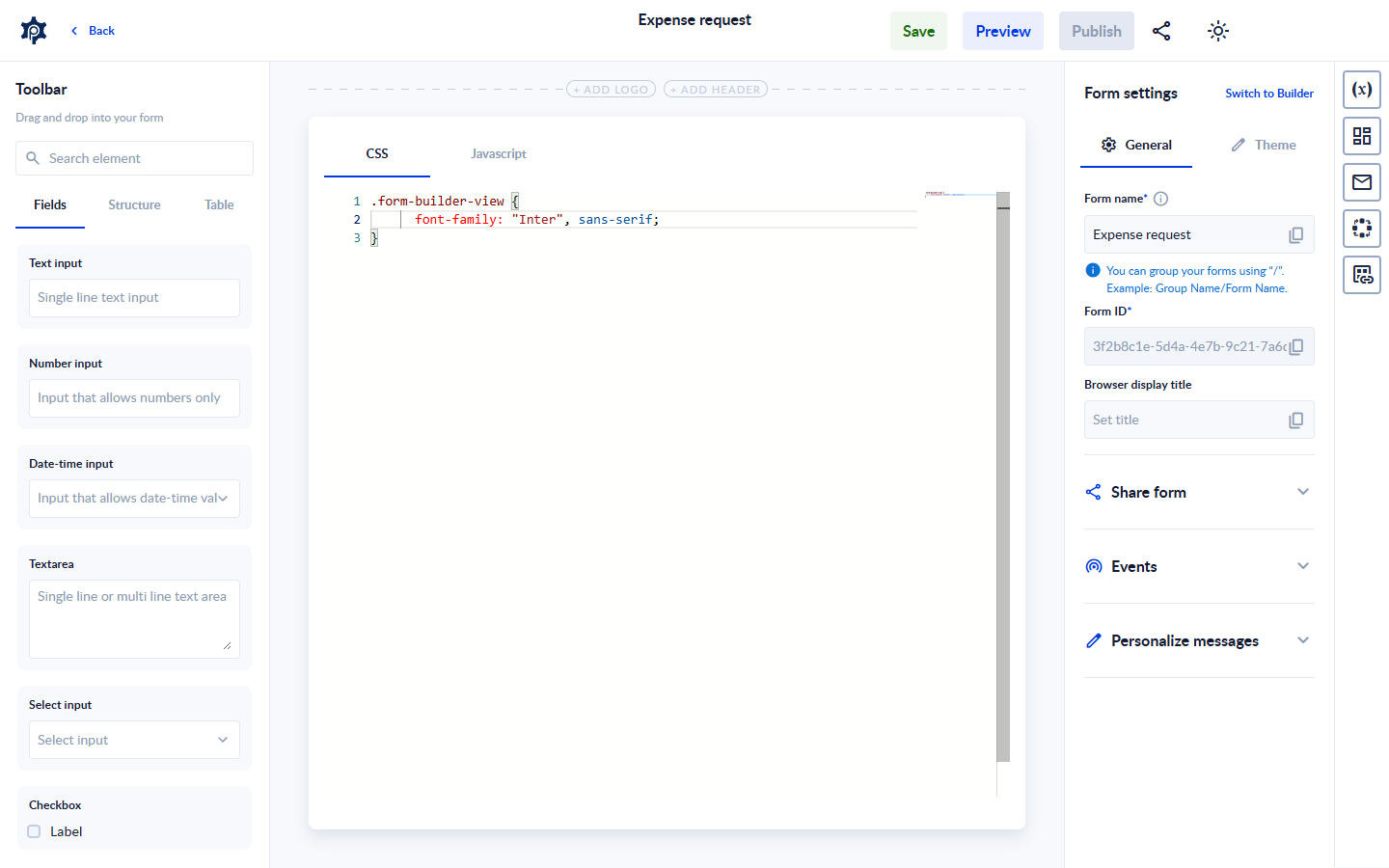
Open the code view
- Open the form in the Form Designer and click an empty part of the canvas, so the form's settings show on the right.
- Click Switch to code at the top of the form settings.
- The code view has two tabs, CSS and Javascript, each with its own editor. Write your code in the tab you need.
- Click Switch to Builder to return to the drag-and-drop view.
- Save the form, then publish it. The published form uses your code only after you publish it.
JavaScript
The form's JavaScript runs once, when the form opens, before the person filling it does anything. It works with the same ProcesioForm object as a Run JavaScript event, so it can read and change fields and their settings:
ProcesioForm.data.fields.Country.value = "RO";
ProcesioForm.data.fields.Notes.visible = false;
Fields are found by the element's Name, exactly as you typed it, capital letters included.
You can also set the browser tab's title from a script:
ProcesioForm.data.browserTitle = "Leave request";To run code later, for example when a field changes or before the form is submitted, use element and form events instead. See Trigger events for form and elements and Trigger JavaScript.
CSS
The form's CSS styles the form's elements: fields, labels, buttons, the logo and header image, and the form's side panels.
- Find the selector you need by inspecting the published form with your browser's developer tools. Elements carry class names that start with
form-builder, for exampleform-builder--heading. - Light and dark theme. Your CSS applies in both themes. To style only the dark theme, start the selector with
[data-theme="dark"]. Colours taken from the theme's variables, such asvar(--c-neutral--900), follow the theme by themselves. - The Form Designer is not affected. In the Form Designer and in Preview, your CSS styles only the form. It does not change the toolbars, the settings panels or the page around the form.
- Style the form, not the page. In the Form Designer and in Preview, rules for
bodyorhtml, and variables declared on:root, do not reach the form. Write those rules for the form's own elements instead. - Animation and font names. If your
@keyframesor@font-faceuses a name the page already uses, the page's definition wins. Give yours names of your own. - The PROCESIO branding under the form can't be hidden with CSS. In a workspace other than your personal one, use Hide branding in the form's General settings instead.
Tooltips and the date and time pickers open outside the form, so in the Form Designer and in Preview they don't get your CSS.
Related pages
For support, please join our Discord community for further assistance and support.