

Form applications
Turn a form into an application card on your workspace Dashboard, so people can open it with one click.
A form application is a card on the workspace Dashboard that opens one of your forms. Use it to give people a single place to start the forms they use often, for example a leave request, an expense claim or a support ticket.
You set it up from the form itself, in the Form Designer.
Mark a form as an application
- Open the form in the Form Designer.
- In the side tabs on the right, click Dashboard app settings (the dashboard icon).
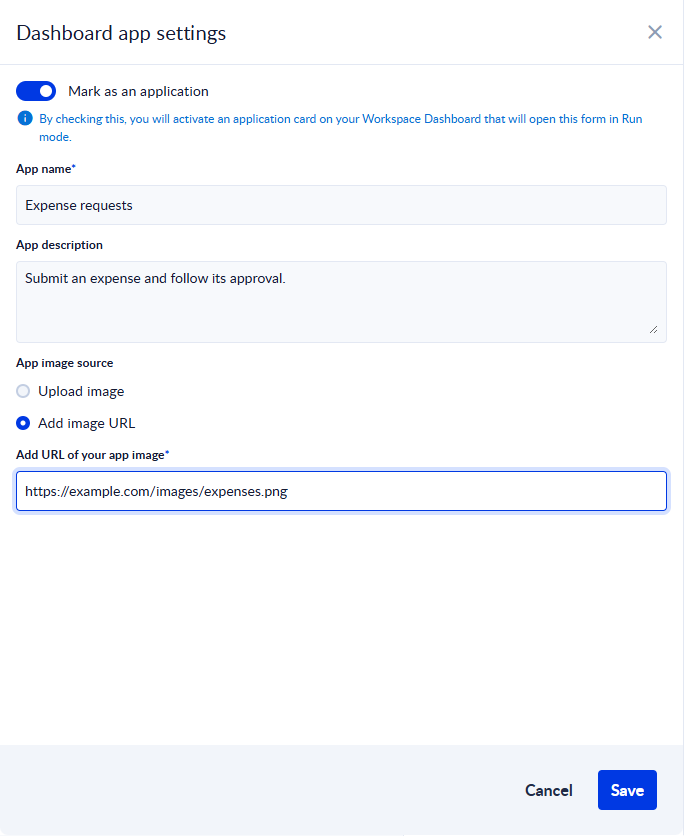
- Turn on Mark as an application.
- Fill in the card:
- App name (required): the title of the card. Up to 255 characters.
- App description: a short text shown under the name.
- App image source: choose Upload image and drop an image file in the upload area (or click Select image file), or choose Add image URL and paste the address of the image. The address must be a valid URL.
- Click Save.
You see "The form application was saved successfully." If the form is new and not saved yet, the application is saved together with the form the first time you save it.
The card opens the published form. Save and publish the form, or the card leads to a Form not found page.
The card on the Dashboard
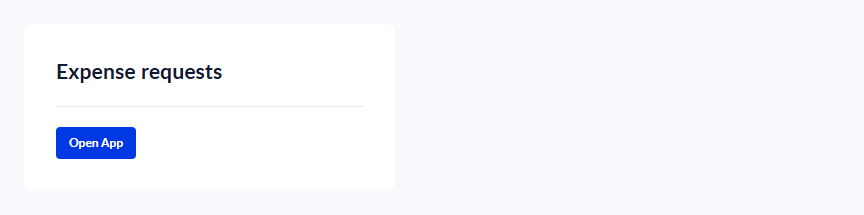
Forms marked as applications appear as cards on the Dashboard. When there are several cards, they are shown side by side in a carousel, with arrows to scroll through them.
Each card shows:
- the image, the app name and the description. A description longer than 200 characters is shortened, and the full text shows when you hover it;
- Open App, which opens the form in a new browser tab, ready to be filled in;
- Edit, which opens the form in the Form Designer. You see it only if you are allowed to change forms and the form belongs to the workspace you are working in.
Who can open the form from the card depends on the form itself: a private form asks people to sign in and opens only for members of the workspace, while a public form opens for anyone.
Change or remove an application
Open the form in the Form Designer and click Dashboard app settings again.
- To change the card, edit the name, description or image and click Save.
- To remove the card from the Dashboard, turn off Mark as an application and click Save. The form itself is not changed.
Global forms
Global forms are forms that PROCESIO publishes for every user. Each one appears as an item in the left sidebar, with its own icon and name, and opens the form ready to be filled in. You can't publish a global form from your own workspace.
Related pages
For support, please join our Discord community for further assistance and support.