

Azure Storage (legacy actions)
The older single-purpose Azure Blob Storage actions (Put Object, Get Object, Copy Object and the others), with their inputs and outputs.
The Azure Storage folder of the toolbox still contains eleven older actions, one per operation: Put Object, Object Exists, Get Metadata, Get Object, Copy Object, Move Object, Delete Object, Delete by Prefix, Delete by Keys, List Keys and Create Container. They keep working, and processes that use them don't need to change. This page describes each of them.
For new processes, use the Azure Storage action instead. It does all of these operations and more, it connects through a stored Azure Storage Account credential instead of an account key typed into every step, and it also supports Service Principal sign-in.
Connection fields
The legacy actions don't use a stored credential. Every one of them starts with:
| Field | Type | Required | What to put |
|---|---|---|---|
| Account name | Text | Yes | The name of the Storage Account, for example mycompanystorage. |
| Account key | Text | Yes | One of the Storage Account's access keys (Azure portal › Storage account › Access keys). |
The action connects to https://<account name>.blob.core.windows.net with that key. The key is visible to everyone who can edit the process. If a connection field or a container field is empty, the step fails with "Invalid connection details." (for Create Container, "Missing container name.").
Names, keys and prefixes
Azure Blob Storage has no real folders. A blob named invoices/2026/inv-001.pdf is one object whose name contains /; the Azure portal shows the parts as folders.
- A Key is always the full blob name, including the folder-like part:
invoices/2026/inv-001.pdf, notinv-001.pdf. Names are case-sensitive. - A Prefix matches the start of the name.
reportsmatchesreports/2025.csvand alsoreports-archive/old.csv. End it with/to match one folder only.
Put Object
Uploads a file to a container. The blob is named after the file, with the prefix in front of it.
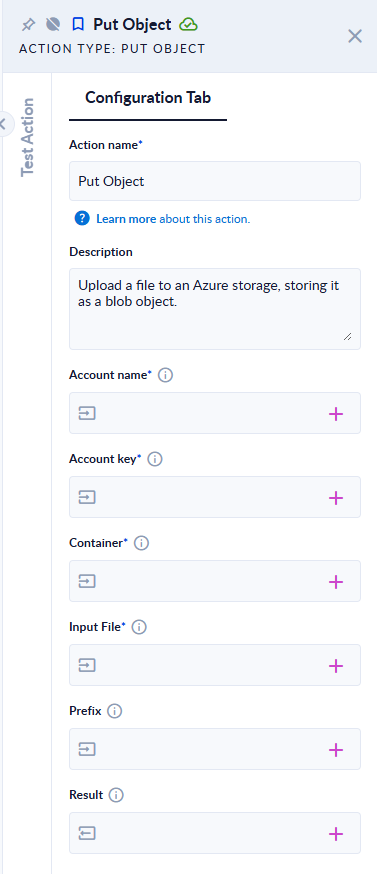
| Field | Direction | Type | Required | What to put / what you get |
|---|---|---|---|---|
| Container | Input | Text | Yes | The container to upload into. |
| Input File | Input | File | Yes | The File variable that holds the file to upload. |
| Prefix | Input | Text | No | Text placed before the file name, for example invoices/2026. Leave empty to upload to the root of the container. |
| Result | Output | Boolean | No | true if the file was uploaded. |
- Prefix
invoices/2026(orinvoices/2026/) and fileinv-001.pdfgive the blobinvoices/2026/inv-001.pdf. A/is added when the prefix doesn't end with one. - A blob with the same name is replaced. The content type is set from the file extension.
- If Input File is empty, the step fails with "Missing input file."
Object Exists
Checks whether a blob exists.
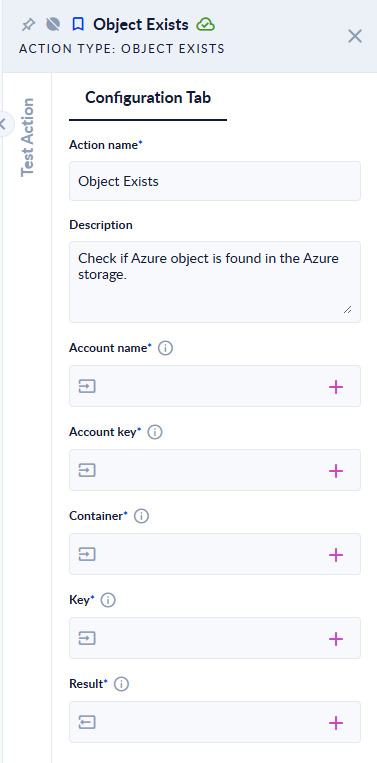
| Field | Direction | Type | Required | What to put / what you get |
|---|---|---|---|---|
| Container | Input | Text | Yes | The container to look in. |
| Key | Input | Text | Yes | The full blob name. |
| Result | Output | Boolean | Yes | true if the blob exists, false if it doesn't. |
Get Metadata
Reads the custom metadata of a blob: the name/value pairs set on it.
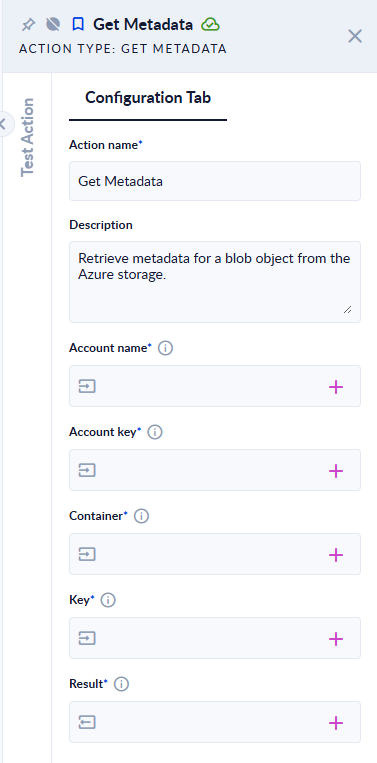
| Field | Direction | Type | Required | What to put / what you get |
|---|---|---|---|---|
| Container | Input | Text | Yes | The container of the blob. |
| Key | Input | Text | Yes | The full blob name. |
| Result | Output | Object (JSON) | Yes | The blob's custom metadata, for example {"department": "finance"}. Empty when the blob has none. |
- Result holds only the custom metadata, not the size, content type or dates. To read those, use the Get blob properties operation of the Azure Storage action.
Get Object
Downloads a blob into a File variable.
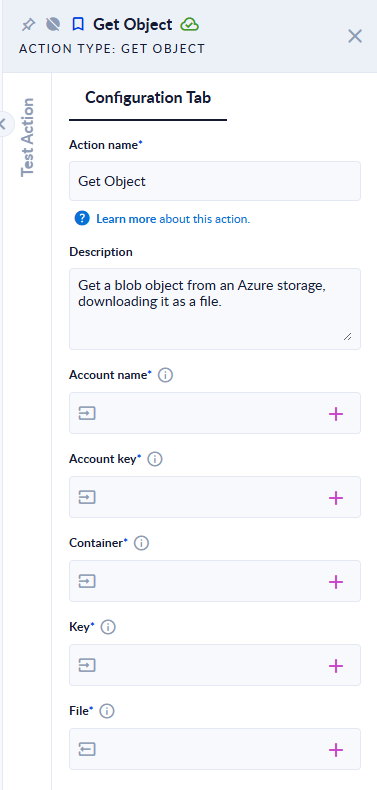
| Field | Direction | Type | Required | What to put / what you get |
|---|---|---|---|---|
| Container | Input | Text | Yes | The container of the blob. |
| Key | Input | Text | Yes | The full blob name, for example invoices/2026/inv-001.pdf. |
| File | Output | File | Yes | The downloaded blob, named after the last part of the key (inv-001.pdf). |
- If the blob doesn't exist, the step fails with "Blob '…' not found in container '…'".
Copy Object
Copies a blob to a new name, in the same container or in another container of the same Storage Account. The original is kept.
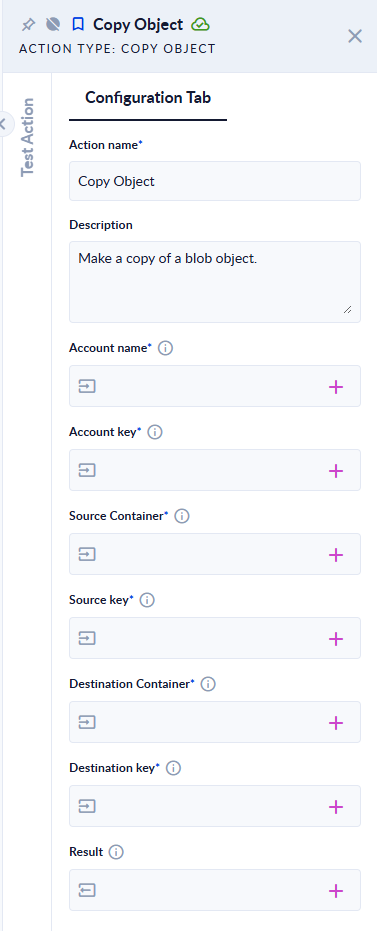
| Field | Direction | Type | Required | What to put / what you get |
|---|---|---|---|---|
| Source Container | Input | Text | Yes | The container of the blob to copy. |
| Source key | Input | Text | Yes | The full name of the blob to copy. |
| Destination Container | Input | Text | Yes | The container of the copy. It can be the same as the source. |
| Destination key | Input | Text | Yes | The full name of the copy. Keep the file extension. |
| Result | Output | Boolean | No | true if the copy succeeded. |
- A blob with the destination name is replaced.
- If the source blob doesn't exist, the step fails with "Blob '…' not found in container '…'".
Move Object
Copies a blob to a new name, then deletes the original.
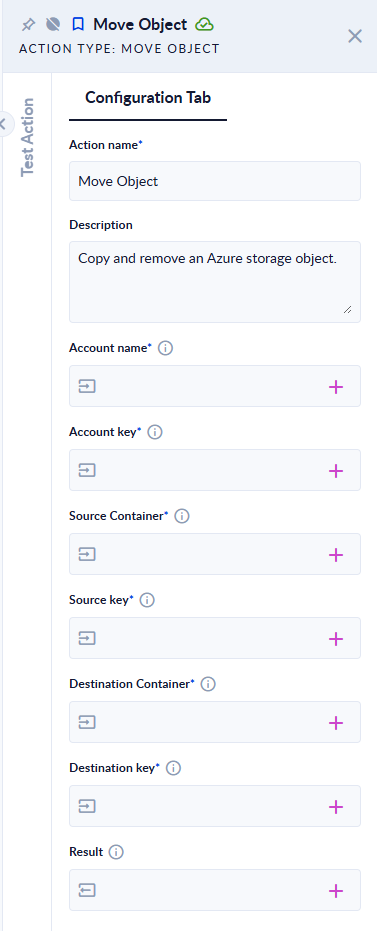
| Field | Direction | Type | Required | What to put / what you get |
|---|---|---|---|---|
| Source Container | Input | Text | Yes | The container of the blob to move. |
| Source key | Input | Text | Yes | The full name of the blob to move. |
| Destination Container | Input | Text | Yes | The destination container. It can be the same as the source. |
| Destination key | Input | Text | Yes | The new full name. Keep the file extension. |
| Result | Output | Boolean | No | true if the blob was moved. |
- The original is deleted only when the copy succeeded. A blob with the destination name is replaced.
Delete Object
Deletes one blob, with its snapshots.
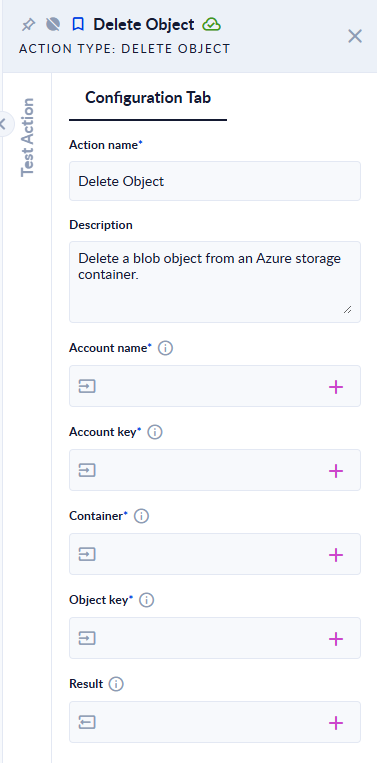
| Field | Direction | Type | Required | What to put / what you get |
|---|---|---|---|---|
| Container | Input | Text | Yes | The container of the blob. |
| Object key | Input | Text | Yes | The full blob name. |
| Result | Output | Boolean | No | true if the blob was deleted, false if it didn't exist. |
Delete by Prefix
Deletes every blob whose name starts with the prefix.
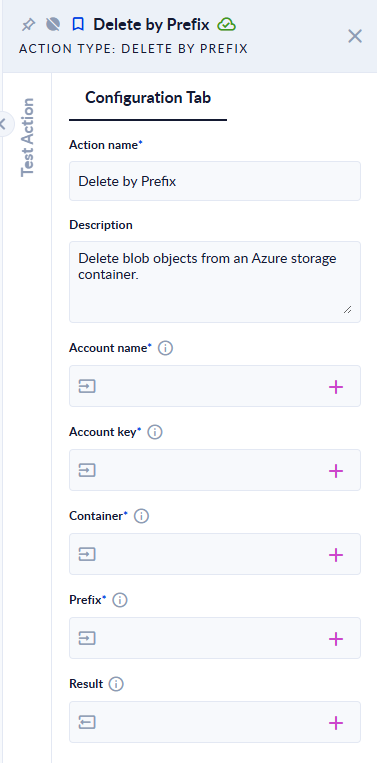
| Field | Direction | Type | Required | What to put / what you get |
|---|---|---|---|---|
| Container | Input | Text | Yes | The container to clean. |
| Prefix | Input | Text | Yes | The start of the names to delete, for example temp/2026-11-10/. |
| Result | Output | Boolean | No | true if every matching blob was deleted, false when nothing matched. |
- An empty Prefix is refused with "Missing prefix.", so a missing value can't empty the whole container.
- Check the prefix carefully:
reportsalso deletesreports-archive/…. The deletion can't be undone.
Delete by Keys
Deletes a list of blobs in one request.
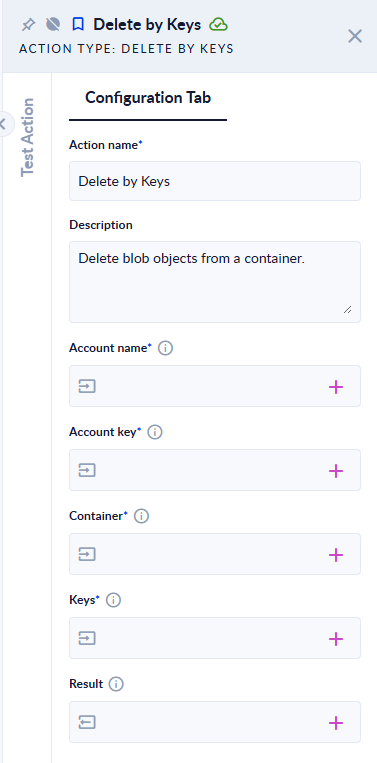
| Field | Direction | Type | Required | What to put / what you get |
|---|---|---|---|---|
| Container | Input | Text | Yes | The container of the blobs. |
| Keys | Input | List of Text | Yes | The full blob names, for example ["reports/2024.csv", "reports/2025.csv"]. |
| Result | Output | Boolean | No | true if all the blobs were deleted. |
- An empty list returns
falsewithout deleting anything. - If one of the names doesn't exist, the other blobs are still deleted, but the step fails. Check with Object Exists or List Keys first if your list can contain names that are already gone.
List Keys
Lists the blob names in a container.
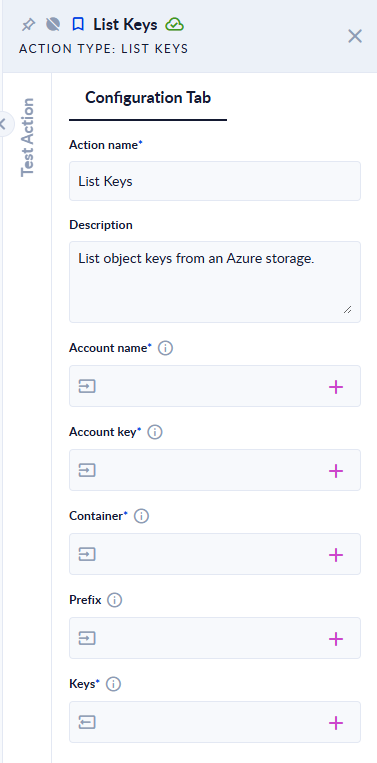
| Field | Direction | Type | Required | What to put / what you get |
|---|---|---|---|---|
| Container | Input | Text | Yes | The container to list. |
| Prefix | Input | Text | No | Only names that start with this text are listed. Leave empty to list the whole container. |
| Keys | Output | List of Text | Yes | The full blob names found. |
- A leading
/in the prefix is ignored, so/invoices/andinvoices/give the same result. - Every matching name is returned, including names in deeper "subfolders". Use a prefix on large containers.
Create Container
Creates a container in the Storage Account.
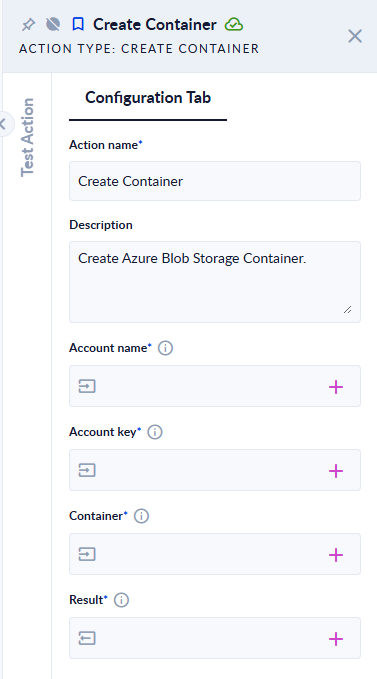
| Field | Direction | Type | Required | What to put / what you get |
|---|---|---|---|---|
| Container | Input | Text | Yes | The name of the new container: 3 to 63 characters, lowercase letters, digits and hyphens. |
| Result | Output | Boolean | Yes | true if the container was created. |
- If a container with that name already exists, the step fails.
Errors
Most failures show the message from Azure, for example an authentication error when the Account key is wrong, or a "container not found" error when the container name is wrong. Connect the step's error route to handle a failure in your process.
Related actions
- Azure Storage: the recommended action for Azure Blob Storage.
- Azure Storage Account credential
Azure Storage
One action for Azure Blob Storage: upload, download, list, copy, move and delete blobs, and create, read, list and delete containers, with a reusable Shared Key or Service Principal credential.
Form Trigger
Creates a new form instance (a task) from one of your form templates, so that the form's assignees can fill it in.