

Prelude
Send and check phone verification codes (OTP) and look up phone numbers with Prelude.
The Prelude connector adds phone verification to your processes through Prelude. One action covers three operations:
- Send verification code: send a one-time code to a phone number, by SMS, WhatsApp, voice call and other channels.
- Check verification code: check the code that your user typed in.
- Look up phone number: get the country, line type and carrier of a phone number.
A typical sign-up flow sends a code, shows a form where the user types it, then checks the code before it continues.
Before you start: the credential
You need a Prelude account and its API key.
- In PROCESIO, open Credentials and create a new credential under REST API → Prelude.
- Enter your Prelude API key and save.
The action talks to the Prelude API (https://api.prelude.dev) with that key. The key stays in the credential and never appears in the process.
Add the action
In the Process Designer toolbox, open Connectors and pick Prelude (or type Prelude in the search box).
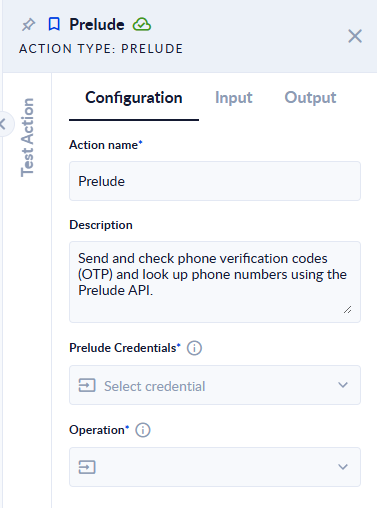
The properties are split into three tabs: Configuration, Input and Output. Pick the Operation first: the Input and Output tabs then show only the fields that operation uses.
Configuration tab
| Field | Type | Required | What to put |
|---|---|---|---|
| Prelude Credentials | Credential | Yes | Your Prelude credential. |
| Operation | List | Yes | Send verification code, Check verification code or Look up phone number. |
Send verification code
Inputs
| Field | Type | Required | What to put |
|---|---|---|---|
| Target | Text | Yes | The phone number in E.164 format: +, country code and number, for example +40712345678. |
| Target Type | List | No | Phone number or Email address. Leave empty to detect it: a value with @ is treated as an email address, anything else as a phone number. |
| Delivery Method | List | No | Auto (let Prelude choose), Message or Voice call. |
| Preferred Channel | List | No | The channel Prelude tries first: SMS, RCS, WhatsApp, Viber, Zalo or Telegram. Prelude may fall back to another channel if this one cannot deliver. |
| Sender ID | Text | No | The sender name the recipient sees. It must already be approved in your Prelude account. |
| Template ID | Text | No | The Prelude message template to use. Leave empty for your account's default template. |
| Template Variables | Object (JSON) | No | Values for the template, for example {"app_name": "My App"}. The keys must match the template exactly. Default {}. |
| Locale | Text | No | The language of the message, as a BCP-47 code such as ro-RO or en-US. |
| Code Size | Integer | No | How many digits the code has, from 4 to 8. Leave at 0 to use your account default. |
| Custom Code | Text | No | Send this exact code instead of a generated one. Prelude allows this only on sandbox or test numbers. |
| Force Challenge | Boolean | No | Always send a code, even when Prelude's fraud checks would have skipped it or verified the number silently. Default false. |
| Callback URL | Text | No | An HTTPS address where Prelude sends delivery updates for this verification. |
| Correlation ID | Text | No | Your own reference for this verification (up to 80 characters). Prelude sends it back to you. |
| Signals | Object (JSON) | No | Optional fraud signals that improve Prelude's risk scoring, for example {"ip": "203.0.113.10", "device_platform": "android"}. Default {}. |
Outputs
| Field | Type | What you get |
|---|---|---|
| Response | Object (JSON) | The full Prelude answer. |
| Status | Text | success, retry, challenged, blocked or shadow_blocked. |
| Verification ID | Text | Prelude's ID of the verification, for example vrf_01jc0t6fwwfgfsq1md24mhyztj. |
| Reason | Text | Why Prelude blocked or retried the verification, for example in_block_list or suspicious. Empty when the status is success. |
| Request ID | Text | Prelude's request ID. Quote it when you contact Prelude support. |
Only Status success means a code was sent. A blocked or shadow_blocked send is not an error: the step finishes normally and you still get a Verification ID, but no message reaches the user. Check Status with a Decisional before you ask the user for the code. Prelude also blocks repeated sends to the same number in a short time (reason repeated_attempts).
Check verification code
Inputs
| Field | Type | Required | What to put |
|---|---|---|---|
| Target | Text | Yes | The same phone number (or email address) the code was sent to. |
| Target Type | List | No | Phone number or Email address. Leave empty to detect it from the value, as above. |
| Code | Text | Yes | The code your user typed in. |
Outputs
| Field | Type | What you get |
|---|---|---|
| Response | Object (JSON) | The full Prelude answer. |
| Status | Text | success (the code is right), failure (the code is wrong), expired_or_not_found, transaction_missing or transaction_mismatch. |
| Verification ID | Text | Prelude's ID of the verification. |
| Request ID | Text | Prelude's request ID. |
A wrong code does not stop the process: the step finishes with Status failure. Branch on Status to let the user try again.
Look up phone number
Inputs
| Field | Type | Required | What to put |
|---|---|---|---|
| Target | Text | Yes | The phone number in E.164 format, for example +40712345678. |
| Include Caller Name | Boolean | No | Also get the caller ID name (CNAM). Prelude bills this separately. Default false. |
Outputs
| Field | Type | What you get |
|---|---|---|
| Response | Object (JSON) | The full Prelude answer, with every detail Prelude returns. |
| Country Code | Text | The ISO country code of the number, for example RO. |
| Carrier Name | Text | The current carrier of the number. |
| Line Type | Text | mobile, fixed_line, voip, toll_free and similar. |
| Request ID | Text | Prelude's request ID. |
Good to know
- Prelude bills your account for sends and lookups. Test with Prelude's sandbox or test numbers where you can.
- When Prelude refuses a request (a wrong API key, an invalid phone number, and so on), the step fails and the process stops with a message such as
Look up phone number failed with HTTP 400: <code> - <message> (request_id: …). The message carries Prelude's own error code and text. - Without a credential the step fails with
Prelude Credentials are not configured. Select a Prelude credential on the Configuration tab. - An empty Target, or an empty Code for the Check operation, fails the step with
'Target' is required for the selected operation.(or'Code' …). - Code Size and Custom Code cannot be used together; the step fails if both are set. Use Custom Code for an exact code, or Code Size for the length of a generated one.
- To use an output in the next steps, map it to a process variable on the Output tab.
Related actions
- Decisional: branch on Status.
- Call API: call other Prelude endpoints that this action does not cover.