

Test an action
Run a single action on values you type in, without running the whole process — and the current list of the actions that cannot be tested this way.
Test Action runs one action on values you supply, without running the rest of the process. Use it while you are configuring an action: you see what it returns straight away, instead of running the whole flow to find out.
The lists on this page were read from the live action catalog on 4 November 2026 (239 platform actions).
How to test an action
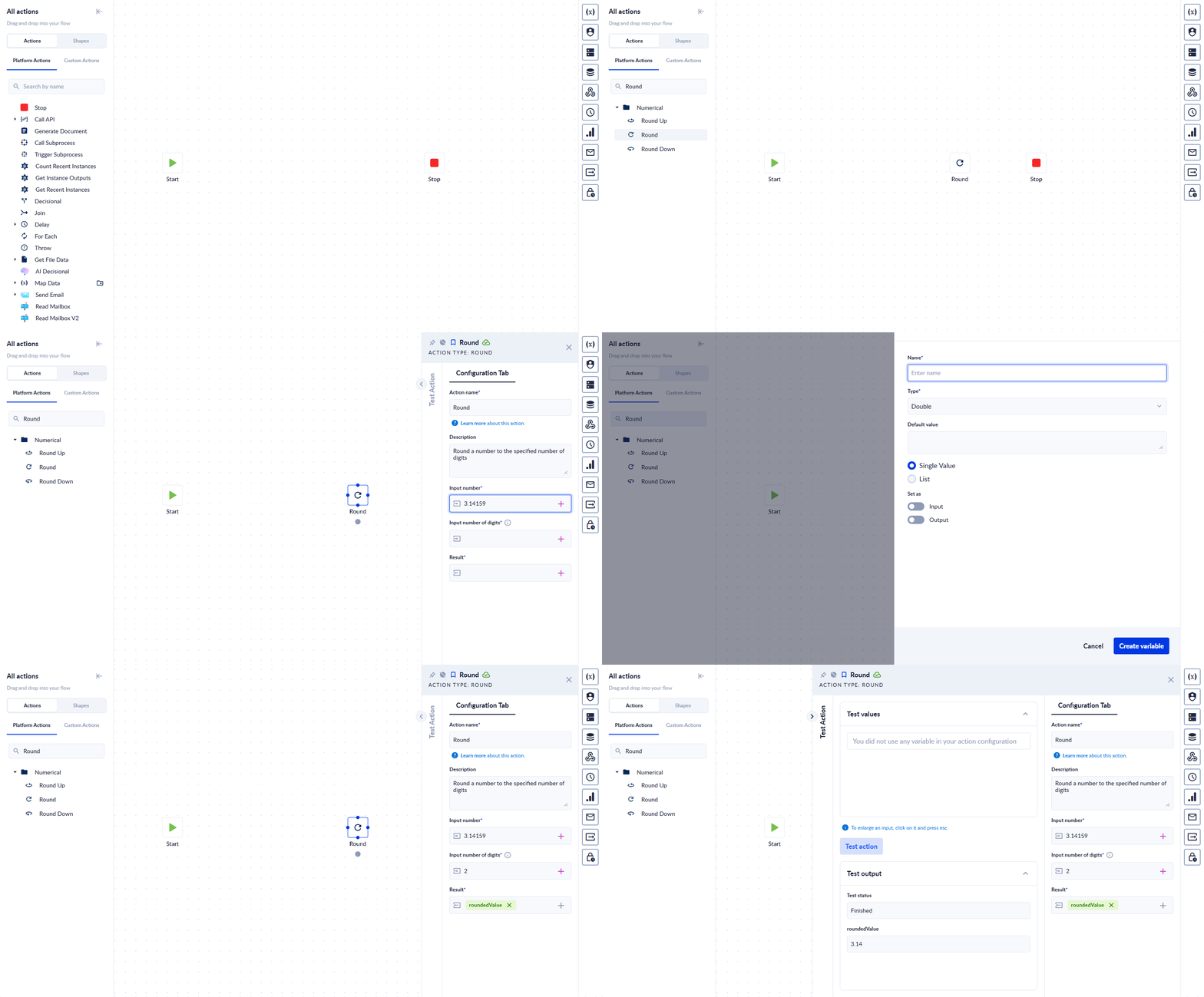
- Click the action on the canvas to open its properties panel.
- Click the vertical Test Action tab on the left edge of the panel.
- Fill in a value for each input the action needs.
- Map each output you want to see to a variable: click + on the output field, then + in the list, give the variable a name and click Create variable.
- Click Test action.
Test output then shows the test's status and the value of each output variable. An output that is not mapped to a variable is not shown.
Test Action really runs the action. It sends the real request, writes the real file, and a delete really deletes. It is not a dry run — test against data you are willing to change.
A test is not counted as processing or processing time.
Actions that cannot be tested
Nine platform actions have no Test Action tab. They are the ones that decide where the flow goes rather than doing work of their own, plus the ones that only mean anything inside a running process:
| Action | Why there is nothing to test |
|---|---|
| Start, Stop | They mark the beginning and the end of the flow. |
| Decisional, AI Decisional | They choose a branch; the branch only exists in a real run. |
| Join (the flow-control one) | It merges branches that a real run has to produce first. |
| For Each | It repeats the actions inside it, which is a run, not an action. |
| Delay | Testing it would only mean waiting. |
| Call Subprocess, Trigger Subprocess | They start another process, which needs a real run. |
There are two different actions named "Join". The one that cannot be tested is the round flow-control Join that merges branches. The square Join that joins values together is an ordinary action and can be tested.
Everything else can be tested — including, now, Generate Document and Map Data, which older release notes listed as untestable.
A custom action declares for itself
whether it can be tested, with the IsTestable class decorator.
If a test never finishes
A test's result does not come back on the same request that starts it — it arrives over PROCESIO's push channel. If that channel cannot be reached, the panel waits and no result appears.
Your network has to allow the PROCESIO notifications host
(notifications.procesio.app on procesio.app). Corporate proxies and firewalls
often block push or websocket hosts they do not recognise. When it is blocked,
Test Action cannot receive its result, and debug mode stops responding when you
step through a paused run. An ordinary run's instance view is unaffected — it does
not refresh by itself in any case.
So if a test sits on "We are sending the request." and never shows a result:
- Press Cancel to stop waiting.
- Check that your network allows the notifications host, and ask whoever manages your proxy or firewall if you are not sure.
- Bear in mind the action may still have run. The result could not be delivered to you, which is not the same as the action not happening — so before you retry a test that writes something, check whether the first attempt already did it.
Related
- Debug a process — pause a whole run instead of testing one action.
- Running a process — running the flow for real.
Process runs and history
Run a process, follow its runs in the Recent and History lists, filter them, open a run's details, and restore a process from the version a run used.
Debug a process
Pause a running process on an action you choose, look at the variable values it has produced, change them, and let the run continue one action at a time.