

Process settings
Set a process's name, description and timeout in the Process properties panel, and copy its ID.
Each process has a few settings of its own: its name, a description, its ID and a timeout. You find them in the Process properties panel.
Open the Process properties panel
- Open the process in the Process Designer.
- Click the arrow next to the process name in the topbar and choose Edit process properties. If you can only view the process, the entry reads View process properties.
You can also double-click the process name in the topbar.
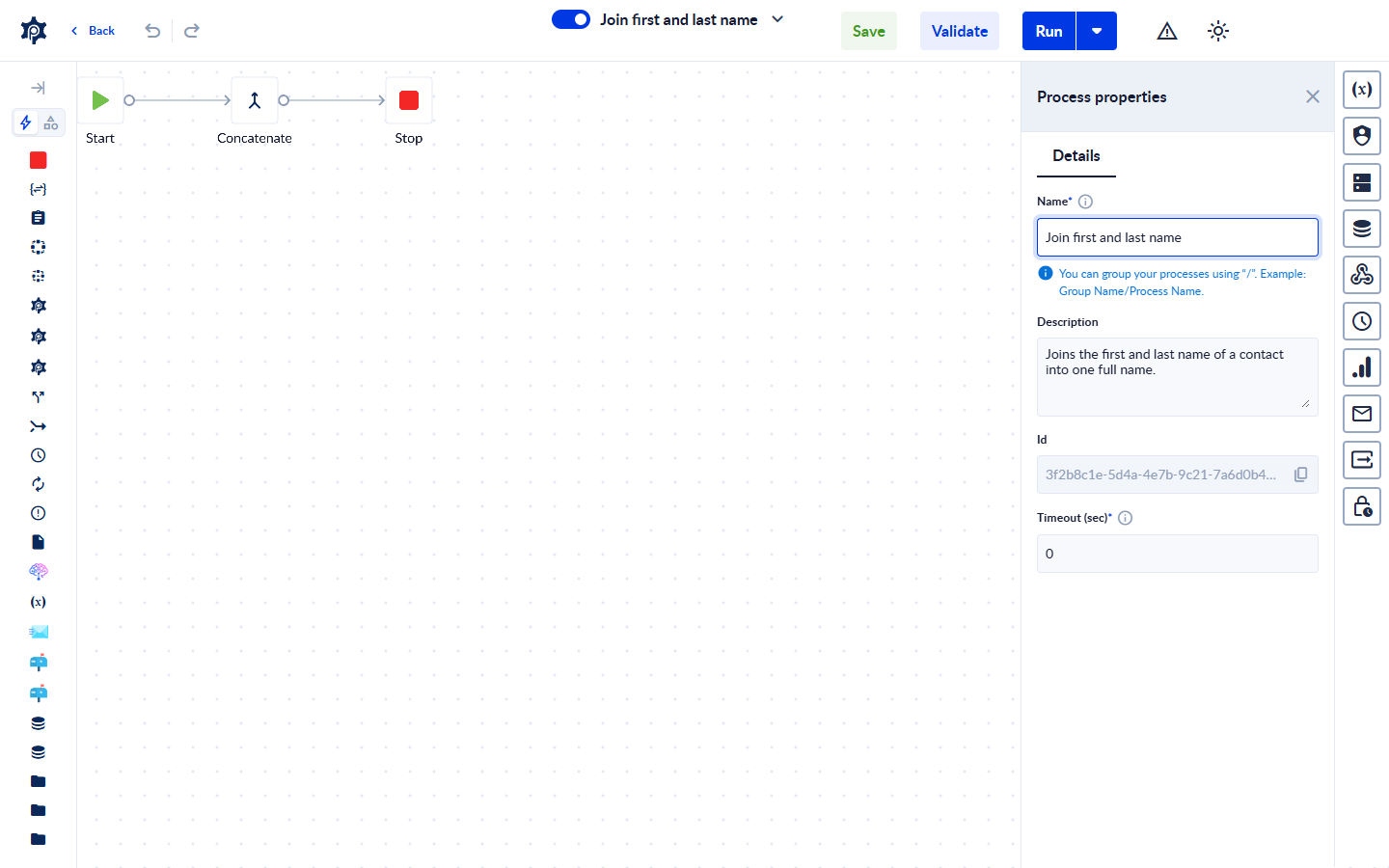
The settings
| Field | What it does |
|---|---|
| Name | The process name. It is required and can be up to 64 characters. Use / to group processes, for example Finance/Monthly report. |
| Description | Optional text that explains what the process does. |
| ID | The process's unique ID, read-only. Click the copy icon to copy it, for example to start the process with an API key. The ID appears once the process has been saved. |
| Timeout (sec) | The longest a run of this process may take, in seconds (see below). |
Save the process to keep your changes.
Timeout
Timeout (sec) accepts:
0(or an empty field), which means the process has no timeout;- any whole number from
10(10 seconds) to2678400(31 days).
A value outside this range shows "Timeout value is not valid." under the field. The process keeps its last valid timeout until you enter a valid one; an invalid value never removes the timeout.
Related
Your first process
We're going to build a very basic process that will answer the following questio&x6E;&x20;'Is it the weekend yet ?'
Process runs and history
Run a process, follow its runs in the Recent and History lists, filter them, open a run's details, and restore a process from the version a run used.