

Run a Data Store query
Run an SQL query you write in the Form Designer against your workspace's Data Stores from a form event, and map its rows and counts to form variables.
A form event can run an SQL query against the Data Stores of your workspace. You write the query once in the Form Designer, in the same kind of SQL editor and Data Store picker that the Query Store action uses. When the event fires, the form sends only the values of the query's parameters and gets back the rows.
Use it when one Data Store operation is not enough: join two Data Stores, build totals for a dashboard form, look up a record by a value the user typed, or change many rows at once from a button.
| You want to… | Use |
|---|---|
| Read, add, update or delete rows of one Data Store, without SQL | The Read, Add, Update and Delete operations of the same event. See Using a Data Store in a form. |
| Join Data Stores, group and total, or change many rows with one condition, from a form | Execute query (this page) |
| The same, as a step of a process | The Query Store action |
How it works
- The query is saved with the form, not inside the form's content. The person filling the form never receives the SQL or the names of the Data Stores it reads, only a reference to the query.
- At run time the form sends the values of the query's parameters, nothing else. Each value is treated as data, never as SQL, so a value typed by a user cannot change what the query does.
- The query runs on the Data Stores of the form's workspace.
Add the event
- Open the form in the Form Designer. For a form event, open General in Form settings and expand Events. For an element event, select the element and open its events.
- Expand the trigger you want, for example onLoad, and click Add event onLoad.
- Choose Data store operation.
- In Operation, choose Execute query. The Select data store field disappears: the query names its Data Stores itself.
- Click Write query and map data. The Custom query panel opens.
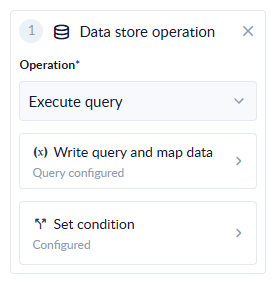
The event card. Under Write query and map data, the badge reads Query configured once the query has text, and Query not configured before that. Set condition works as for any other event.
Write the query
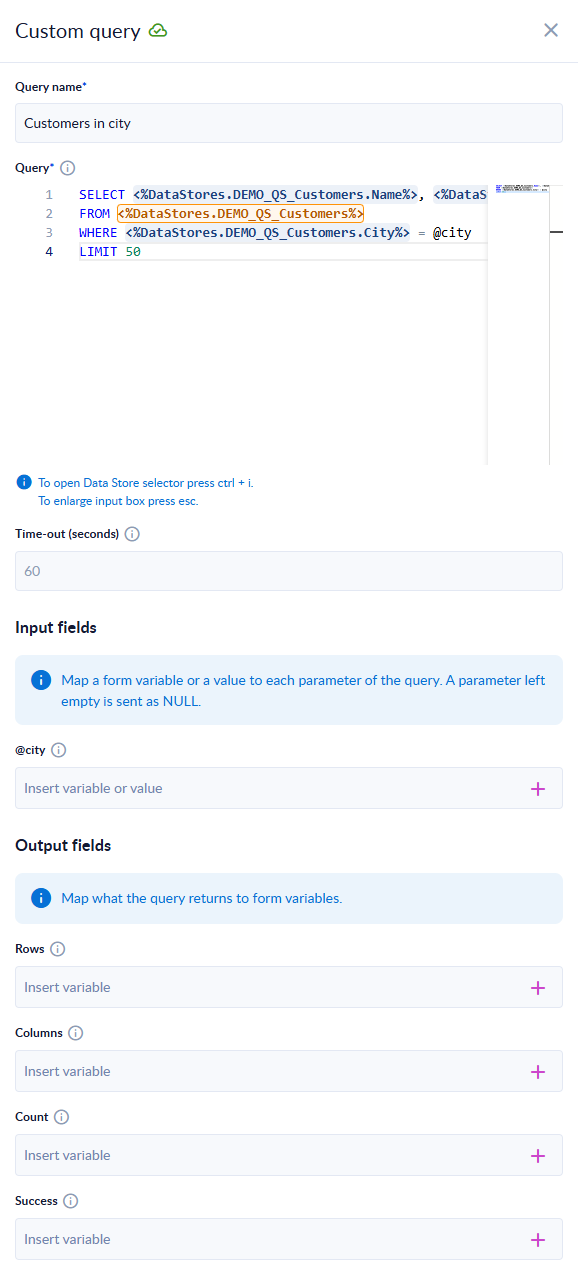
A query that lists the customers of one city. @city became an input field as soon as it was typed.
| Field | What to put |
|---|---|
| Query name | Required. A name for the query, unique within the form (upper and lower case count as the same), at most 128 characters. A new query is called Query 1, Query 2 and so on. |
| Query | Required. The SQL. See Pick Data Stores and columns and What you can write. |
| Time-out (seconds) | Optional. How long the query may run, from 1 to 600 seconds. Leave it empty for the default of 60 seconds. |
| Input fields | One field per parameter of the query. See Pass form values with parameters. |
| Output fields | Rows, Columns, Count and Success. See Use the results in the form. |
Changes in the panel are kept in the designer as you type (the cloud icon next to the title). Save the form to keep them.
Pick Data Stores and columns
You don't type a Data Store's name. Click in the editor where the table or column should go, then press Ctrl + I (Cmd + I on Mac) to open the Data Store selector, as the hint under the editor says.
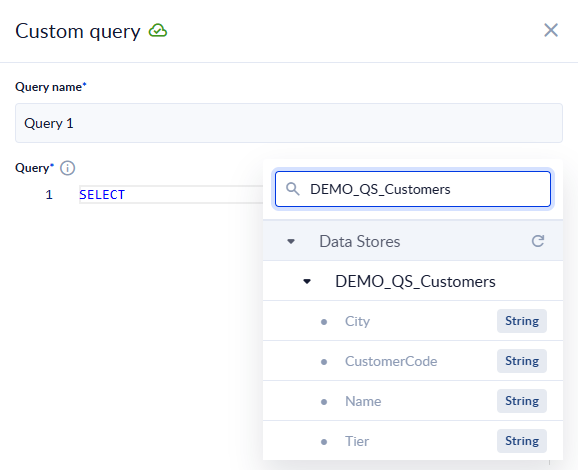
Type in the search box to filter. Click a Data Store to insert it as a table, or one of its columns to insert that column.
The selector lists the Data Stores of the workspace and their columns. Unlike the Query Store action, it lists no process variables: a form has none, and every value from the form reaches the query as a parameter.
Each inserted Data Store or column is a reference to its ID, shown in the editor as <%DataStores.…%>. That is what lets the query keep working when the Data Store is renamed. Keep the reference as it is; don't edit the text inside it.
When you join Data Stores that have a column with the same name, give each Data Store an alias and prefix the columns with it, and give the result columns an AS alias, as described in Two Data Stores in one query.
Pass form values with parameters
Write @ followed by a name wherever a value from the form goes, for example WHERE City = @city.
- As soon as you type
@city, an input field named @city appears under Input fields. Remove the parameter from the query and its field goes away. - In each input field, click + to pick a form variable, or type a fixed value.
- A parameter you leave empty (nothing mapped) is sent as
NULL, as the panel says. A form field that holds empty text sends empty text, notNULL. If an empty field should count as "no value", writeNULLIF(@name, '')in the query. - Parameter names: letters, digits and underscores, not starting with a digit, at most 64 characters. A name that breaks the rule is marked in red under the editor.
@nameinside quoted text ('@city') or a comment is not a parameter, and neither is a system variable such as@@version.
Don't build SQL from form text. Never paste a form value into the query text. Use a parameter: its value is always treated as data, so Cluj' OR '1'='1 typed in a field looks for a city with exactly that name.
What you can write
A form query follows the same SQL rules as the Query Store action, because it runs through the same service:
- The same statement types are allowed:
SELECT,WITH,INSERT,REPLACE,UPDATE,DELETEandSET @name = value. See What you can write. - The same statements are refused, with the same messages: session settings, transactions, locks, file access, system schemas and structure changes. See Guardrails: what is refused. A refused statement is reported when the query runs, not when you save the form.
- A query may hold several statements separated by
;. Only one of them may return rows. If two do, the query has already run, its changes are kept, and the event fails with "Expected maximum one table but received 2 tables!". See One statement may return rows. - An
INSERTmust fillCreatedByIdandUpdatedByIditself, as in Query Store. See the note under Examples. - There is no row limit. Add a
LIMITwhen the form needs only a few rows.
What is different from the Query Store action:
| Form query | Query Store action | |
|---|---|---|
| Time-out | 1 to 600 seconds, default 60 | 60 to 1800 seconds, default 1800 |
| Values from outside | Parameters only, filled from form variables or fixed values | Parameters, or process variables inserted in the text |
| Parameter list | Built for you from the @names in the query | You add each parameter row |
| Outputs | Rows, Columns, Count, Success | Result Rows, Total Count |
| Trying it | Run the form; there is no test button in the panel | Test Action on the step |
Use the results in the form
Map each output you need to a form variable of the matching type. Hover the ⓘ next to an output to see its type.
| Output | Type | What you get |
|---|---|---|
| Rows | List of JSON | The rows the query returned, one entry per row, with a property for each column of the result. Empty for a query that returns no rows. |
| Columns | List of JSON | The columns of the result, one entry per column. |
| Count | Integer | How many rows the query returned. For an INSERT, UPDATE or DELETE, how many rows it changed. |
| Success | Boolean | true when the query ran, false when it failed. |
To show the rows in a table, map Rows to the variable the table displays, as for a Read operation. The table's row template must be a dynamic row, or only the first row appears. See Showing records in a table.
While the event runs, the form shows its loading indicator.
When the query fails
If the query cannot run (a refused statement, an SQL error, a Data Store or column that was deleted), the form shows the message "Something went wrong! The data store operation couldn't be completed. Check your configuration and try again.", sets Success to false, and leaves the other outputs unchanged. Map Success to a Boolean form variable when the form needs to react to a failure.
Saving the form
Each query is checked when you save the form. The panel already marks a problem in red as you type; if you save anyway, the save is refused and a message names the query and each problem. The panel's messages:
| Message | What to do |
|---|---|
| The query needs a name. | Fill in Query name. |
| Another query of this form has this name. | Choose a name no other query of the form uses. |
| The name can have at most 128 characters. | Shorten the name. |
| Write the query. | The query is empty. |
| @… is not a valid parameter name: … | Rename the parameter: letters, digits and underscores, not starting with a digit, at most 64 characters. |
| The time-out must be a whole number of seconds between 1 and 600. | Fix Time-out (seconds), or leave it empty. |
The save also checks that every Data Store and column the query references still exists in the workspace.
Who can write a query
Writing or changing a query needs the permission to view Data Stores in the workspace, besides the permission to edit the form. A designer without it sees the warning "You need the permission to view Data Stores to write a query. The query is kept as it was saved.": the name and the query are read-only, and saving the form keeps the query unchanged.
Public forms
On a public form the query runs for visitors who are not signed in, and it may write as well as read: an UPDATE or DELETE in a query on a public form runs for anyone who opens the form. On a private form the person filling it must be signed in.
Treat every query on a public form as reachable by anyone. Write only the statements the form needs, filter writes on values the visitor cannot choose freely, and keep public forms and the Data Stores they use in a workspace of their own. See Public forms.
Example: customers of a city
A form with a City text field and a table of customers:
-
Add an element event on the City field, for example onBlur, with Data store operation → Execute query.
-
Write the query, inserting the Data Store and the columns with Ctrl + I:
SELECT Name, City
FROM   DEMO_QS_Customers
WHERE  City = @city
LIMIT  50
(In the editor, each Data Store and column name above is a reference inserted with Ctrl + I.)
-
Under Input fields, map @city to the City field's variable.
-
Under Output fields, map Rows to the list variable the table shows, and Count to a number you display above it.
-
Save the form.
When the user leaves the City field, the table shows that city's customers.
Troubleshooting
| What you see | What to do |
|---|---|
| The query panel is read-only, with a warning about Data Stores | You lack the permission to view Data Stores. Ask a workspace administrator. |
| The form says "Something went wrong! The data store operation couldn't be completed…" | The query was refused or failed. Check it against What you can write; check that its Data Stores and columns still exist; check that a query with several statements has only one that returns rows. |
| The table shows only one row | The table's row template must be a dynamic row. |
| A parameter matches nothing | Check that its input field is mapped. An unmapped parameter is NULL, and = NULL matches no row. |
| A query that ran on its own fails when joined with another Data Store | Two Data Stores share a column name. Add aliases. See Two Data Stores in one query. |
Related
- Query Store — the same SQL as a process step
- Data Store — the tables a query reads and writes
- Trigger Events for Form and Elements
Map form variable
This event allows you to manipulate and transform data between forms. You can define how input values from one form are stored, adjusted, or passed…
List & Table Control
The List Control is a versatile component designed to showcase a collection of items within a form. It empowers users to effortlessly navigate…