

Document Signing
The Document Signing element sends a PDF to one or more people for signature from a form, guides each signer through signing it, and produces a signed PDF with their names and the signing date.
The Document Signing element turns a form into a simple signing flow. A PDF is attached to the form, signature spots are placed on it, and the people who must sign are chosen. When the form is submitted, the document goes out to the signers. Each signer opens it from Assigned to me, signs it (or declines), and once everyone has signed, PROCESIO produces the signed PDF.
The PDF can come from you, when you design the form, or from the person filling the form, who drops their own PDF into it.
Key use cases
- A contract or agreement that a customer and one or more colleagues must sign, in a set order
- An internal approval document that several managers sign at the same time, before a final signer
- A consent or acknowledgment form that the person filling it signs right away
- A public form where anyone with the link signs a document you prepared
Add the element to a form
- Open the form in the Form Designer.
- In the Toolbar, open the Fields tab (or type
Document signingin Search element). - Drag Document signing onto the form.
- Select the element to open its settings.
You can leave the element as it is: the person filling the form then drops a PDF into it and sets up the signing themselves. Or you can attach the document and the signers yourself, as described below.
Settings
| Setting | What it does |
|---|---|
| Label | The title shown above the element. Default: Document signing. |
| Tooltip | Help text shown next to the label. It is displayed only when the element has a label. |
| Max document size (MB) | Larger PDFs are refused before they are uploaded. The maximum is 10 MB, which is also the default. You can set a lower value. |
| Max height | Leave it empty and the whole document is shown. Set a value with a unit, for example 600px or 75vh, and the document scrolls inside the element instead. A number without a unit has no effect. |
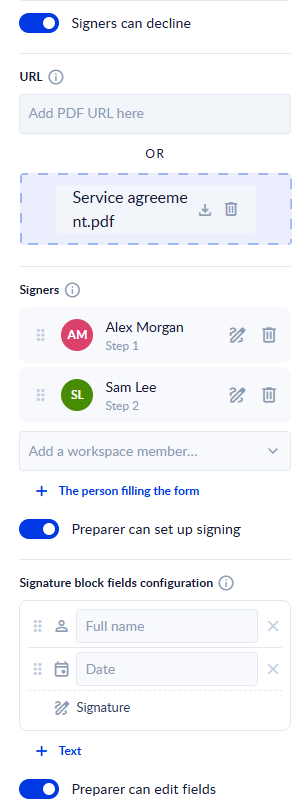
| Signers can decline | On (default): a signer can decline to sign. Off: signers can only sign. |
| Document | The PDF to sign. Leave it empty and the person filling the form drops their own PDF. See Attach the document. |
| Signers | Who signs the attached document, and in which order. See Signers and signing order. |
| Preparer can set up signing | On (default): the person filling the form can change the signers and the signature spots before submitting. Off: the document goes out with exactly the signers and signatures set here. See Let the person filling the form change the setup. |
| Signature block fields configuration | The fields printed above every signature. See Signature blocks. |
| Preparer can edit fields | On (default): the person filling the form can change the fields of a signature block. Off: every block keeps exactly the fields set here. |
| Readonly, Visible | As on the other form elements. |
| Name, ID | The element's name and ID, used to refer to the element in events and in processes. |
Attach the document
Under Document, upload a PDF or enter the URL of one.
- Save the form first. A form that has never been saved cannot store the file yet. The setting then says "Save the form first, then attach the file."
- The file must be a PDF that can be read: not encrypted, not an XFA form, and within the size limit.
- Replacing or removing the document also removes the signatures you placed on it, because they belong to that PDF's pages.
While the Document setting is empty, the canvas shows "Attach a PDF under Document in the settings to place signatures here, or leave it empty and the person filling the form drops one".
Signers and signing order
Under Signers, add the people who sign:
- Add a workspace member…: pick a member of the workspace. They are added as the next signer.
- The person filling the form: a slot for whoever fills the form. You can add it once.
Each signer is one step, in the order of the list. Drag a signer by the handle (or select the handle and press the up and down arrow keys) to change the order. The trash icon removes a signer and their signatures.
A form can have up to 50 signers.
A form with a workspace member as signer cannot be made public, in the same way as a form with assignees or approvers. On a public form, the Signers setting offers only The person filling the form.
Place the signatures on the document
With a document attached and at least one signer added, place where each signer signs:
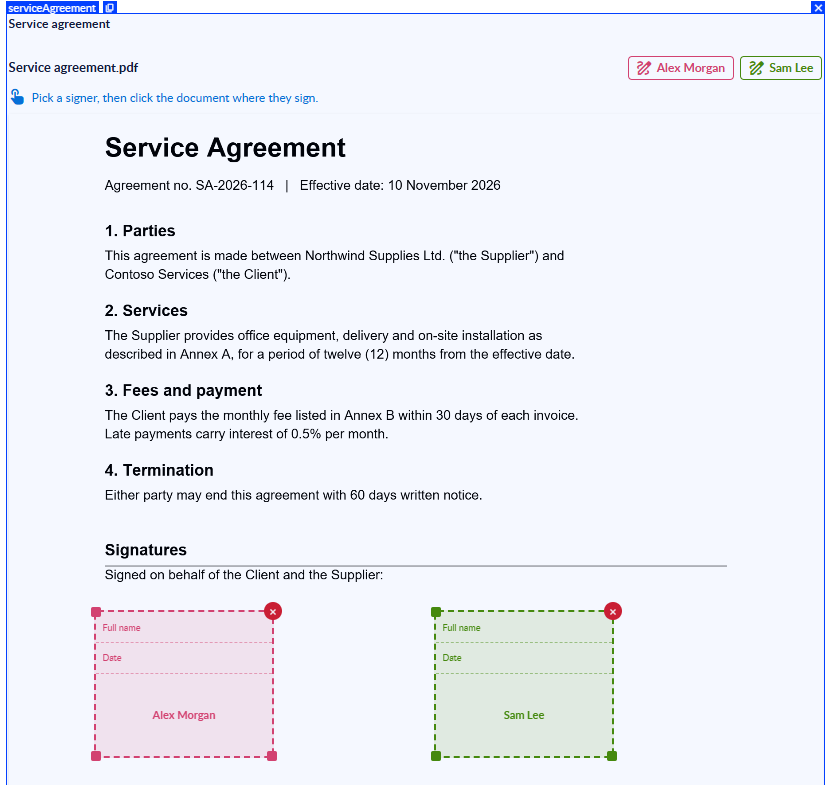
- Select the element on the canvas. The document is shown with one button per signer.
- Click the signer's button (or the pen icon next to the signer under Signers). Their signature block now follows the pointer.
- Click the document where the signer signs.
You can also move the block with the keyboard: Tab to the page, use the arrow keys to move it (hold Shift for bigger steps), and press Enter to place it. Esc cancels.
After a block is placed, drag it to move it, or drag one of its corners to resize it. Every signer has their own colour, so you can tell the blocks apart.
Signature blocks
A signature block is the area a signer signs in. By default, it has two fields above the signature:
- Full name: the signer's name.
- Date: the date of signing.
Under Signature block fields configuration, you can:
- rename a field (the name is only a label in the setup),
- remove a field (when none are left, the setting reads "No fields above the signature"),
- add a Text field, and type its text in Text to print (up to 256 characters),
- drag the fields to change their order.
A block can have up to 10 fields. PROCESIO fills in the Full name and Date fields itself when the signer signs. See The signed PDF.
Let the person filling the form change the setup
When you attach a document, the person filling the form sees it with one button:
| What you set | Button | What it does |
|---|---|---|
| Preparer can set up signing on | Set up signing | Opens the setup, where they can add or remove signers, place signatures and save. |
| Preparer can set up signing off | Prepare for signing | Prepares the document exactly as you designed it. |
| The person filling the form is the only signer, or signs first and nothing can be changed | Sign | They sign right away. |
Preparer can set up signing applies only to a document you attached. When the person filling the form drops their own PDF, they always set it up themselves.
Fill a form with a Document Signing element
When the form has no document
- Drop a PDF on "Drag and drop the PDF to sign here or", or click Browse.
- Click Set up signing. The Signing setup panel opens next to the document.
- Under Add signer, pick the workspace members who sign.
- Click Place signature on a signer, then click the document where they sign. Repeat for each signer.
- To make signers sign at the same time, drag them into the same step. Steps are signed one after the other.
- Click Save signing setup.
- If you are one of the signers, sign now (see Sign).
- Submit the form. The document is sent to the signers.
Until the setup is saved, the panel shows "Unsaved changes — save before submitting the form." and the form cannot be submitted. After saving, it shows "Sent to the signers when the form is submitted."
Before you submit, Remove document takes the PDF off the form, so you can drop another one.
When you sign it yourself
When the person filling the form is a signer, the element shows Sign. They click it, sign in the Sign document window (see Sign), and submit the form. Their signature is applied when the form is submitted.
On a public form
Anyone with the link fills a public form, so there are no workspace members to send the document to. The person filling the form signs the document themselves:
- The element shows First name, Last name and E-mail fields. They are optional. The name fills the name fields of the signature.
- There is no Decline on a public form.
What the signer sees
A signer finds the document in Forms & Tasks > Assigned to me, in the Open view, when it is their turn. The STAGE column shows pending signature, and the STEP NAME is the name of the document. See Assigned to me.
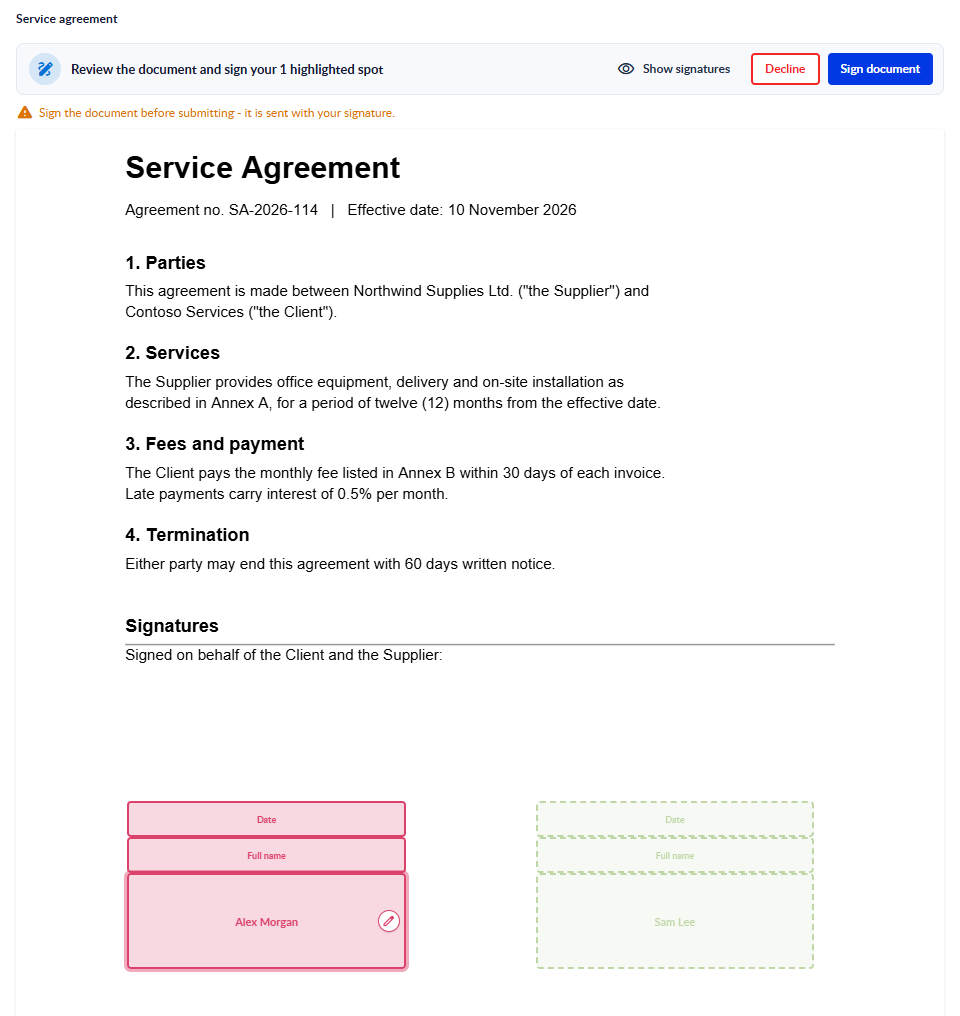
Click Sign on the row. The form opens with the document, and a bar above it says what to do:
| Message | Meaning |
|---|---|
| Review the document and sign your N highlighted spot(s) | It is your turn. Your signature spots are highlighted on the document. |
| Your signature is ready | You signed. It is applied when you submit the form. |
| Waiting for your turn | Earlier signers have not signed yet. The bar also shows how many signers are done, for example 1 of 3 signers done. |
| You have signed | Your signature is on the document. |
| This document is declined | A signer declined. The bar shows who declined and their reason. |
Show signatures and Hide signatures show or hide the signature blocks on the document.
Sign
- Click Sign document. The Sign document window opens.
- Choose how to sign:
- Draw: draw your signature with your mouse, trackpad or finger. Clear starts again.
- Upload image: drop an image of your signature (for example a PNG or JPG), or click Browse.
- Type: type your name in Your full name. A Preview shows it in handwriting style.
- Click Sign.
- Submit the form.
Your signature is applied when you submit the form, not when you close the window. Until then, Change signature lets you sign again.
Decline
When Signers can decline is on, the bar also has Decline:
- Click Decline. The Decline signing window opens.
- Optionally, type a reason in Reason (optional).
- Click Decline (or Keep signing to go back).
- Submit the form.
The bar shows "You are declining to sign - it is sent when you submit the form." Until you submit, Undo decline cancels it. When one signer declines, the document is declined for everyone, and nobody else can sign it.
Document statuses
Once the form is submitted, the element shows the document's status:
| Status | Meaning |
|---|---|
| sent | The document went out to the signers. Nobody has signed yet. |
| in progress | At least one signer signed, and others still have to. |
| completed | Every signer signed. The signed PDF is ready. |
| declined | A signer declined. The document cannot be signed any more. |
| expired | The document was not completed within 14 days of being sent. |
| voided | The form submission was deleted, so its document was cancelled. |
Each signer also has their own badge, coloured by where they are: waiting, signed or declined.
The signed PDF
When the last signer signs, PROCESIO creates the signed PDF: the original document with every signature drawn into its signature block. In each block:
- Full name prints the signer's name as PROCESIO knows it (on a public form, the name they typed).
- Date prints the day the signer signed, in the format
03 Nov 2026, in the signer's own time zone (the one set on the device they signed from). - A Text field prints the text you typed for it.
To download it, open the form's Submissions, click Show details on the submission, and click the download icon next to the Document Signing field. A completed document downloads as the signed PDF. Before that, you get the document as it currently is.
The signed PDF is a new PDF with the signatures drawn on it. It does not carry a certificate-based digital signature that a PDF reader can validate.
Limits
- One PDF per Document Signing element, up to 10 MB.
- Up to 50 signers, 1,000 signature fields in total, and 10 fields per signature block.
- Signers must be members of the workspace the form belongs to. You cannot add someone by e-mail address only.
- In a personal workspace, only you can sign. Colleagues cannot be added as signers.
- On a public form, only the person filling the form signs, and they cannot decline.
- A document that was sent cannot be removed from its submission.
For support, please join our Discord community for further assistance and support.
Signature Pad
The Signature Pad element gives people a canvas to draw their handwritten signature with a mouse or a finger, and saves it as an image with the form.
Approval
The Approval element lets a reviewer approve or reject a form, with an optional or required comment, and runs events before and after the decision.