

Apply Formula
Writes an Excel formula into every cell of a range in a workbook.
Apply Formula writes an Excel formula into each cell of a range, for example a total in column D for every order line. The workbook is changed in place, so the formula is there when someone opens the file.
Add the action
In the Process Designer toolbox, open Excel and pick Apply Formula (or type Apply Formula in the search box).
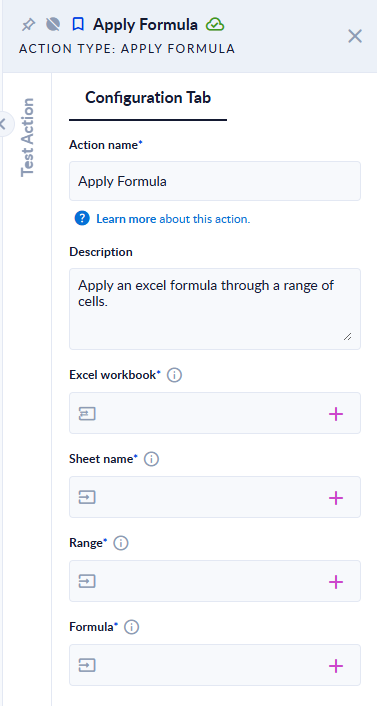
Inputs and outputs
| Field | Direction | Type | Required | What to put / what you get |
|---|---|---|---|---|
| Excel workbook | Input and output | File | Yes | The workbook to change. Pick a File variable: after the step it holds the changed workbook. |
| Sheet name | Input | Text | Yes | The sheet to write to. |
| Range | Input | Text | Yes | The cells that get the formula, as D2:D4 (upper-case letters, start and end cell). |
| Formula | Input | Text | Yes | The formula, starting with =. Put each cell reference that should move from cell to cell in curly braces, for example =ROUND({B2}*{C2},2). |
How to write the formula
- The formula must start with
=. - Write it as it should be in the first cell of the range.
- A reference in curly braces, such as
{B2}, is meant to move along with the cell. A reference without braces, or with$({$B$2},{B$2}), stays as written. - Text in double quotes is left as it is, even when it contains braces.
Measured behaviour in the current version: the references in braces do not move the way Excel moves them.
- In a range of one column (
D2:D4), every row gets the same formula:={B2}*{C2}putB2*C2in D2, D3 and D4. - In a range of one row (
B1:D1), the reference moves down one row per column:=SUM({B2})putSUM(B2)in B1,SUM(B3)in C1 andSUM(B4)in D1.
Until this is fixed, apply the formula to one row at a time (Range D2:D2 with ={B2}*{C2}, then D3:D3 with ={B3}*{C3}, for example in a For Each), and check the result before you rely on it.
Example
Sheet Orders with Qty in column B and Price in column C, rows 2–4:
| Range | Formula | Result |
|---|---|---|
D2:D2 | =ROUND({B2}*{C2},2) | D2 holds ROUND(B2*C2,2) |
D3:D3 | ="Total: {x}"&{B3}&{$C$2} | D3 holds "Total: {x}"&B3&$C$2 |
D2:D2 | ={B2*{C2} | The step fails: "Invalid formula: You might be missing '}' on a reference or might have inserted too many '{'." |
D2:D4 | B2*C2 | The step fails: "Invalid formula: Formula must start with '=' ." |
Good to know
- The action writes the formula only; it does not calculate it. The cell keeps its previous value until the workbook is recalculated by a spreadsheet application, so Read Range on the changed file returns the old value (or an empty one).
- Rows that do not exist yet in the sheet (completely empty rows) are skipped.
- Something in braces that is not a cell, row or column reference fails with "Invalid formula: Bad reference => …".
- When the step fails, the variable keeps the original, unchanged workbook. Only
.xlsxand.xlsmfiles are accepted.