

Read Range from CSV
Reads a block of cells from a .csv file, as if it were an Excel sheet.
Read Range from CSV reads a block of rows and columns from a comma-separated .csv file and gives you the values as JSON, in the same shape as Read Range does for Excel. Use it when the same data arrives sometimes as .xlsx and sometimes as .csv.
Add the action
In the Process Designer toolbox, open Excel and pick Read Range from CSV (or type Read Range from CSV in the search box).
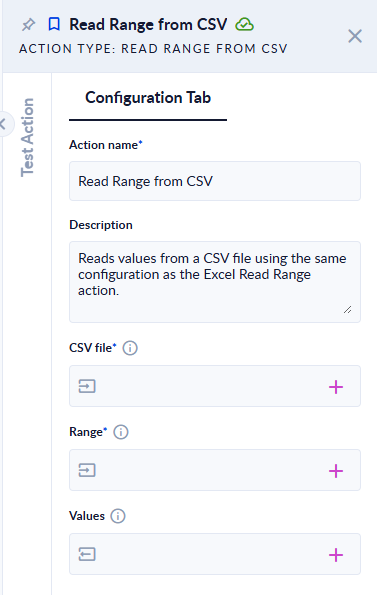
Inputs and outputs
| Field | Direction | Type | Required | What to put / what you get |
|---|---|---|---|---|
| CSV file | Input | File | Yes | A .csv file with commas between the columns. |
| Range | Input | Text | Yes | The cells to read, Excel style: column A is the first column, row 1 the first line. For example A1:C20. |
| Values | Output | Object (JSON) | No | The values. |
Example
people.csv:
id,name
1,Ana
2,Bob| Range | Values |
|---|---|
A1:B3 | [{"A":"id","B":"name"},{"A":1,"B":"Ana"},{"A":2,"B":"Bob"}] |
B2:B3 (one column) | ["Ana","Bob"] |
Good to know
- The result has the same shape as Read Range: a list of row objects for several rows and columns, one object for a single row, a list of values for a single column.
- Only the comma
,is read as a delimiter. A file that uses;or TAB comes back as a single column. - Values in double quotes may contain commas, quotes (written as
"") and line breaks. - Whole numbers come back as integers, decimals as numbers (with a dot, for example
1.5),TRUE/FALSE(any case) as true/false, the rest as text. - If a row has fewer columns than the range, the row object only has the columns that exist.
- The file name must end in
.csv, otherwise the step fails with "Input error: File extension should be '.csv'.". - The range must use upper-case letters and include both ends (
A1:A1for one cell).